 Payment Extension
A payment terminal in your browser's side panel.
Your shop software, your EMR, your ERP: if it runs in a browser, the Merchant360 Chrome Extension puts your processing beside it. The panel opens next to the page you're working in: key the card with any surcharge itemized up front, push the charge to your card reader, take ACH, redeem gift cards, or charge a saved card on file. No developer, no API project, no switching tabs.
 Install the extension
Free on the Chrome Web Store – one-click install in Chrome and Edge.
How it works
Highlight the invoice total in any web app, right-click, and choose Charge with Merchant360 – the side panel opens with the amount prefilled. Or click the toolbar icon and key it. In supported apps like QuickBooks Online, the balance is detected on its own.
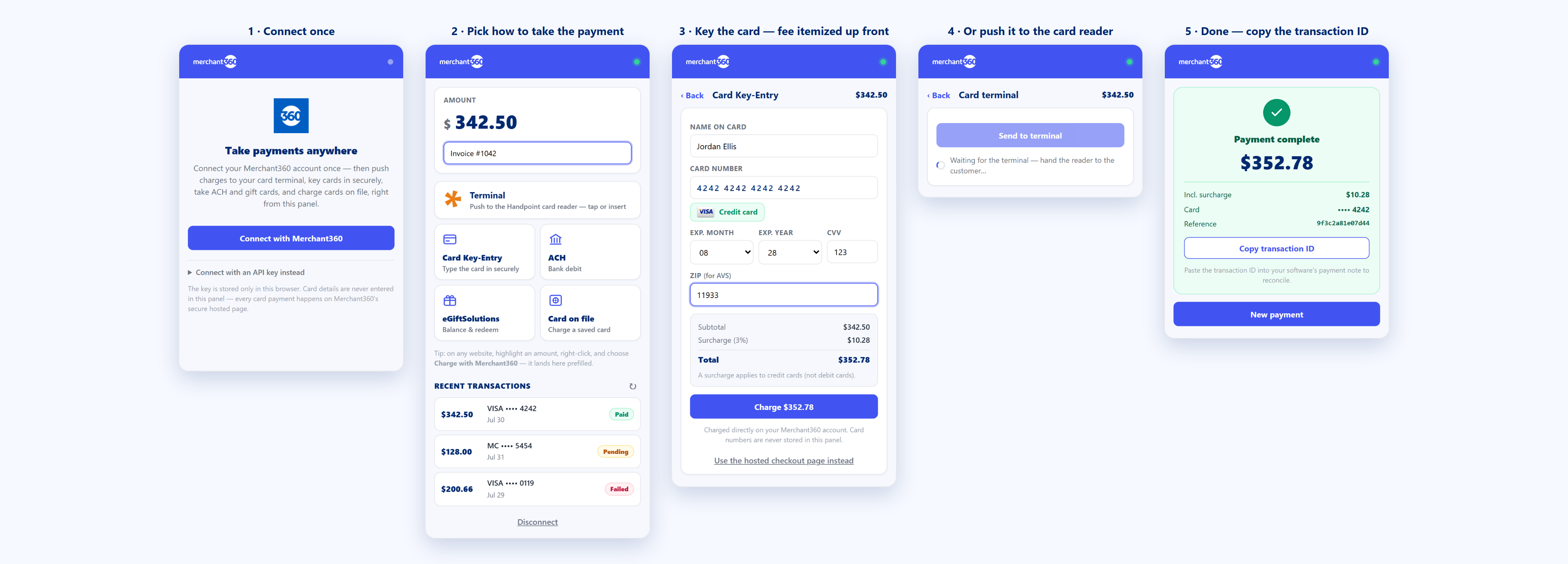
Key the card in the panel – the brand and credit/debit read appear as you type, and any surcharge is itemized before you charge. Or push it to your card reader, debit a bank account by ACH, redeem a gift card, or charge a card on file.
Copy the transaction ID into your software's payment note. Recent panel charges list right below the tiles – tap one for details, or void/refund it without leaving the panel.
The whole flow, in five beats
Connect once, pick how to take the payment, and reconcile with one copied ID. This is the actual panel.
Built for software with closed payments
Plenty of vertical software locks payments to its own processor, at its own rates. The Payment Extension is the bridge: your team keeps working in the software they know, and the card volume runs through your Merchant360 account, at your rates, with your surcharge or dual-pricing program applied automatically.
Card data never touches your software. Keyed cards go from the panel straight to Merchant360 – never stored – with the surcharge itemized before the charge. Prefer the hosted page? It's one click away.
No integration project. If the software runs in Chrome or Edge, it works today. No APIs, no waiting on the vendor.
One account for everything. Extension payments settle, report, and reconcile alongside your invoices, terminal, and online sales.
Setup in 3 steps
- 1
Install the extension. Add it from the Chrome Web Store – one click in Chrome or Edge. Then click the puzzle-piece icon in your toolbar and pin Merchant360 so it's always a click away.
- 2
Connect your account. Click the extension icon, then Connect with Merchant360: sign in, approve, and the extension configures itself. No keys to copy. ( Prefer manual control? Pasting an API key created for the extension still works, and Test mode lets you try it with no real charges.)
- 3
Charge something. Highlight an amount anywhere, right-click, Charge with Merchant360 – the side panel opens ready to go. Or click the toolbar icon and key an amount directly.
Works with the software you run
Purpose-built detection where it matters, generic mode everywhere else. If it shows an amount in a browser, you can charge it.






























Don't see your software? Generic mode works with virtually any web app, and we add purpose-built support based on merchant demand.
Not on Merchant360 yet?
The extension rides on a Merchant360 merchant account: full processing, invoicing, and reporting from Electronic Payments.