
Bank payments (eCheck / ACH)
Get paid straight from a customer's bank account, with full visibility.
- What are bank payments?
- Request bank payments (ACH)
- Get the customer's authorization first
- Saved bank accounts
- How bank accounts are verified
- See every ACH payment: the ACH Transactions page
- Timing: same-day vs next-day
- When a bank payment is returned
- Balance check before a bank debit
- Where customers can pay by bank
What are bank payments?
Bank payments (also called ACH or eCheck) pull money directly from a customer's checking or savings account instead of a card, or send money from your account to a customer or vendor. They are a good fit for larger invoices, recurring bills, and business-to-business payments where card fees add up.
Bank payments are an add-on to your account. They are not on by default: you request them from Accept Payments → Settings, the request is reviewed, the ACH Payment Terms are accepted, and then the Bank switch on the Payment methods card turns them on everywhere you get paid.
Once on, customers see Pay by bank next to card on invoices, payment links, hosted checkout, and the pay widget; you can take a bank payment on the virtual terminal's Check (ACH) side; recurring plans can debit a bank on schedule; and every bank payment and deposit is tracked on Money → ACH Transactions.
If you do not see any of these, bank payments are not enabled yet. Open Settings and look at the Bank (ACH / eCheck) switch: its note tells you whether to request bank payments, accept the terms, or simply switch it on.
| On this screen | What it does |
|---|---|
| Bank (ACH / eCheck) | The switch on the Payment methods card that puts Pay by bank on every pay page. Greyed out until approved; Locked until the terms are accepted. |
| Request bank payments (ACH) | The button that opens the request page while bank payments are not enabled. |
| Check (ACH) | The virtual terminal rail for taking or sending a bank payment by hand. |
| ACH Transactions | Money → ACH Transactions: every bank payment, its status, and your deposits. |
| ACH Authorizations | Accept Payments → ACH Authorizations: stored authorizations and saved bank accounts. |
Request bank payments (ACH)
Bank payments are turned on after a short review. To request them, go to Accept Payments → Settings and click Request bank payments (ACH) on the Payment methods card. Only the account owner can submit the request; a team member sees a note asking the owner to sign in.
The request page shows your card processing basis: your average ticket, monthly volume, largest single sale, and how many months of history it is based on. It asks whether bank payments will be in line with those numbers. If not, you enter what you expect: the average payment, the monthly total, and the largest single payment. If there is not enough card history yet, you enter the expected amounts directly.
You choose what you will use bank payments for (collecting from customers, paying customers or vendors, or both), describe how you will use them, add anything else we should know, and accept the ACH Payment Terms by typing your full name and title and ticking the attestation. Then submit.
Review takes 1 to 2 business days. When the request is approved, your bank payment limits are set from what you told us and your processing history, the option is enabled on your account, and you get an email with the limits. Come back to Settings and switch on Bank (ACH / eCheck). If a request is declined, the email tells you why and you can submit a new request with updated information.
If you need to change something after submitting, click Withdraw request on the pending panel and submit again. If the terms were already accepted on the Settings card, the request page shows that acceptance and does not ask twice.
- 1Open Accept Payments → Settings and click Request bank payments (ACH) on the Payment methods card.
- 2Read Your card processing. Answer whether these volumes are in line with what you want to run through bank payments: Yes, about the same, or No, I expect different amounts. If No, enter the Expected average payment, Expected monthly volume, and Expected largest single payment.
- 3Under What do you want to do?, tick Collect from customers (debits), Pay customers or vendors (credits), or both.
- 4Describe what you will use bank payments for, and add anything else we should know.
- 5Under ACH Payment Terms, read the terms, type your Full name and Title, and tick I am authorized to bind the business and I accept the ACH Payment Terms.
- 6Click Submit request. The page shows Your request is under review with the date and what you submitted.
- 7When the approval email arrives, go to Settings and switch on Bank (ACH / eCheck).
| On this screen | What it does |
|---|---|
| Your card processing | Average ticket, Monthly volume, Largest single sale, and History (months). Used to set bank payment limits that match how you already run. |
| Are these volumes in line with what you want to run through bank payments? | Yes, about the same keeps the card basis. No, I expect different amounts reveals the expected fields. |
| Expected average payment / Expected monthly volume / Expected largest single payment | What you expect to run by bank. Your limits are set from these and your history. |
| What do you want to do? | Collect from customers (debits) and/or Pay customers or vendors (credits). At least one is required. |
| What will you use bank payments for? | A short description, for example monthly invoices to business customers, deposits on large orders, vendor payments. |
| Anything else we should know (optional) | Free text for the reviewer. |
| ACH Payment Terms: Full name, Title, I am authorized to bind the business... | The acceptance recorded with your request. The person accepting must be authorized to bind the business. |
| Submit request | Sends the request for review. You are emailed when a decision is made. |
| Your request is under review | The pending panel with the submission date and what you entered. |
| Withdraw request | Cancels a pending request so you can submit a new one. Owner only. |
| Your last request was not approved | Shown with the reviewer's note when a prior request was declined. You can submit a new request. |
| Back to billing settings | Returns to the Settings page. |
You can see the status of a pending request on the same page and withdraw it if your plans change.
Saved bank accounts
The ACH Authorizations page also keeps your customers' bank accounts on file, so you can charge one again without re-entering the numbers. Use it for customers who pay every invoice by bank, for recurring bank debits, and for vendors you pay out regularly.
Add a bank with the holder name, routing number, account number, account type, and holder type, plus an optional email for receipts. The account is verified before the first payment runs against it; only the last four digits are ever shown back to you, and the full number is encrypted.
You are done when the account appears under Saved bank accounts with its holder, routing, and last four. From then on it is offered in the virtual terminal's Find a customer's saved bank search, on recurring plans, and on the customer's profile under Customers.
Receipts: a bank payment settles a couple of business days out, so its receipt is emailed when the payment settles, not the moment it is submitted. A standalone charge (not tied to an invoice) sends that receipt to the email stored on the bank account. Invoice and payment-link payments receipt the customer on that document.
If Add a bank account is unavailable, bank payments are not enabled on your account yet. If the bank reports the numbers are wrong during verification, the account is marked not verified and you and the customer are told so the numbers can be corrected; remove it and add it again.
- 1On the ACH Authorizations page click Add a bank account.
- 2Enter the Account holder name, Routing number, Account number, Account type (Checking or Savings), and Holder type (Personal or Business). Add an Email for receipts if standalone charges should receipt the customer.
- 3Click Save bank account. The account is verified before its first payment.
- 4Charge it from the virtual terminal: on the Check (ACH) side use Find a customer's saved bank, pick it by name or last four, enter the amount, and submit.
- 5Set a default per customer with Default, or Remove a bank you no longer use. Recurring plans on a removed bank will need a new bank.
| On this screen | What it does |
|---|---|
| Add a bank account | Opens the form to store a customer's bank for bank payments. |
| Account holder name | The name on the account at the bank. |
| Routing number | The bank's nine-digit routing number. |
| Account number | The account number. Only the last four are shown afterward. |
| Account type | Checking or Savings. |
| Holder type | Personal (PPD) or Business (CCD). Business and personal accounts are handled differently by the bank network. |
| Email for receipts (optional) | Where the settlement receipt goes for standalone charges on this account. |
| Save bank account | Stores the account and starts verification. |
| Default | The badge and button marking the account recurring plans use for that customer. |
| Remove | Deletes the saved account. Confirms first; recurring plans on it need a new bank. |
| Find a customer's saved bank (Virtual Terminal) | Search on the Check (ACH) side that charges the account on file with no re-keying. |
Adding and charging saved banks needs bank payments enabled on your account. If you do not see it, request bank payments from Settings.
How bank accounts are verified
Every bank account is verified before the first payment runs against it. When a customer connects their bank on your pay page, the account is verified instantly. When account numbers are typed in (on the virtual terminal, on a saved bank, or by a customer who chose not to connect), a short verification runs first and takes 1 to 2 business days.
Until the verification completes, a payment on that account waits as Pending on Money → ACH Transactions and then runs on its own; nothing is charged twice and there is nothing for you to do. Once the account is verified, later payments on it run without the wait.
If the bank reports that the account numbers are wrong, the account is marked as not verified, the waiting payment is cancelled, and you and the customer are emailed so the numbers can be corrected. Remove the saved bank, add it again with the right numbers, and re-run the payment.
Verification is a check, not a payment. It moves no money and does not count against your payment limits.
| On this screen | What it does |
|---|---|
| Pending | The status of a payment waiting for its account to verify or for its send date. |
| Processing | The payment has been sent to the bank network. |
| Settled | The funds arrived. The deposit to you follows the hold in the Deposits table. |
| Cancelled | The payment was stopped before it left, including when verification found wrong account numbers. |
| Not verified | The mark on a saved bank whose numbers the bank rejected. Correct the numbers and add it again. |
See every ACH payment: the ACH Transactions page
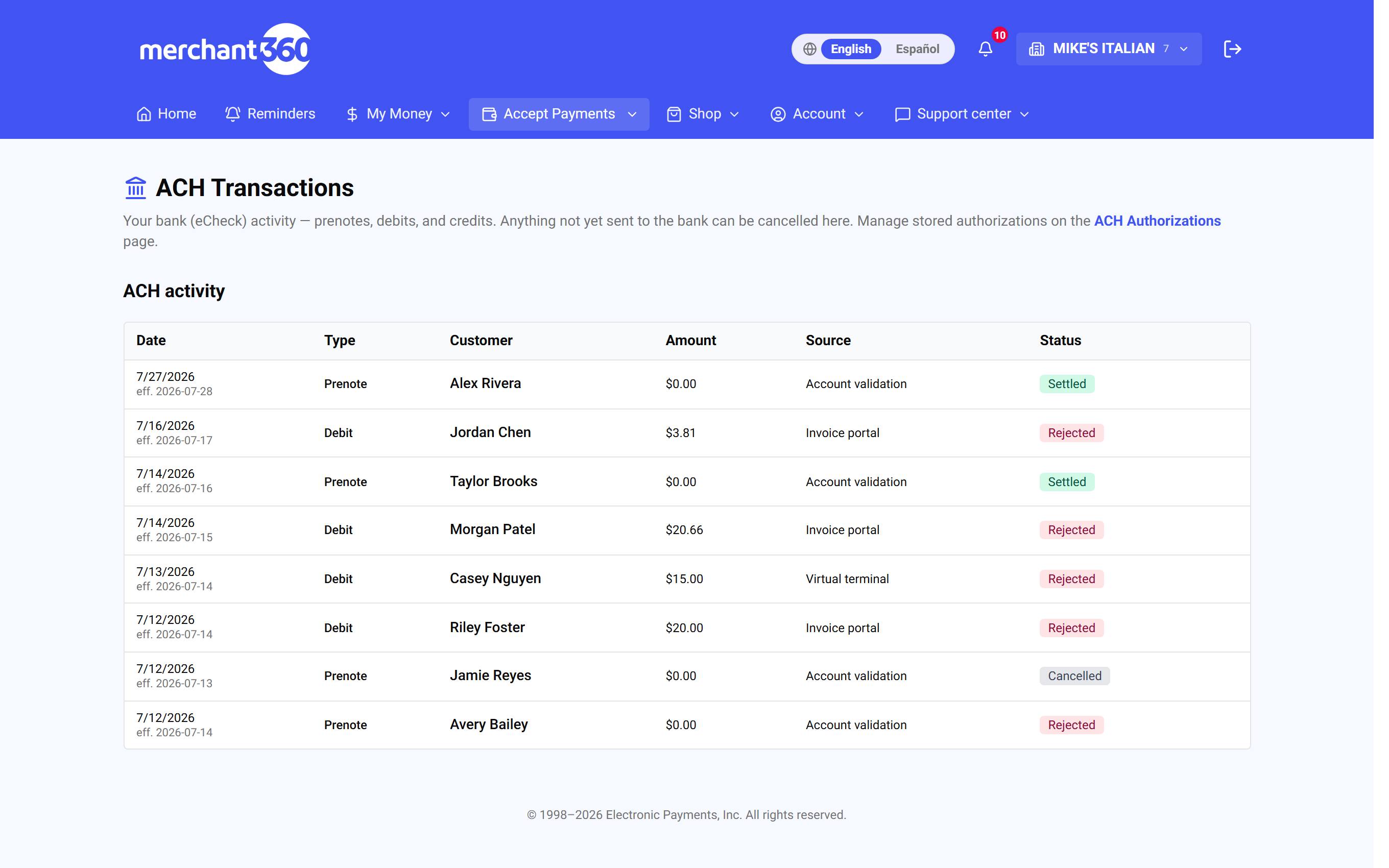
Money → ACH Transactions is your feed of everything on the bank rail. It has three parts: emailed authorization requests the customer has not answered yet, every debit and credit with its live status, and the Bank deposits table that tells you when each customer bank payment reaches your own bank account.
A payment row shows the date, the customer, the type (Debit or Credit), the amount, where it came from (the virtual terminal, an invoice, a payment link, checkout, or a recurring plan), and its status: Pending, Processing, Settled, Returned, Rejected, or Cancelled, with the effective date. Anything that has not yet left for the bank shows a Cancel button, so you can stop a payment that is still queued.
The Bank deposits table lists each customer bank payment that settled: the payment amount, the Deposit amount after fees, the bank account it goes to (last four), the Expected deposit date, and where it stands: Holding until a date, Cleared, deposit on the way, Deposit sent, Deposited on a date, or Payment returned, no deposit. Customer bank payments are held for a short time after they settle and then deposited to your bank account; the line above the table totals what is on its way.
If a debit is returned by the bank, the row shows Returned with the reason code, so you know exactly why and can follow up (see When a bank payment is returned). Bank payments also appear on Money → Transactions with your card sales, and the Report view there has a Show custom fields option that adds each payment's custom field values as a second line, in the CSV and PDF too.
If a payment you expected is missing, check Awaiting customer authorization: the customer may not have approved the emailed request yet. If a deposit shows No bank account on file, your deposit account has not been set up; contact your rep.
- 1Awaiting customer authorization: requests you have sent that the customer has not accepted yet, with when they were sent and when they expire. Cancel one here before it turns into anything.
- 2ACH activity: every debit and credit with its status, effective date, source, customer, and amount. Cancel stops anything not yet sent to the bank.
- 3Bank deposits: each settled customer bank payment, the net deposit after fees, the account it goes to, the expected date, and whether it is still holding, on the way, sent, deposited, or returned.
| On this screen | What it does |
|---|---|
| Awaiting customer authorization | Emailed requests not yet approved: Customer, Amount, Status (Pending authorization & acceptance), Sent, Expires, Cancel. |
| ACH activity: Date, Customer, Type, Amount, Source, Status | One row per bank payment. Type is Debit or Credit. Source is where the payment was created. |
| Pending / Processing / Settled / Returned / Rejected / Cancelled | The payment status. eff. shows the effective date; Return shows the bank's reason code. |
| Cancel | Stops a Pending payment before it is sent to the bank. Confirms first. |
| Bank deposits: Customer, Amount, Deposit, Deposit to, Expected | Deposit is the net after fees (the fees are listed under it). Deposit to is your bank account's last four. Expected is the deposit date. |
| Holding until / Cleared, deposit on the way / Deposit sent / Deposited / Payment returned, no deposit | Where each deposit stands, from the hold after settlement to the money landing in your bank. |
| $X is on its way to your bank account | The total of deposits not yet landed. |
| ACH Authorizations link | Jumps to the stored authorizations and saved banks. |
| Accept the ACH Payment Terms by November 15, 2026 | The banner shown until the owner accepts the current terms in Settings. |
| Show custom fields (Transactions Report view) | On Money → Transactions: adds each payment's custom field values as a second line in the report, CSV, and PDF. |
This is the page to check when a customer asks where their bank payment stands, and when you want to know when the money lands in your bank. Card activity has its own home under Money → Transactions.
Timing: same-day vs next-day
Bank payments settle on the bank network's schedule, not instantly like a card authorization. Depending on how your account is set and when you submit, a debit is sent the same day or the next business day. Its effective date is the day it posts at the customer's bank, shown as eff. on the ACH Transactions row.
Getting paid takes one more step. After a customer bank payment settles, it is held for two banking days from its effective date, released in the afternoon, and lands in your bank account the next banking day. The Expected column in the Bank deposits table shows that date for each payment, and the status walks from Holding until to Cleared, deposit on the way, Deposit sent, and Deposited.
Credits you send (paying a customer or vendor) leave on the same schedule and arrive in their account on the effective date. Weekends and bank holidays are not banking days, so a payment submitted on a Friday afternoon moves on Monday.
Returns (for example, a closed account or insufficient funds) can come back a few business days after the debit, which is normal for bank payments. The ACH Transactions page shows the return the moment it posts, with the reason, and the deposit row changes to Payment returned, no deposit.
If a deposit's Expected date has passed and the status still says Deposit sent, allow one more banking day; if it still has not arrived, contact your rep with the row's details.
The customer hears from you twice. A bank payment taken in the Virtual Terminal or through the API sends a Payment submitted email at once, naming the amount, the account and the date it will be debited, and a receipt follows when the payment clears. Both itemize Subtotal and Sales tax when tax was charged on the sale.
| On this screen | What it does |
|---|---|
| eff. (effective date) | The day the payment posts at the bank, shown on each ACH activity row. |
| Expected | The date the net deposit should land in your bank account. |
| Holding until | The payment settled and is in the short hold before it is sent to you. |
| Cleared, deposit on the way / Deposit sent / Deposited | The deposit was released, has left, and has landed. |
When a bank payment is returned
Some returns are temporary. When a customer's bank sends a debit back for insufficient funds or uncollected funds, Merchant360 re-presents it for you: it tries again two business days after the return, and can do that up to two more times, which is the most the ACH network allows for one payment. There is nothing to run by hand.
This is a setting you control: Accept Payments → Settings → Payments → Payment options → Re-present a returned bank payment. It is on unless you turn it off. With it off, a returned payment is not tried again and you are emailed right away.
Only those two reasons are retried. A return the customer's bank marks as not authorized, a closed account, a stopped payment, an invalid account number or any other reason is final and is never sent again. A retry also needs the customer's original authorization on file.
When a retry is scheduled, the customer is emailed that the payment was returned and the date it will run again, so they can fund the account. You are not emailed at that point. If the retries are used up, the reason is final, or the setting is off, the attempts stop and both you and the customer are emailed: your email says why it could not be collected and links to your invoices, and the customer's has a Pay online button when the payment was for an invoice.
On the ACH Transactions page the returned entry shows Returned with its reason code, and each re-presentment is its own row with its own status. The deposit row reads Payment returned, no deposit. An invoice paid by that debit reopens with its balance due so the customer can pay again by card or bank.
Each returned item is billed the returned-item fee in your pricing, on your monthly statement. A re-presentment that comes back is another returned item, so leave the setting on when a second try is likely to clear and turn it off if you would rather contact the customer first.
| On this screen | What it does |
|---|---|
| Returned | The status of a debit the bank sent back, with the reason code next to it. |
| Reason code | The bank's code for the return. Insufficient funds and uncollected funds can be tried again; every other reason is final. |
| Re-present a returned bank payment (Settings) | Under Settings → Payments → Payment options. On by default. Off means a returned payment is never tried again and you are emailed at once. |
| Retry row | Each automatic re-presentment appears as its own ACH activity row with its own status. |
| Payment returned, no deposit | The deposit table status for a returned payment. Nothing is deposited for it. |
| Rejected | A payment refused before it was sent, for example for a wrong account number. No retry runs. |
Balance check before a bank debit
A bank payment that comes back for insufficient funds costs you a returned-item fee. When a customer connects their bank by signing in to it on the pay page, Merchant360 can see whether the account covers the payment, and holds back a debit it does not cover rather than sending it to be returned.
It is a setting: Accept Payments → Settings → Payments → Payment options → Check the balance before a bank debit, on by default. The balance is checked when the payment is made and again just before the day's bank file is sent. It applies to debits from accounts connected through the bank sign-in. An account whose routing and account numbers were typed cannot be checked, so those payments go out as usual.
If the check fails while the payment is being made, the payment is not accepted and the person on screen is told the account does not cover it: the customer on a pay page, or you on the virtual terminal. If it fails just before the file is sent, the payment is withdrawn. It shows as Cancelled on the ACH Transactions page, nothing is debited and nothing can come back as a return, and no returned-item fee applies.
When a payment is withdrawn, the customer is emailed that their bank payment was not sent, with a Pay now button when it was for an invoice, and you are emailed at your notification addresses with the customer, the amount and the invoice. The invoice stays open. A hosted checkout that was waiting on the payment goes back to open so the customer can pay again.
What to do next: ask the customer to pay again once the funds are there, or take a card. Turn the setting off only if you would rather every bank payment be sent and take the chance of a return.
| On this screen | What it does |
|---|---|
| Check the balance before a bank debit | The switch, under Settings → Payments → Payment options. On by default. It saves as soon as you flip it. |
| Cancelled (ACH Transactions) | The status of a bank payment that was withdrawn before it was sent. Nothing was debited. |
| Bank payment not sent (email) | Goes to the customer and to your notification addresses when a payment is withdrawn for this reason. |
Customers who connect their bank on the pay page are verified instantly and can be checked this way. Customers who type their numbers cannot, so encourage the bank sign-in on larger invoices.
Where customers can pay by bank
When bank payments are enabled and the Bank switch is on, customers can choose Pay by bank next to Card on your hosted invoice pay page, on payment links, on hosted checkout, and on the pay widget. Under dual pricing, bank payments get the cash price, which is what makes them attractive for larger invoices and business-to-business bills.
On the pay page the customer either connects their bank, which verifies the account instantly, or types the routing and account numbers, and accepts the debit authorization on the page. The authorization is stored on ACH Authorizations, the payment shows as Pending on ACH Transactions, and the invoice or link is marked paid when the debit is initiated.
Recurring billing runs on a saved card or a customer's bank account. A subscriber can enroll with a card or, where bank debits are enabled, sign a recurring bank authorization and be debited on schedule. Bank payments also cover one-time and invoice payments, and you can take one by hand on the virtual terminal.
Receipts follow the Receipts card in Settings: with Email customers a payment receipt on, a bank payment receipts the customer when the debit starts and again when it completes, and Email me when a payment comes in alerts you at both points.
If Pay by bank is missing on a pay page, check that Bank (ACH / eCheck) is on under Payment methods. If a customer cannot find their bank in the connect step, they can type the numbers instead; that account verifies in 1 to 2 business days before the payment runs.
A customer connects a bank once. The next invoice, payment link, or checkout from you that names the same customer opens on Bank on file with that account and a Pay by bank button; no reconnecting. A customer can also tick Save my bank with Vault when they pay, and that bank is then offered on any Merchant360 business's pay page after a one-time text code, the same way a saved card is. Save my bank follows the same Save my card setting under Payment methods.
| On this screen | What it does |
|---|---|
| Pay by bank | The tender choice next to Card on invoices, payment links, checkout, and the widget when the Bank switch is on. |
| Connect your bank / Enter account numbers | The two ways a customer supplies their account on the pay page. Connecting verifies instantly; typed numbers verify in 1 to 2 business days. |
| Bank on file | A bank the customer connected to you before, pre-selected on their next pay page. Connect a different bank account starts over. |
| Save my bank with Vault | The customer's choice to keep a connected bank in their Vault wallet for any Merchant360 business. Offered when Save my card is on. |
| Debit authorization | The consent the customer accepts on the pay page. Stored on ACH Authorizations with its PDF. |
| Cash price | Under dual pricing, the price a bank payment gets. |
| Recurring: bank (ACH) authorization | A recurring plan or subscription set to debit the customer's bank on schedule. |
| Receipts: Email customers a payment receipt / Email me when a payment comes in | Settings switches that send the customer's receipt and your alert at initiation and at settlement. |