
Batches, deposits & chargebacks
Follow every dollar from batch to bank.
Settled batches & deposits
Money → Batches (titled Settled Batches & Deposits) is your post-settlement history: every closed batch whose transactions have settled, matched to the ACH deposit that funded it. Use it to reconcile your bank statement, to answer "what was in that deposit?", and to find the trace number for a deposit your bank is asking about.
The report reads live from the processor and is keyed to the processing MID on your account. Before it can show anything, that MID has to be linked to the account, which your rep sets up when your processing is boarded.
Pick a year and a month. The counters at the top show batches, transactions, sales volume, and funded for that period, and the table lists each closed batch with its batch date, closed time, batch ID, terminal, item count, and sales. Long lists are paged with Previous and Next.
Open a batch and the detail shows the settled transactions (time, card, type, approval, amount) and a Matched ACH deposit panel with the deposited date, the account it went to, and the trace number. When no deposit can be matched yet, the panel says No matching deposit found; deposits usually match within a business day or two of the batch closing.
Above the history, Today shows authorization activity from the processor for the current day. Click Load today to fetch it and Refresh to update; the feed refreshes roughly every 2 hours, so a sale you just ran may take a while to appear.
If the page says No MID linked to this account yet, your processing MID has not been attached; ask your rep. If it says that MID isn't yours, the account is trying to view a MID it is not assigned to; contact support. If a batch shows no matching deposit after several business days, compare the batch total to your bank statement and contact support with the batch ID.
Payments → Batches is a different list: the batches Merchant360 itself closes each night (around 10:45 PM) for the payments you took in Merchant360, with the Batch Report tab for a date-range summary you can export or email. Batches here covers everything that settled on your MID, including terminal sales.
- 1Choose the Year and Month, then click a batch to drill in.
- 2The Matched ACH deposit panel shows the exact deposit that funded it: amount, deposited date, and the Trace number.
- 3The settled transactions list beneath shows what made up that deposit, card by card.
- 4To reconcile your bank statement, match each bank credit to a batch by its deposit date, amount, and trace number.
- 5Click Back to return to the list. Export batches downloads the batch table; Export transactions downloads every transaction in the month's batches; Export batch, inside a batch, downloads that batch's transactions. Each comes as CSV, Excel or PDF.
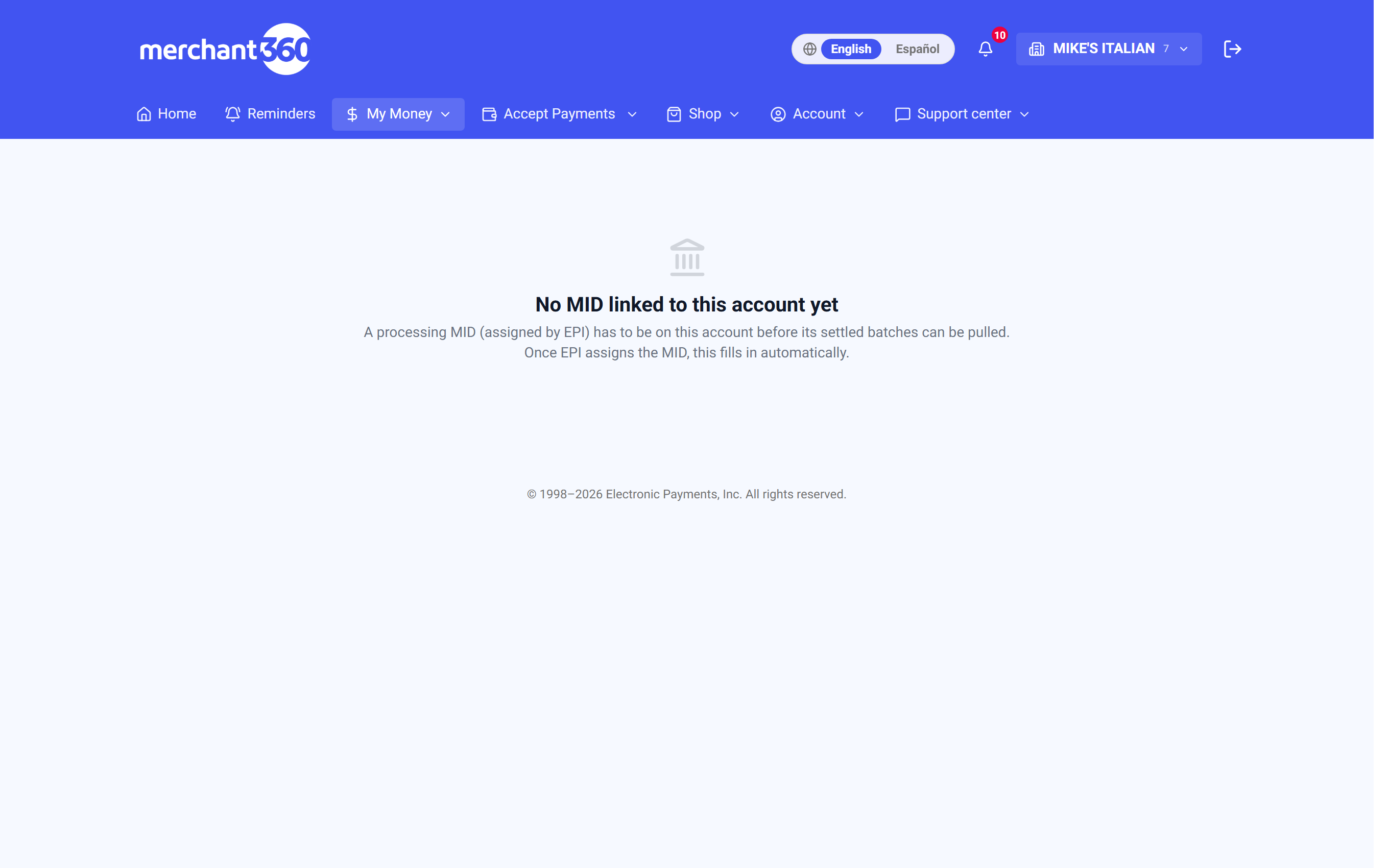
| On this screen | What it does |
|---|---|
| Year / Month | Selects the settlement period. The counters and the table update to that period. |
| Batches / Transactions / Sales volume / Funded | Counters for the selected period: how many batches closed, how many transactions they held, the total sales, and the total funded to your bank. |
| Batch table | One row per closed batch: Batch date, Closed, Batch ID, Terminal, Items, Sales. Click a row to open the batch. |
| Previous / Next | Pages through long lists. The label reads Page X of Y with the batch count. |
| Export batches | Downloads the batch table as CSV, Excel or PDF. |
| Export transactions | Downloads every settled transaction in the selected month's batches, one row per transaction with its batch date, batch ID and terminal. CSV, Excel or PDF. |
| Export batch | In the batch detail: downloads that batch's transactions. The file name carries your business name and the batch date. When your account is set up for it, transaction exports also include IC program and IC qualification; ask your rep. |
| Settled transactions | In the batch detail: each transaction with Time, Card, Type, Approval, and Amount. |
| Matched ACH deposit | The deposit that funded this batch: Deposited date, Acct (last digits of the bank account), and Trace number. Reads No matching deposit found until a deposit is matched. |
| Back | Returns from the batch detail to the list. |
| Today (Load today / Refresh) | Shows authorization activity from the processor for today. Load today fetches it; Refresh updates it. The feed refreshes roughly every 2 hours. |
| Payments → Batches | The batches Merchant360 closes nightly for Merchant360 payments: Started, Trigger (Auto nightly, Manual, Merchant360, Staff), Sales, Refunds, Txns, and status Settled, In progress, or Failed with a code. |
| Batch Report (From / To, Apply, Clear) | Date-range view of those batches with totals for Batches, Sales, Refunds, and Net deposit. Export CSV downloads it; Email opens a panel to send the report, with Additional recipients (comma-separated) and Send report. |
This report reads live from the processor and is keyed to your account's MID, which your rep sets up. If you don't see data yet, your MID may not be linked; check with your rep.
Chargebacks
Money → Chargebacks is where every dispute filed by a customer's bank lands, and where you upload the evidence our team uses to fight it for you. Come here when you get a chargeback or retrieval alert email, or to check the history of settled chargebacks on your account.
The page has two parts. The top is your dispute cases, split into Active and Closed, each with its case number, reason, amount, status, and due date. A banner at the top counts how many cases need your evidence right now. Below the cases, Processor chargebacks & reversals shows the raw settled records straight from the card networks, by year, with a net total that credits reversals back.
A retrieval request is different from a chargeback: the card issuer is asking for a copy of the sales receipt, no money has moved, and responding by the due date can stop it from becoming a chargeback. Retrievals are marked with a RETRIEVAL pill and should never be answered with a refund.
Done looks like this: no banner, every active case past Awaiting evidence, and each closed case marked Won, Lost, or Accepted. The chargeback and retrieval alert emails are managed under Account → Settings → Automated email reports.
If a case shows a status you do not expect, open it; the case page explains what was requested and when it is due. If a chargeback you know about is missing from the cases, check the processor records below, which list every settled chargeback even when no case was opened.
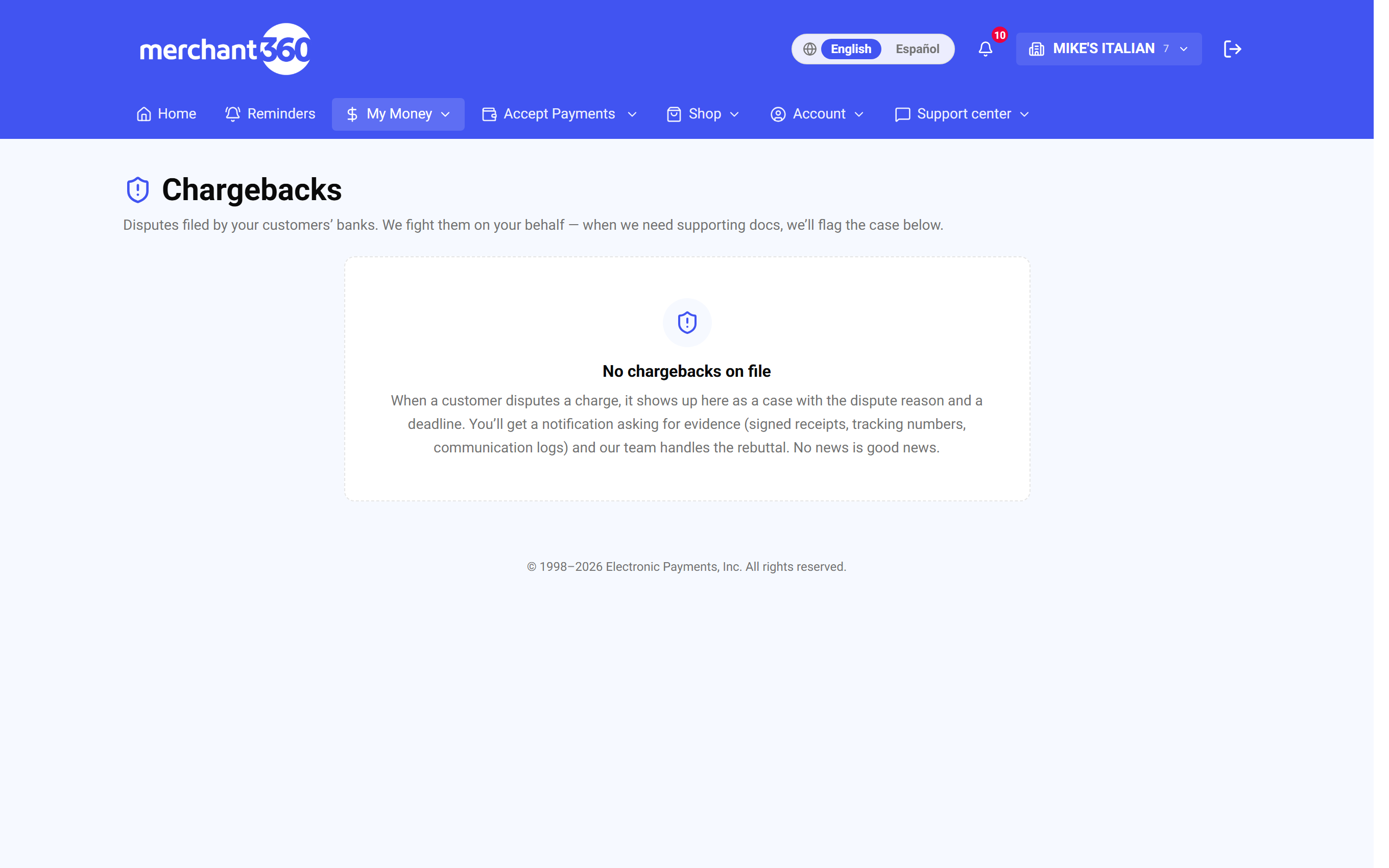
| On this screen | What it does |
|---|---|
| N chargebacks need your evidence | Banner shown while any case is waiting on you. It tells you to open the cases below and upload what our team requested. |
| Reason-code guide | Link to the library of reason codes: what each code means, how long you have, and which documents win it. |
| Evidence checklist (PDF) | Downloads the printable one-page checklist of evidence by dispute family. |
| Active (n) / Closed (n) | The two case lists. Active cases still need work or a decision; closed cases show their outcome. |
| Case / Reason / Amount / Status / Due | Columns of each list. Due is the date your response has to be in by. Open takes you to the case. |
| RETRIEVAL | Pill on a row that is a retrieval request rather than a chargeback: the issuer wants a copy of the receipt and no funds have moved. |
| Status | New, Investigating, Awaiting evidence, Evidence ready, Responded, Won, Lost, or Accepted. |
| Chargeback acceptance requires 2FA via my cell phone | Toggle. When on, accepting a chargeback first texts a code to the signed-in user's mobile, because accepting closes the case and gives up the amount and cannot be undone. |
| Processor chargebacks & reversals (Year) | Settled chargeback records from the processor for the chosen year: Posted, Type, Card, Case #, Reason, Original txn, Amount, and Net chargebacks (excl. reversals). |
Fighting a dispute, step by step
A chargeback is not a verdict. It is a claim with a deadline, and every case moves through the same pipeline: New, Investigating, Awaiting evidence, Evidence ready, Responded, then Won, Lost, or Accepted if you choose not to fight. The only status that needs you is Awaiting evidence, and the Response Due date on the case is your clock.
Open the case and read it top to bottom. The alert at the top says a chargeback has been received and that you must not refund the customer, because they already received a credit through the chargeback. Dispute Details lists the case number, reason, card ending, amount, transaction date, received date, response due date, and any issuer note. The reason-code panel under it shows the required evidence, the response strategy, the network rule, and the issuer window for the exact code on your case.
Upload Evidence takes one file at a time: pick the Document type, choose the file, and it lands under Documents on File as uploaded by you, alongside anything our team added. Each upload notifies the chargeback team.
The AI Response Drafter reads the case and your documents and drafts a rebuttal letter that follows the network rules for the reason code. It shows how complete the case looks and what else to upload for a stronger case. Edit the letter, Save edits, Preview submission packet to see the PDF that will go out, then Approve & send to EPI. Our team submits it, and the case moves to Responded.
If you decide not to fight, the Accept this chargeback panel closes the case: the amount stays with the cardholder and you cannot reply further. With the 2FA setting on, you enter the code texted to your phone before it goes through.
Some cases are handled directly by the processor rather than in this portal. Those show an amber notice with a fax number for your response, a link to the processor's dispute portal, and the same reason-code guidance; evidence upload and the accept option are not available for them. Use the chat box on any case to ask our chargeback team a question.
If the Generate button does nothing useful, upload the evidence first; the drafter works from your documents and says what is missing. If the due date has passed, the case is accepted in the cardholder's favor by default, so respond early.
- 1Open the case from the banner or the list. The reason code tells you what the cardholder's bank claims, such as product not received, fraud, or duplicate, and the reason-code panel shows the evidence that beats it.
- 2Upload your evidence: pick a Document type (signed authorization, delivery proof, itemized receipt, communication log, tracking number, refund receipt, authorization record, product description, transaction log, cancellation log, terms & conditions, or other), choose the file, and repeat for each file.
- 3Click Generate AI Response to assemble your documents and the transaction facts into a rebuttal letter. Read it, edit it, and Save edits.
- 4Click Preview submission packet to review the PDF, then Approve & send to EPI. The status moves to Responded.
- 5Watch the status. Responded means your package went to the bank; Won returns the money, Lost means the reversal stands.
| On this screen | What it does |
|---|---|
| Your merchant account has received a chargeback | Alert at the top of the case: do not refund the customer, respond by the due date, and either upload evidence or accept the case. |
| Action needed: upload supporting documents | Lists what the chargeback team needs for this case and the date the response is due. |
| Dispute Details | Case Number, Reason, Card ending, Amount, Transaction Date, Received, Response Due, and Issuer Note. |
| Evidence needed for this reason code | Required Evidence, Response Strategy, the network Rule, and the Issuer window in days, plus a link to what the code means. |
| Upload Evidence (Document type, File, Choose evidence) | Uploads one file at a time under the type you pick. Confirms with Uploaded – our team has been notified. |
| Documents on File | Every document on the case, marked uploaded by you or uploaded by EPI, each with a View link. |
| Generate AI Response / Generate a customized response | Drafts the rebuttal letter from the case and your documents. Shows the completeness and confidence, evidence cited, the network rule, and recommended actions to strengthen the response. |
| Save edits | Saves your changes to the response letter. |
| Re-draft from scratch | Throws away the current draft and generates a new one. |
| Preview submission packet | Builds the PDF packet that will be submitted. Download latest preview PDF opens the most recent one. |
| Approve & send to EPI | Marks the letter approved with the date and sends it to our team to submit. The case moves to Responded. |
| Chat with EPI chargeback team | Message box on the case. Type a question and click Send; replies appear in the same thread. |
| Accept the chargeback | Opens Are you sure? with the warning that the case closes, the amount stays with the cardholder, and it cannot be undone. Enter the code we texted, then Yes – accept and close the case, or Cancel – I want to fight it. |
| Case closed / Outcome | Shown once the case reaches Won, Lost, or Accepted. |
| Retrieval request | For a retrieval case: upload a copy of the sales receipt by the due date. Do not refund the customer because of the request. |
Prevention beats rebuttals: clear receipt descriptors, fast refunds when something goes wrong, delivery confirmation on shipped goods, and answering customer messages quickly (most cardholders call their bank only after a merchant goes quiet). Every one of those is cheaper than a $25+ chargeback fee and the fight.
Transactions
Transactions is your searchable card ledger: every payment you took in Merchant360, whether from the Virtual Terminal, a payment link, an invoice, a gift card sale, checkout, the pay widget, or a saved card, live as it happens. Use it to find a sale, void or refund it, send a receipt, or export a period for your accountant.
Start with the filters: Look up a sale by transaction ID, auth code, invoice, or name; From and To dates; Last 4; Type; Status; Min $ and Max $. Click Search to apply and Refresh to reload. The stat row shows Net total, Sales, Refunds, and Captured / Declined for what is on screen. The list shows the first 300 results, so narrow the date range for older transactions.
Each row carries its action buttons. Void reverses a charge that is still in an open batch, with no fee. Refund sends money back on a settled charge, in full or in part, and a pending refund can be voided before its batch closes. Receipt downloads the PDF; Resend or Email sends it to an address you type. Adjust corrects a sale total while the batch is open, and Add tip appears for restaurant accounts. Return handles a cash or gift-card sale, restocks the items, and marks it returned.
If you have custom payment fields, two more controls appear: Custom field filters the list to one value (or to payments with no value), and Group by adds a summary table above the list with payments, sales, refunds, and net per value, with its own Export summary CSV. The main Export CSV carries one column per custom field.
Switch to Report for one line per transaction with the customer's name beside it: date, type, card type, last four, amount, customer, description, invoice, approval code, status, and source. Export CSV and Download PDF cover the whole date range, not just the rows on screen, and Print gives you the same table on paper. Show custom fields adds a second line per transaction with the custom field values, on screen, in print, and in the PDF.
If a Woo sale shows a Refund in WooCommerce note instead of buttons, refund it from the WooCommerce order so the store stays in sync. If a void fails, the batch has already closed; use Refund instead. If a refund says the terminal must be present, the card was taken on a terminal and the cardholder may need to present it; refresh shortly for the final status.
| On this screen | What it does |
|---|---|
| Look up a sale | Search box for a transaction ID, auth code, invoice number, or customer name. |
| From / To / Last 4 / Type / Status / Min $ / Max $ | Filters for the list. Search applies them; Refresh reloads with the same filters. |
| Net total / Sales / Refunds / Captured / Declined | Totals for the transactions currently shown. |
| Export CSV | Downloads the filtered transactions, with one column per custom field. |
| Void | Reverses a charge that is still in an open, unsettled batch. No fee. |
| Refund | Refunds a settled charge in full or for a smaller amount. The row shows PARTIAL REFUND or REFUND PENDING until it settles. |
| Void refund | Cancels a pending refund before its batch closes; the amount becomes refundable again. |
| Receipt / Resend / Email | Receipt downloads the PDF receipt; Resend and Email send it to the address you enter. |
| Adjust | Changes the total of a sale while its batch is still open. |
| Add tip | Adds a tip to a captured sale while the batch is open. Available only for restaurant merchant categories. |
| Return | For a cash or gift-card sale: restocks the items and marks the sale returned. You hand back the value at the counter. |
| List / Report | Switches between the working list with action buttons and the one-line-per-transaction report with the customer name. |
| Download PDF / Print | In Report view, exports or prints the whole selected date range. |
| Show custom fields | In Report view, adds a second line per transaction with its custom field values. |
| Custom field / Value | Filters the list to payments whose custom field contains the value you type, or to Not set. |
| Group by | Adds a summary table (Value, Payments, Sales, Refunds, Net) per value of the chosen field, with Export summary CSV. |
The Reports hub
The reports we publish for you each have their own entry in the menu: Payments overview, Transactions, ACH transactions, and Reports under the Reports group, and Batches, Statements, Chargebacks, and Credit Reporting under Money. The older Money → Reports link hub now sends you to the home page, because every one of its destinations has its own menu entry.
Automated email reports live under Account → Settings. Turn each report on or off and choose who receives it: the monthly statement PDF, the daily batch report, chargeback and retrieval alerts, gift card activations and new gift card orders, payment received alerts for paid links and invoices, business funding offers, and the ACH debit alert. Your primary contact always receives every report you keep on; add teammates by name or type other email addresses, separated by commas. Changes save automatically.
The daily batch report is emailed the morning after. It lists each batch closed the day before (the US Eastern calendar day, so the nightly automatic close and any batch you closed yourself that day are on the same report) with its batch number, items, sales, refunds and net, and a total. Attach the PDF copy adds the same figures as a PDF. A day with no batches sends nothing, unless Email me even on $0 days is ticked; then you get a short message that no batches settled.
The ACH debit alert sends a heads-up email before your month-end processing fees are debited from your bank account, the same amount shown on your statement, so nothing on your bank statement is a surprise. Multi-location businesses get one email with a spreadsheet listing each location's amount.
Billing Tools → Reports covers your invoicing: Billed, Collected, Outstanding, and Past due (90+), AR aging buckets, collected by month, top customers, and the status mix, with Export invoice data (CSV) and an Accounting export that downloads invoices or an accrual GL journal for QuickBooks or Xero.
If a teammate is not getting a report, open Account → Settings, find the report, and tick their name under Also send to team members; new teammates receive nothing until you add them. If the page says email to your primary address is bouncing, fix the primary contact email first.
| On this screen | What it does |
|---|---|
| Automated email reports | The card on Account → Settings. Each report has an on/off switch and its own recipient list. |
| Monthly statement | Emails a PDF of your processing statement when it is published. Attach the PDF copy adds the file to the batch report email. |
| Daily batch report | A summary of the previous day's batches. Email me even on $0 days sends it even when nothing settled. |
| Chargeback & retrieval alerts | An email the moment a chargeback or retrieval request arrives, with its response deadline. |
| ACH debit alert | A heads-up email before month-end processing fees are debited from your bank account. |
| Gift card activations / New gift card orders | The previous day's activations as a digest, and one email per gift card order as it is placed. |
| Payment received alerts | An email the moment a payment link or customer invoice is paid. |
| Business funding offers | An email when your business is pre-qualified for funding. |
| Also send to team members / Add other email addresses | Pick teammates by name, or type extra addresses separated by commas. The primary contact is always included. |
| Billing Tools → Reports | Invoice KPIs, AR aging, top customers, status mix, Export invoice data (CSV), and the Accounting export (Invoices CSV, GL journal CSV, From and To dates). |