
Embedded Terminal
Put your full virtual terminal inside another software product - your team charges cards and checks without ever leaving the program they already work in.
What the embedded terminal is
The embedded terminal is your Merchant360 virtual terminal placed inside another website or software. A software vendor, or your own web developer, drops a short snippet into their page and your staff can key a card payment right there without opening Merchant360. The payment is processed on your account with the same rates, receipts, and reporting as any keyed sale.
Use it when your team lives in another system all day, such as a practice-management, booking, or membership application, and switching to Merchant360 for every payment slows them down. The vendor's page collects the amount and any reference; the card itself is always entered inside the Merchant360 frame and never touches the vendor's page.
It is set up with an embed key that you create under Billing Tools, Settings, Embedded terminal. The key is tied to the website domains you list, so it cannot be used from anywhere else.
Optional settings on the key control what the embedded page shows. Adding &header=1 to the embed address shows the Merchant360 header inside the frame. Device mode lets the embedded page send the charge to a card reader instead of keying it.
If the embedded terminal shows an error about the domain, the page hosting it is not on the key's allowed list. Create a key with the right domain. If it asks the user to sign in, the key was revoked or the snippet is missing the key.
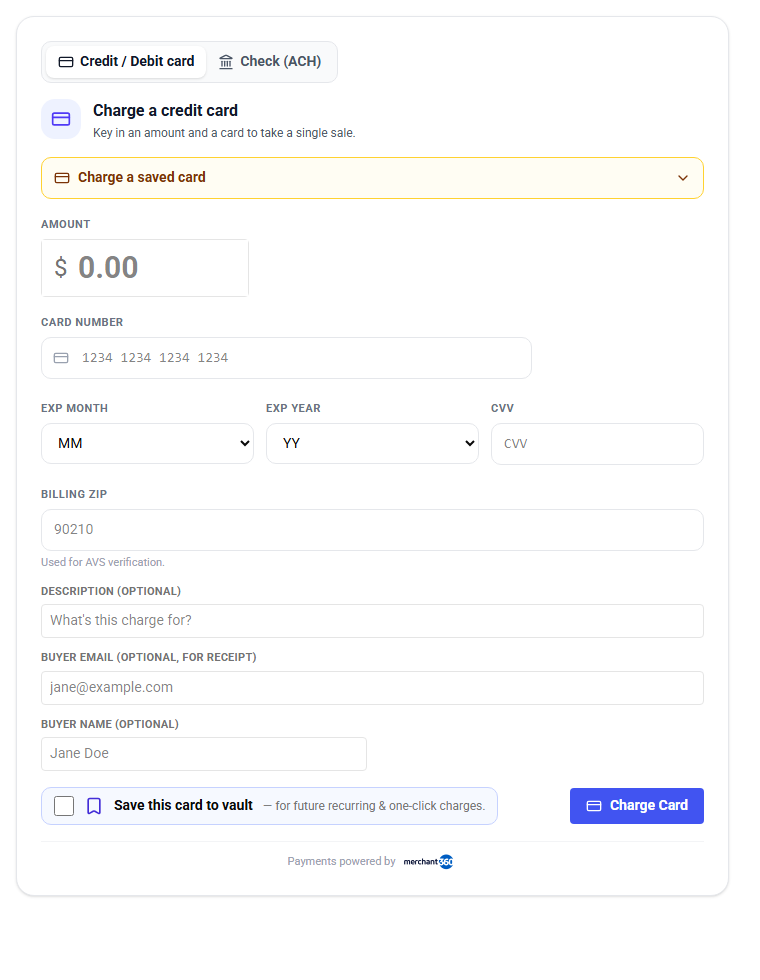
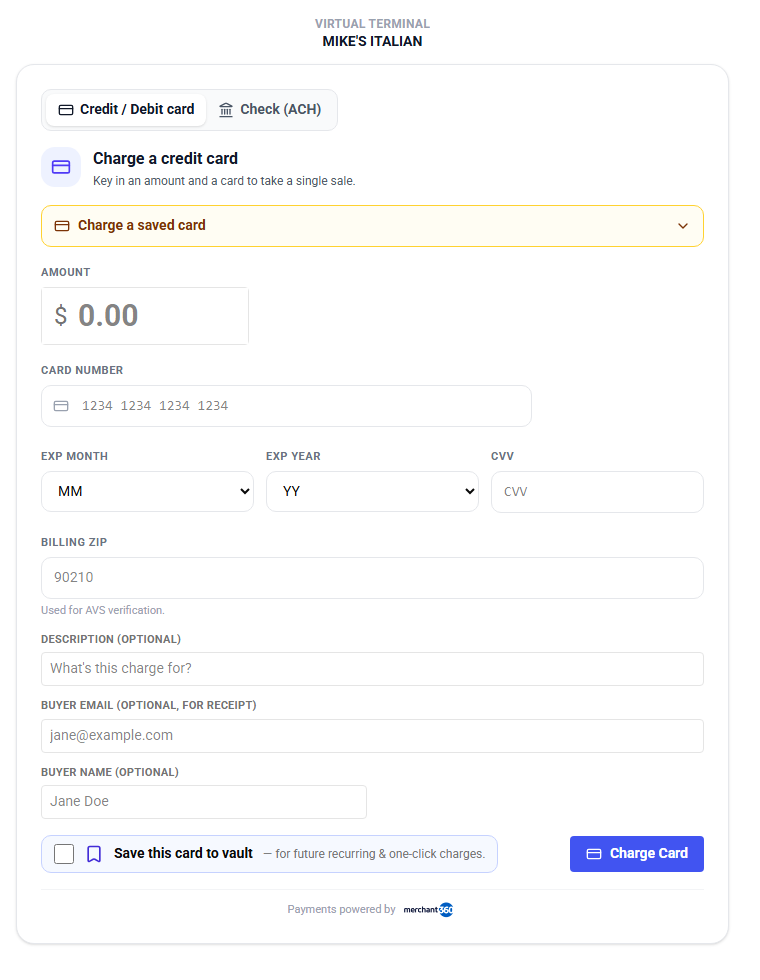
| On this screen | What it does |
|---|---|
| Embedded Virtual Terminal card (Billing Settings) | Where embed keys are created, listed, and revoked. |
| Embed snippet | The code the vendor pastes into their page. It loads the virtual terminal in a frame tied to your key. |
| &header=1 | Optional addition to the embed address that shows the Merchant360 header inside the frame. |
| Device mode | Optional mode where the embedded page sends the charge to a paired card reader instead of keying the card. |
Creating an embed key
An embed key is what ties the vendor's page to your account. Only the account owner can create one. Each key lists the website domains it may be used from, and the key value is shown once when it is created, so have the vendor ready to receive it.
You are done when the key appears in the list on the Embedded Virtual Terminal card and the vendor's page loads the terminal without a domain error.
Revoke a key when the vendor relationship ends or the key may have leaked. Revoking is immediate and the vendor's page stops loading the terminal. Create a new key to replace it.
If the snippet was lost, it cannot be shown again. Revoke the key and create a new one. If the vendor uses a staging site as well as a live site, list both domains on one key, or create one key per site.
- 1Open Billing Tools, then Settings, and find the Embedded Virtual Terminal card.
- 2Enter the allowed website domains, comma-separated, for example app.vendor.com, *.vendor.com. A star prefix covers every subdomain.
- 3Tick Test key if the vendor is still building; otherwise leave it clear for a live key.
- 4Click Generate embed key. The key and the snippet are shown once.
- 5Click Copy snippet and send it to the vendor. Paste this into the hosting software's page is the only step on their side.
- 6Revoke a key from the list whenever it is no longer needed.
| On this screen | What it does |
|---|---|
| Allowed website domains (comma-separated) | The domains the key may be used from. A star before the dot, such as *.example.com, allows every subdomain. |
| Test key | Creates a key that runs simulated payments. They show on the Test Mode Transactions page, not in live Transactions. |
| Generate embed key | Owner only. Creates the key and shows the snippet once. |
| Copy snippet | Copies the embed code to the clipboard for the vendor. |
| Key list: Revoke / Revoked | Revoke disables the key immediately. Revoked keys stay listed with their status. |
Create a separate key per product or vendor. If a relationship ends, you revoke that one key and nothing else is touched.
Test keys
A test key lets the vendor build and rehearse without charging a real card. Test keys start with vtk_test_ so they are easy to tell apart. Payments made through a test key are simulated: no money moves and nothing appears in your live Transactions.
Simulated payments show on the Test Mode Transactions page under Billing Tools, Settings, with When, Source, Card, Amount, Outcome, and AVS columns, so the vendor can confirm the result of each attempt.
When the vendor is ready to go live, create a live key with the same domains and have them swap it in. Revoke the test key once it is no longer needed.
If a payment made through the vendor's page does not appear in Transactions, check whether the page is still using a test key; the payment will be on the Test Mode Transactions page instead.
| On this screen | What it does |
|---|---|
| Test key checkbox | Ticked when creating a key produces a vtk_test_ key that simulates payments. |
| Test Mode Transactions (View test transactions) | The list of simulated payments from test keys and test API keys, with their outcomes. |
Where the payments show up
A payment taken through the embedded terminal is a keyed sale on your account. It appears in Billing Tools, Transactions, with the same receipt, refund, and void controls as a sale keyed in Merchant360 itself, and it settles in the same deposits.
The transaction detail shows the source as the embedded terminal, plus any reference the vendor's page passed with the amount, so you can match it to the record in their system.
Fraud Tools filters apply to embedded payments the same as to any keyed payment, so a held payment goes to the review queue.
If a payment is missing, check the Test Mode Transactions page in case the vendor's page is on a test key, and check the review queue on Fraud Tools in case it was held.
| On this screen | What it does |
|---|---|
| Transactions list | Every live payment, including embedded ones, with filters and CSV or PDF export. |
| Transaction detail: source | Shows that the payment came from the embedded terminal and the reference the vendor passed. |
| Refund / Void | The same controls as any keyed sale. |
For the software vendor: pulling payments back
A vendor who wants their software to know about each payment automatically has two options, both set up under Developers & API by the account owner.
Webhooks push a message to the vendor's endpoint the moment a payment happens, with the amount, result, and reference. Add endpoint takes the vendor's https address and the events to send; the signing secret is shown once so the vendor can verify each message. Recent deliveries shows every attempt with its status and lets you retry one.
The reporting API lets the vendor pull transactions on a schedule instead. Create an API key with a read-only scope and the vendor calls the transactions endpoint. The key is shown once.
If the vendor says deliveries are failing, open Recent deliveries: the Code column shows what their server answered. Send test event sends a sample so they can debug without a real payment. Rotate secret issues a new signing secret if the old one may have leaked.
- 1Webhooks - register a webhook and Merchant360 pushes payment events (charge succeeded, refunded, and more) to the software the moment they happen, signed so the software can verify they're real.
- 2Reporting API - the software can also pull transactions on its own schedule with a Merchant360 API key: list payments, look one up, filter by date - everything needed to display and reconcile activity inside their product.
| On this screen | What it does |
|---|---|
| Webhooks: Add endpoint | Owner only. Endpoint URL (https) and Events, or All events (recommended). The Signing secret is shown once. |
| Webhooks: Send test event | Sends a sample event to the endpoint so the vendor can check their handler. |
| Webhooks: Rotate secret | Issues a new signing secret. The old one stops working. |
| Webhooks: Recent deliveries (When, Event, Status, Code, Attempts) | The delivery log per endpoint. Retry resends a failed delivery; Refresh reloads the list. |
| Webhooks: Delete | Removes the endpoint. No further events are sent. |
| API keys: Create an API key | Owner only. Name, Mode (Test or Live), and Scopes, with Payments, Read-only, and Everything presets. Asks for a texted code and shows the key once. |
| API keys: Your keys / Revoke | Lists keys with last used. Revoke disables one; Revoke N selected disables several. |