
Team schedule
Plan your staff's work shifts, publish the week, and let each person see their own schedule and hours from their phone.
What the team schedule is
Team schedule is a weekly shift planner built into Billing Tools. You build one week at a time, assign shifts to the people on your team, and publish the week so staff can see it. Each person sees only their own shifts on a private My schedule page and, if you turn it on, on a private link texted to their phone.
Use it whenever you have hourly staff who need to know when they work: a restaurant, a salon, a retail counter, a service crew. It replaces the paper grid or the group text. Anyone with the Team schedule module in their tool access can build and publish; owners and managers always can.
Before you start, add your people. Shifts are assigned to teammates from your Team page and to cashiers from Cashiers & PINs, so the roster you see in the Who picker comes from those two lists. Set your week start day and overtime threshold once under Settings so the hours rail is right from the first week.
Everything in this chapter is included with Merchant360 at no charge: building, publishing, printing, the hours rail, availability, time-off requests, shift swaps and texted reminders. The one exception is the labor forecast line on TableTurn, which is part of TableTurn Lite+.
If you do not see Team schedule in Billing Tools, your login does not have the module. The owner grants it on the Team page under Tool access. If Billing Tools are turned off for the account, the schedule is off with them.
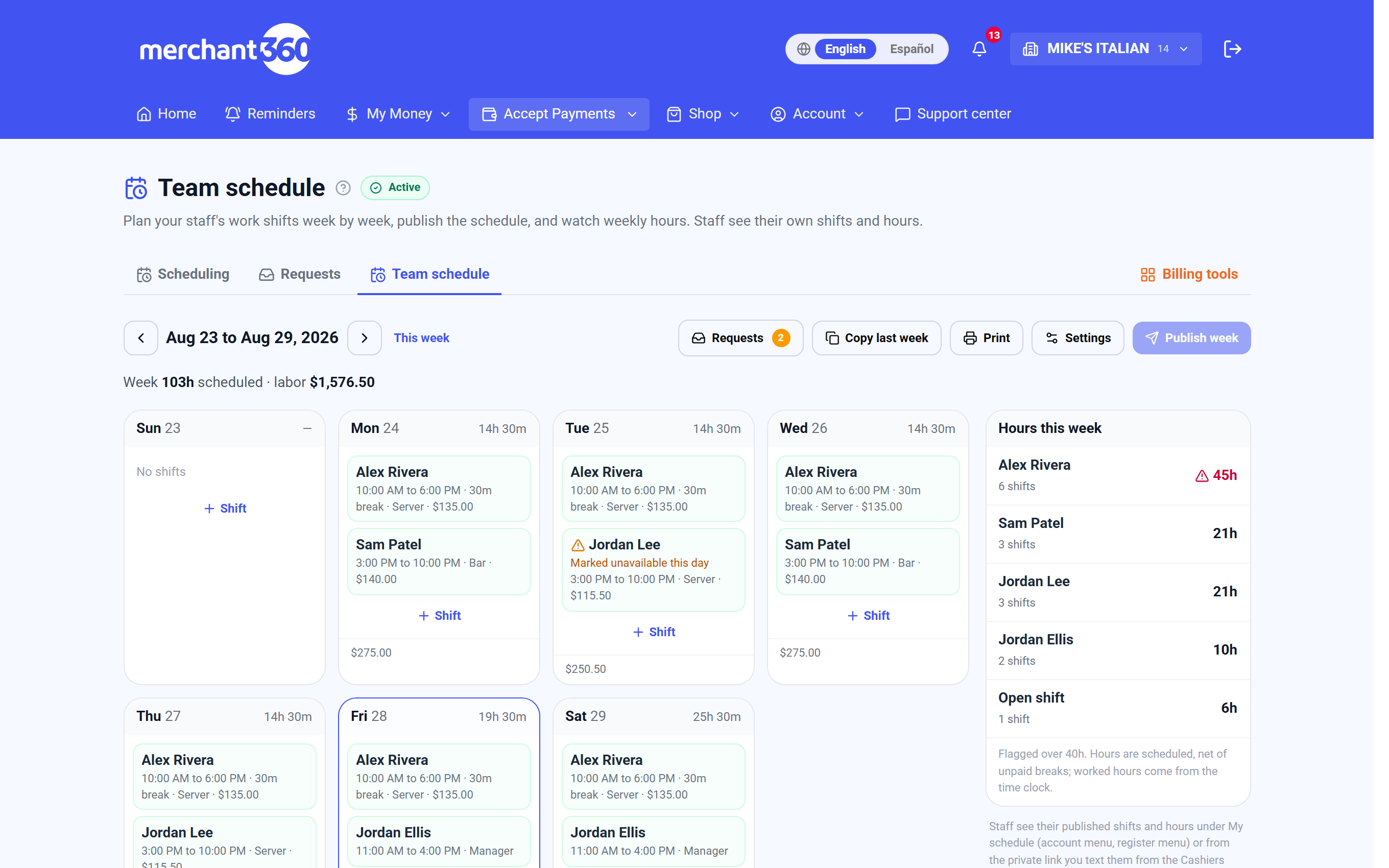
| On this screen | What it does |
|---|---|
| Week (Previous week / This week / Next week) | Moves the grid one week at a time. This week jumps back to the current week. |
| Who column | One row per teammate or cashier on the roster. Open shift (nobody yet) rows hold shifts that are not assigned to a person. |
| Draft chip | Marks a shift that has been created or changed since the week was last published. Staff do not see draft shifts. |
| Hours this week | The rail on the right totals scheduled hours per person and marks anyone over your overtime threshold. |
| Settings | Opens week start day, overtime threshold, the Show staff their estimated pay switch, and the approval settings. |
| Prints the current week's grid for the wall or the break room. | |
| My schedule | Opens your own private schedule page, the same view your staff see. |
| Requests | Opens the Schedule requests inbox. A number on the button is how many requests are waiting on you. |
The team schedule is free in full: building and publishing, staff availability, time-off requests, shift swaps and day-before text reminders. On TableTurn, the labor forecast on the grid is part of Lite+.
Build the week
Building the week means adding a shift for each block of time a person works. A shift has a person, a day, a start and end time, an optional unpaid break, an optional role or position, and an optional note. Shifts you add start as drafts, so you can change your mind before anyone sees them.
Start on the week you want to plan. Use Next week to move ahead, or Copy last week to bring forward the previous week's shifts as a starting point. Copy last week adds every shift that does not already exist in this week and skips the ones that would double up, so it is safe to run more than once.
The hours rail on the right updates as you add shifts. It totals each person's scheduled hours for the week and flags anyone over your Overtime after threshold, so you can see the cost of the plan before you publish.
- 1Open Billing Tools, then Team schedule, and move to the week you are planning.
- 2Click an empty cell in a person's row, or the Open shift row, to add a shift.
- 3Set Start and End. Add a Break in minutes if the shift has an unpaid break, and a Role / position such as Server or Front desk if you use them.
- 4Add a Note if the person needs to know something about the shift, then save. The shift appears with a Draft chip.
- 5Repeat for the week, or use Copy last week and then adjust. Delete a shift from its editor if it is no longer needed.
- 6Check the Hours this week rail, then publish the week (next section).
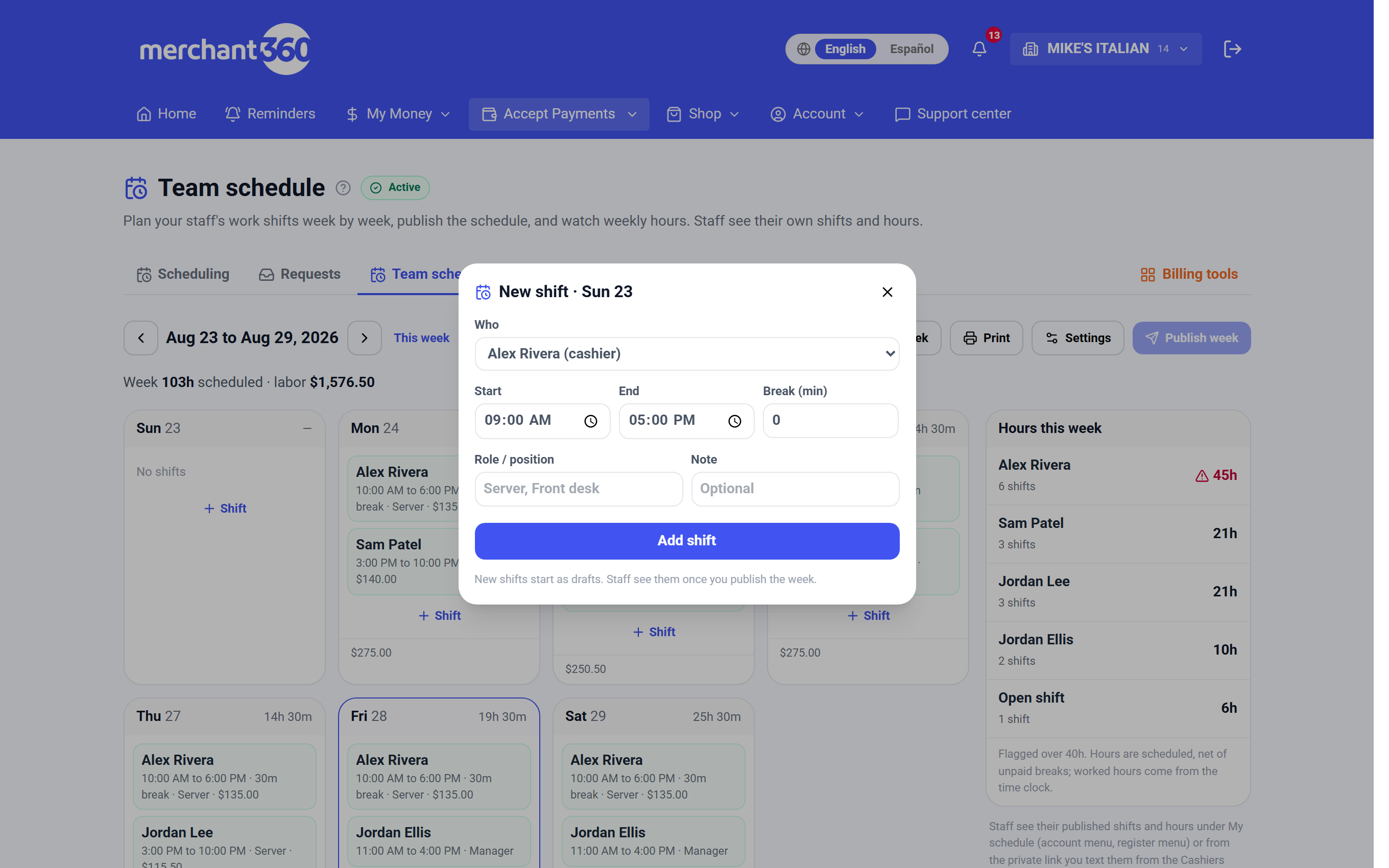
| On this screen | What it does |
|---|---|
| Copy last week | Creates this week's shifts from last week's. It reports how many were created and how many were skipped because they already existed. The copies are drafts until you publish. |
| Shift editor: Who | The teammate or cashier the shift belongs to. Choose Open shift (nobody yet) to plan a slot before you know who will fill it. |
| Shift editor: Start / End | The shift times. Overnight shifts that end after midnight are allowed. |
| Shift editor: Break (min) | Unpaid break minutes. They are subtracted from paid hours in the rail and in estimated pay. |
| Shift editor: Role / position | Optional label such as Server or Front desk. It shows on the grid and on the person's My schedule. |
| Shift editor: Note | Optional text the person sees with the shift, such as the reason for a different start time. |
| Delete | Removes the shift. If the week was already published, the removal reaches staff the next time you publish. |
| Draft chip | Shows the shift is not yet visible to staff. New shifts start as drafts. Staff see them once you publish the week. |
| Hours this week | Per-person totals for the week. Anyone at or over the overtime threshold is highlighted. |
| Settings: Week starts on | The first day of your week. Changing it takes effect the next time the page loads. |
| Settings: Overtime after (hours per week) | The weekly hours at which the rail starts flagging a person. The default is forty. |
New shifts start as drafts with a Draft chip. Staff cannot see a draft, so you can build the whole week before anyone sees it.
Publish the week
Publishing makes the week visible to your staff. Until you publish, every new or changed shift carries a Draft chip and only people with schedule access can see it. Publish once the week looks right, and publish again after any change so the update reaches everyone.
When you publish, Merchant360 clears the Draft chips for that week and tells you how many shifts were published. Each person with a mobile number on file also receives a text that their schedule is ready, with their private link. People without a number see the week the next time they open My schedule.
You are done when no Draft chips remain on the week and the publish confirmation shows the shift count. Your staff's My schedule pages now show the week.
If Publish week reports zero shifts, there was nothing new to publish; every shift on the week was already published. If someone says they did not get a text, check that a mobile number is on their Team page entry. They can always open My schedule from the menu to see the week without a text.
| On this screen | What it does |
|---|---|
| Publish week | Marks every draft shift on the week as published and reports the count, then texts each scheduled person their private link. |
| Draft chip | Disappears from a shift once the week is published. A shift edited after publishing gets the chip back until the next publish. |
| Prints the published grid. Use it for a wall copy after publishing. |
How staff see their schedule
Each person sees only their own shifts. Anyone with a Merchant360 login opens My schedule from the menu. Cashiers and staff without a login get a private link by text, which opens the same page without signing in. The link is theirs alone, and they should not forward it.
My schedule shows the current week's shifts with the day, start and end, break, role and any note, plus the upcoming shifts after this week. Three totals sit at the top: Scheduled this week, Worked this week from the time clock, and Estimated pay if you turned that on under Settings. Hours worked come from the time clock on the register, so the Worked figure fills in as the week goes on.
Add to my phone's calendar downloads the shifts as a calendar file the person can open on their phone, so the shifts land in their own calendar app with reminders.
Managers with schedule access see a Manage the team schedule link at the top that jumps back to the grid.
If a person's My schedule is empty, the week has not been published yet, or their shifts are assigned to a different roster entry. Check that the Who on the shift is the same teammate or cashier record the person signs in with. If Estimated pay does not show, either the switch is off under Settings or no hourly wage is set for the person on the Team or Cashiers page.
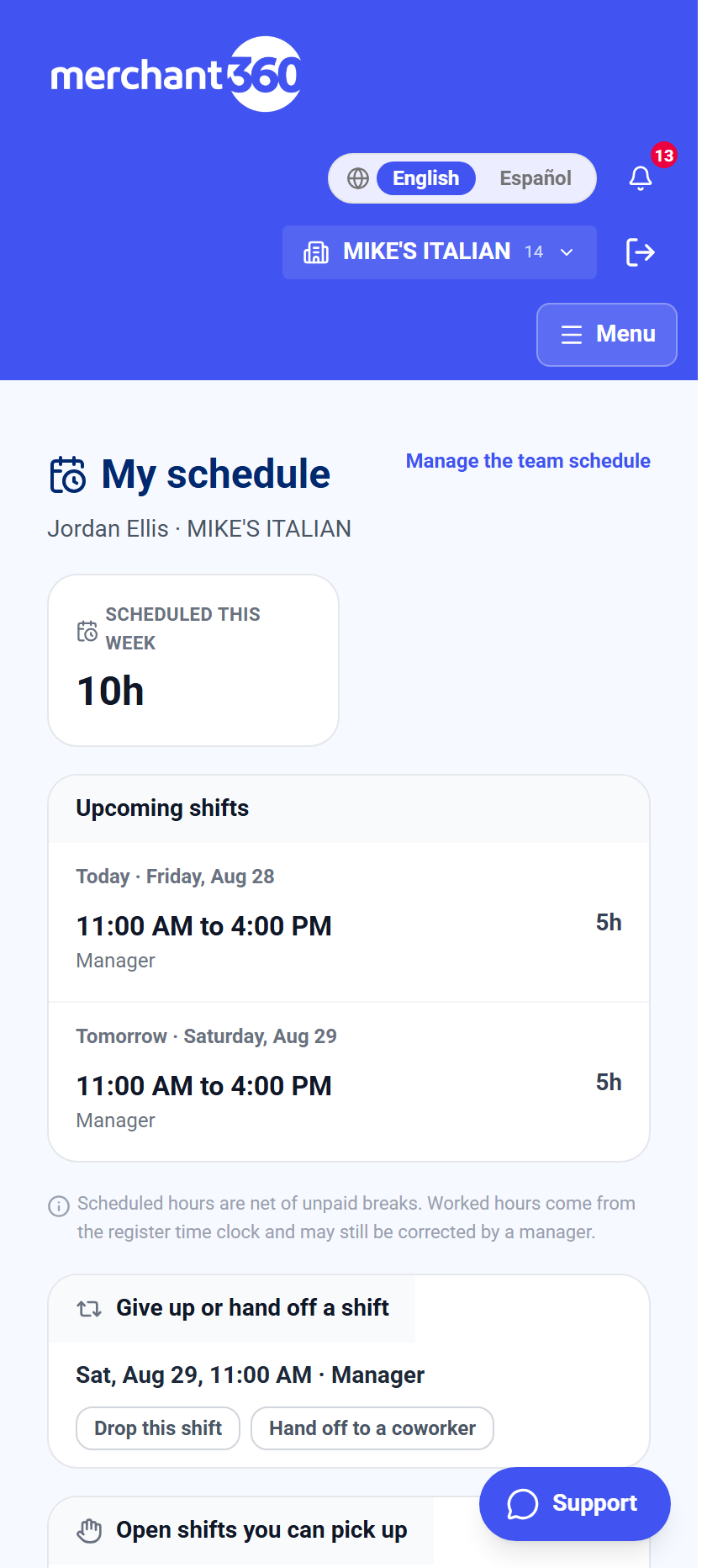
| On this screen | What it does |
|---|---|
| Scheduled this week | Total scheduled hours for the person this week, less unpaid breaks. |
| Worked this week | Hours from the time clock so far this week. It grows as shifts are clocked. |
| Estimated pay | Hours worked times the person's hourly wage. Shown only when Show staff their estimated pay is on under Settings. |
| Upcoming shifts | The list of shifts after this week that have been published. |
| Time clock this week | Each clock-in and clock-out from the register for the week. |
| Add to my phone's calendar | Downloads the published shifts as a calendar file. Opening it on a phone adds them to the calendar app. |
| Manage the team schedule | Shown to people with schedule access. Opens the full weekly grid. |
| Private link (texted) | Opens the person's own My schedule without a login. It is personal and should not be shared. |
Want staff to see estimated pay? Open Settings on the schedule and turn on Show staff their estimated pay. It multiplies worked hours by the hourly wage on the Cashiers page.
Requests: availability, time off and swaps
Staff can tell you when they can work and ask for changes from their own My schedule page. There are three kinds of request. Availability is a standing note of the days and hours a person can work. Time off asks for specific dates. A swap asks to drop a shift, pick up an open shift, or hand a shift to a named teammate.
Requests arrive in the Schedule requests inbox under Team schedule. Each one shows who asked, what they asked for, and the shift or dates involved. You approve or decline, with an optional note to the worker. The worker is texted the outcome. Approving a swap moves the shift on the grid. Approved time off and each person's availability show on the grid as a warning triangle on any shift that conflicts with them.
The switch Swaps need my approval, at the top of the shift requests list and also under Settings on the grid, decides whether swaps wait for you. When it is off, a drop or pick-up goes through right away and a handoff goes through as soon as the other person accepts it; you get a notification and see it in Recent decisions.
Approving time off also blocks that person on the customer booking calendar when they are a bookable member with the same login, so no appointment can be booked with them on those dates. Time off entered in the Booking manager shows on the shift grid as a warning in return.
You are done when the inbox reads Nothing waiting. The grid already reflects every approved change, and Recent decisions keeps the history.
If staff say they cannot find the request buttons, they are not on the roster under the record they are signed in with, or their texted link is for a former roster entry. Publish the week again to send fresh links. If a swap is stuck waiting, the other teammate has not accepted the offer yet; they accept it from their own My schedule.
- 1Use the Swaps need my approval switch in Requests, or Settings on the schedule, to decide whether drops, pick-ups and handoffs wait for you or apply on the spot. You are notified either way.
- 2A dropped shift becomes an open shift once approved; anyone on the roster can pick it up.
- 3Handoffs go to one named coworker. Nothing changes until that coworker accepts, and then you approve if approval is on.
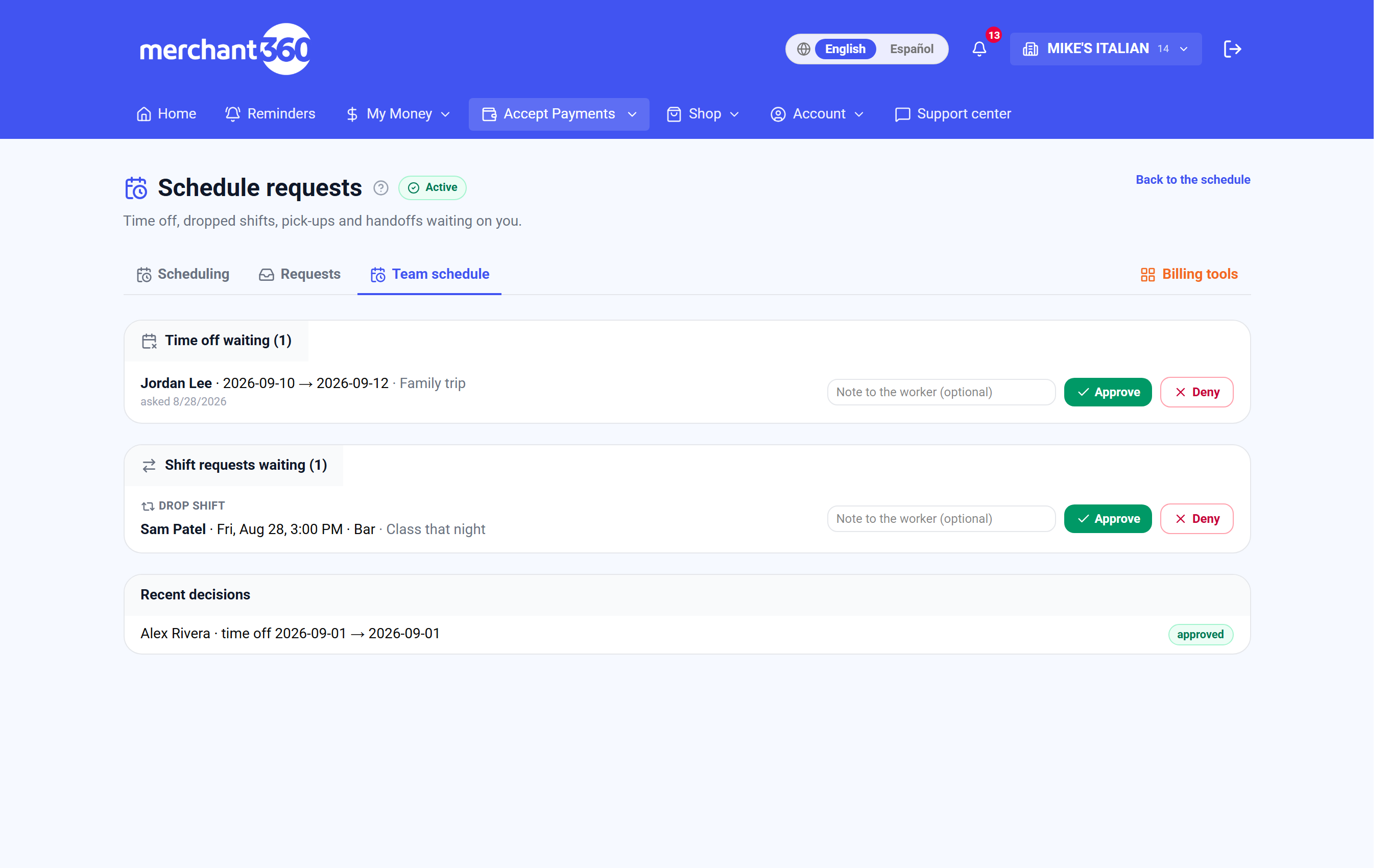
| On this screen | What it does |
|---|---|
| Schedule requests (inbox) | Lists every open availability, time-off, and swap request, newest first. Reads Nothing waiting when the inbox is empty. |
| Approve | Grants the request. Time off blocks the dates on the grid, and a swap moves or reassigns the shift. The worker is texted the outcome. |
| Decline | Refuses the request and leaves the schedule as it is. The worker is texted the outcome. |
| Note to the worker (optional) | A short message included in the text the worker receives with your decision. |
| Recent decisions | The history of approved and declined requests, including swaps that went through without approval. |
| Back to the schedule | Returns to the weekly grid. |
| Settings: Shift drops, pick-ups and handoffs need a manager's approval | Checkbox. Ticked means swaps wait in the inbox; clear means they complete as soon as the other person accepts. |
| Conflict warning on a shift | A warning triangle with a short note on any shift that overlaps approved time off or falls outside the person's availability. |
| My schedule: Availability | Where staff set the days and hours they can work. Shown to you while you build. |
| My schedule: Request time off / Cancel request | Staff pick dates and add a reason. They can cancel while it is still waiting. |
| My schedule: Drop / Pick up / Hand off | Staff start a swap on one of their shifts, or claim an open shift. A named teammate accepts a handoff from their own page. |
Reminders and the labor forecast
Two things run on their own. Shift reminders text each person the day before each shift, and text everyone scheduled when the week is published, using the mobile number on their Team or Cashiers entry. On TableTurn Lite+ and Pro, the labor forecast puts the week's scheduled labor cost next to your projected sales, per day and for the week, so you can see the labor percentage before you publish.
Reminders go out only for published shifts. If you change a shift after publishing, publish again so the reminder carries the new time. People without a mobile number on file do not receive reminders but still see the shift on My schedule.
The forecast line at the bottom of the grid reads the week's scheduled hours, the labor cost from each person's hourly wage, and the forecast as a percentage of projected sales. The percentage shows green below twenty-five percent, amber from twenty-five, and red from thirty. Projected sales come from your own card history. A person with no wage set counts as zero, so the forecast is only as complete as your wage entries.
If reminders are not arriving, confirm that the person has a mobile number on file and that the shift was published. If the forecast line shows no percentage, either no wages are entered, there is not enough sales history yet to project, or the account is on TableTurn Lite rather than Lite+.
| On this screen | What it does |
|---|---|
| Shift reminder text | Sent automatically the day before each published shift to the person's mobile number, plus a text when the week is published. |
| Week summary line (scheduled, labor, forecast) | Scheduled hours for the week, the labor cost from wages, and the forecast as a percentage of projected sales, colored green, amber, or red. |
| Hourly wage (Team and Cashiers pages) | The rate used for the labor cost and for Estimated pay. Set it per person. |
For developers
The schedule is available through the Merchant360 API for software that needs to read shifts or write them, for example a payroll export or a staffing tool that already knows your roster.
Create an API key under Developers & API with the scheduling:read scope to list shifts and the roster, or scheduling:write to create, update, delete, and publish shifts. The API documentation is linked from the Developers & API page.
Shifts written through the API start as drafts, the same as shifts added on the grid, and become visible to staff when the week is published, whether from the API or from the grid.
If a call is refused, check that the key carries the scheduling scope you need and that it has not been revoked. Test keys write to the same schedule as live keys, since the schedule has no separate sandbox.
| On this screen | What it does |
|---|---|
| scheduling:read scope | Lets a key list the roster and the shifts for a week. |
| scheduling:write scope | Lets a key create, update, and delete shifts and publish a week. |
| Developers & API: Create an API key | Owner only. Name the key, choose Test or Live, and tick the scheduling scopes. Asks for a texted security code and shows the key once. |