
Customers & cards on file
One directory, with vaulted cards.
The customer directory
The customer directory is a free CRM that works even before your card processing is live. Every invoice, subscription, estimate, payment, and gift card ties back to a customer record, with contact info, lifetime activity, what they owe, and their saved cards in one place.
Go to Accept Payments → Customers. The stats at the top roll up the account: Customers, how many Made a payment, Active subscribers, Outstanding AR with the number of customers owing, and Lifetime $. The list shows each customer's Activity, Cards, Subscriptions, Last activity, and Owes.
Search by name, email, or phone, sort by Recent or Name, switch between Active and Inactive customers, and Export CSV any time. Each row has quick actions: Charge the default card, Invoice to start a new invoice for this customer, and Open for the full profile. More actions holds Make inactive (or Reactivate) and Delete.
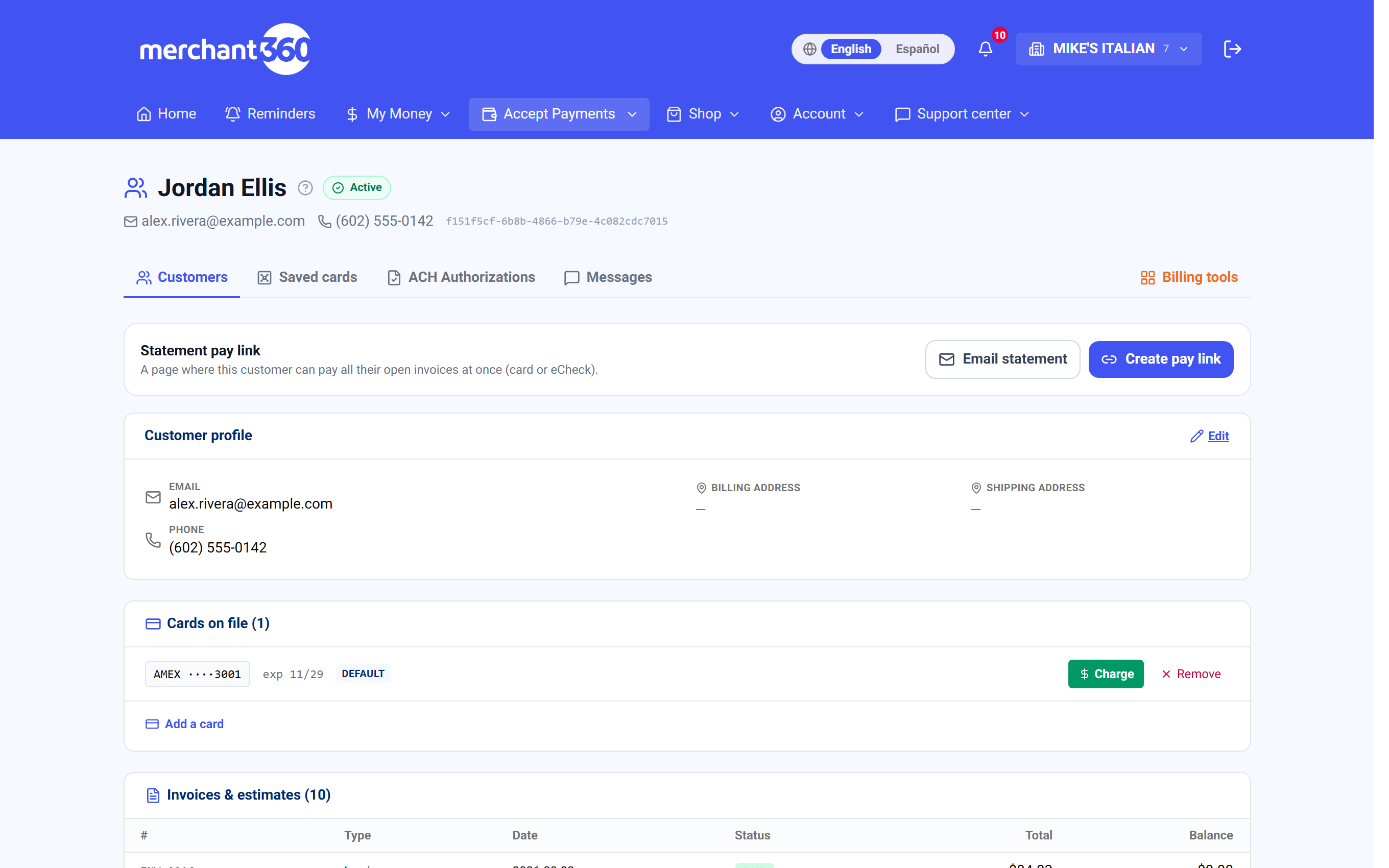
Click a customer to open their full profile: profile details, cards and bank accounts on file, autopay, tax ID, tags, tasks and activity, invoices and estimates, payments, loyalty and gift cards, active recurring schedules, and the statement pay link.
If a customer is missing, check Inactive; a customer you made inactive is hidden from Active. If two records exist for one person, keep the one with the cards and history and make the other inactive; Delete is only for a record with no activity.
- 1Go to Accept Payments → Customers. The top of the page rolls up your totals: customers, how many have paid, active subscribers, outstanding A/R, and lifetime value.
- 2Search by name or email, toggle between Active and Inactive, and Export CSV any time.
- 3Click a customer to open their full profile: lifetime activity, tags, contacts, tasks, invoices and estimates, payments, subscriptions, and saved cards.
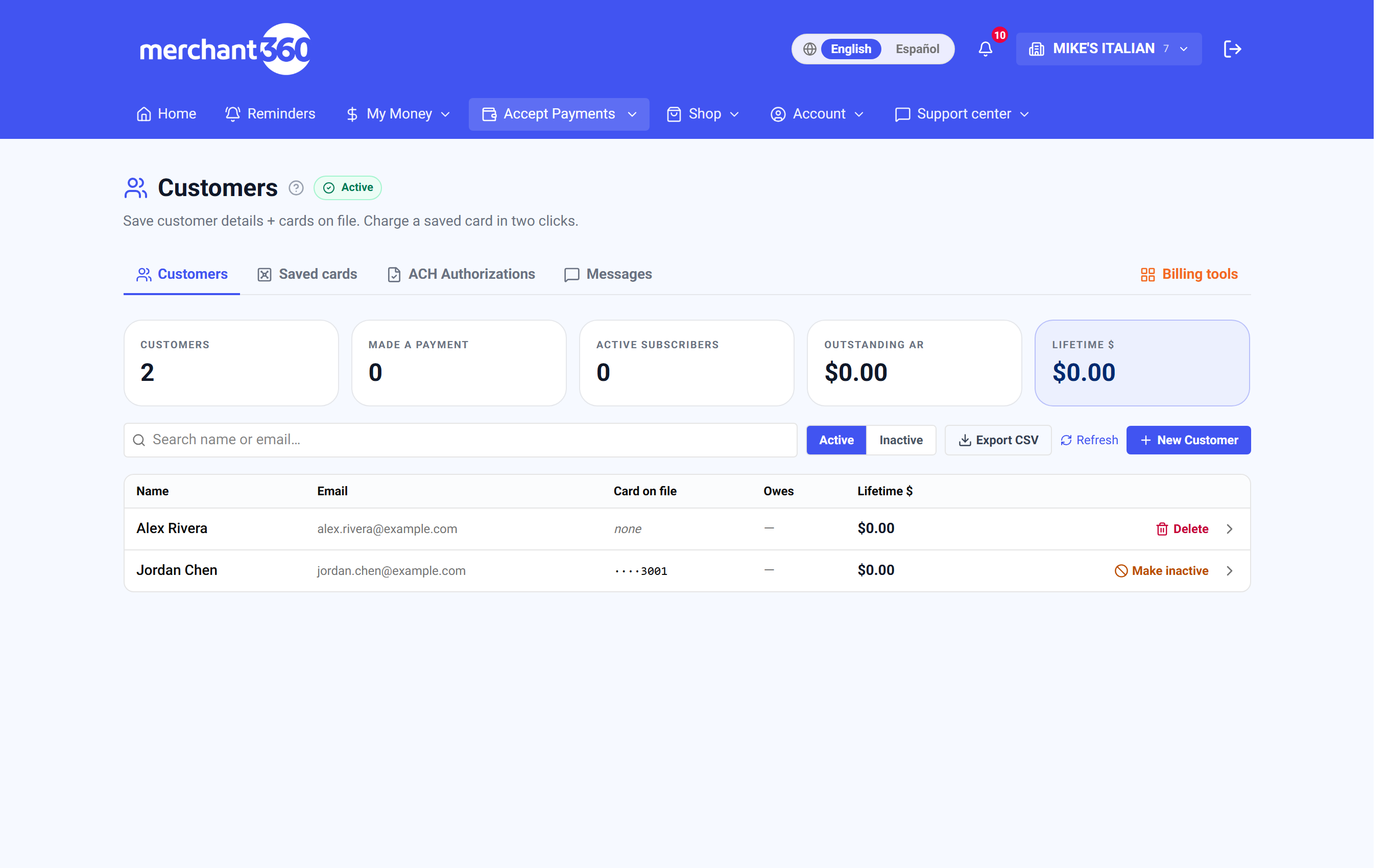
| On this screen | What it does |
|---|---|
| Customers / Made a payment / Active subscribers / Outstanding AR / Lifetime $ | The stats strip across the whole directory. |
| Search | Finds customers by name, email, or phone. |
| Recent / Name | Sorts by last activity or alphabetically. |
| Active / Inactive | Switches which set of customers the list shows. |
| New Customer | Opens the add form (next section). |
| Export CSV | Downloads the list you are looking at. |
| Refresh | Reloads the list. |
| Owes | The customer's open balance and invoice count, with a color that deepens as it ages past 30, 60, and 90 days. |
| Charge | Charges the customer's default card for an amount you enter. |
| Invoice | Starts a new invoice with this customer filled in. |
| Open | Opens the customer's profile. |
| More actions | New invoice for this customer, Make inactive or Reactivate, and Delete. |
Add a customer
Add a customer before you need them, or on the fly from the invoice, estimate, and virtual-terminal forms with Save as new customer. Either way they land in the same directory.
Click New Customer and enter their name (required), email, phone, and billing address. Tick Shipping same as billing, or untick it and enter a separate shipping address. Save Customer creates the record and opens it. The email is what invoices, receipts, reminders, and statements go to, so get it right.
Done looks like this: the customer appears at the top of the Active list with no card on file yet, and their profile shows the details you entered under Customer profile, where Edit lets you change the Display name, Legal name, Email, Phone, Notes, and both addresses later.
The customer form does not capture a card by itself. To put a card on file, add one on the profile under Cards on file, on the Saved cards page, or run a sale in the Virtual Terminal with Save this card to vault ticked (next section).
If Save fails, the name is required. If you saved a duplicate, make the extra one inactive from the list rather than deleting a record with history.
- 1Click New Customer and enter their name (required), email, phone, and billing address. Add a separate shipping address if it differs.
- 2You can also create a customer on the fly: the invoice, estimate, and virtual-terminal forms all let you save a new customer as you go.
- 3The customer form doesn't capture a card by itself. To put a card on file, run a sale for them in the Virtual Terminal (next section).
| On this screen | What it does |
|---|---|
| Name * | Required. How the customer appears everywhere. |
| Where invoices, receipts, and reminders go. | |
| Phone | Used for Text2Pay and text receipts. |
| Billing address | Address line 1 and 2, City, State / ZIP. The state picks the tax rate on invoices. |
| Shipping same as billing | Untick to enter a separate Shipping address. |
| Save Customer | Creates the record and opens the profile. Cancel discards the form. |
| Edit (profile) | Opens Display name, Legal name, Email, Phone, Notes, Billing address, and Shipping address. Save changes stores them. |
| Save as new customer (builders) | On the invoice and estimate builders, saves the Bill To details as a customer when you save the document. |
Save a card to the vault
A vaulted card is stored as a token so you can charge it later without asking for the number again. Three ways a card enters the vault: run a Virtual Terminal sale with Save this card to vault ticked; add one on the Saved cards page with Add a card (no charge); or add one on a customer's profile under Cards on file with Add another card.
When you save a card you can store an email for receipts, a nickname (handy when a customer has more than one card), and mark it as the default. When you later charge a saved card, the receipt goes to that email and the name and email auto-fill in the Virtual Terminal so you do not collect them again. The card number itself is never stored on our servers or yours; only the token.
A customer's profile also holds bank accounts on file for bank (ACH) charging and autopay: Add bank account with the holder, account type, routing, and account number. The account is verified before the first debit.
Done looks like this: the card shows on the customer's profile with its brand, last four, and expiry, on the Saved cards page under Active, and as a choice under Card on file in the invoice builder and the recurring schedule form.
If Add a card says saving is being enabled for your account, card tokenization has not been turned on yet; contact your rep. If a card is declined when saved, the number, expiry, or ZIP was rejected by the issuer; check them and try again.
| On this screen | What it does |
|---|---|
| Add a card (Saved cards) | Card number, Expiry, Billing ZIP, Name on card, Nickname (optional), Email for receipts (optional), and Make this the default card. Save card tokenizes it with no charge. |
| Add another card (profile) | The same form on the customer's profile under Cards on file. |
| Save this card to vault (Virtual Terminal) | Tick on a sale to store the card with the customer after approval. |
| Default | The card used for Charge on the directory row and preselected for invoices and recurring billing. |
| Nickname | A label like Amex – travel to tell a customer's cards apart. |
| Add bank account (profile) | Account holder, holder type (consumer or business), Checking or Savings, routing and account numbers, and a receipt email. Set default and Remove manage the list. |
Ask once, charge forever: save the card on a customer's first payment, and future invoices or recurring billing become one tap. A customer's profile shows and manages their cards and bank accounts on file in one place.
Charge a card on file
Once a card is saved, you never re-ask for the number. Open the customer's profile, find the card under Cards on file, and click Charge to run any amount; the receipt goes to the email stored with the card. The same card powers invoice Charge a card and recurring billing, and a refund can go back to it from Transactions.
Accept Payments → Saved cards is the master list of every card on file at your business. Each shows its brand and last four (for example Visa •••• 4242) with its expiry, when it was saved and last used, a Default marker, the customer it belongs to (or no customer linked), and a badge with how many recurring plans use it. From there you can Charge it, set the Default, or Archive it. Archived cards move to their own section and can be restored.
If you set up custom payment fields for the virtual terminal (Settings → Custom payment fields), the Charge panel asks for them too, on the customer's profile, on the Charge button in the customers list and on Saved cards. A required field has to be filled before the card is charged. What you enter is saved with the payment and shows in its own column on Money → Transactions and in the export, the same as a payment keyed on the virtual terminal.
Done looks like this: the charge shows Approved with the amount and card, appears in the customer's Payments list on their profile, and shows in Money → Transactions with the customer's name in the Customer column and your custom fields in their columns.
If Charge declines, the card may be expired or closed; check the Expiring cards panel and send an update link. If you archive a card that a subscription uses, the page warns you and the next charge fails; move the plan to another card first. Remove on the profile deletes the card from the vault and breaks any schedule using it.
| On this screen | What it does |
|---|---|
| Charge (profile) | Charge ····last4 opens an Amount field and your custom payment fields; Charge runs it and shows the transaction number. |
| Charge… (Saved cards) | Opens Charge $ with a Run charge button, or Cancel. |
| Default | Marks this card as the customer's default for quick charges and recurring billing. |
| Archive | Retires the card so it can no longer be charged. Warns when active subscriptions reference it. Restore from the Archived section. |
| Remove (profile) | Deletes the card from the vault after a confirmation. Recurring schedules using it will fail. |
| N recurring | The badge showing how many schedules charge this card. |
| Active / Archived | The two sections of the Saved cards list. |
| Back to Billing Tools | Returns to the billing tools home. |
Expiring cards – the Card Management panel
Cards expire, and every expired card on file is a future declined charge. The Expiring cards panel at the top of Saved cards shows every card that has expired or expires within two months, searchable by customer name, email, or last 4, with how many recurring plans each card powers.
For each card you can Send update link: the customer gets a branded email with a page where they enter their replacement card. The new card is saved to the vault, the old one retires, and every recurring plan that charged it switches over automatically; dunning clears too, so billing resumes without a call to you. Copy link gives you the same page to text or read over the phone, and Re-send link repeats the email.
Turn on Auto-email update links monthly and this runs itself: early each month, every customer whose card is expiring gets the secure link automatically, one email per card per month. And when a card is expired and declining, Suspend billing pauses every plan charging it in one click (resume them from Recurring once the card is fixed). Check now asks the card network for a newer card on the spot (see Account Updater).
Done looks like this: the card disappears from the panel once a replacement is saved or the network reports a new expiry, and the customer's plans show the new card. Expiring cards also appear on your Reminders page.
If the customer never opens the email, use Copy link and text it, or take the new card by phone and add it on their profile. If the panel shows EXPIRED and the plan is Past due, Suspend billing stops the retries until the card is replaced.
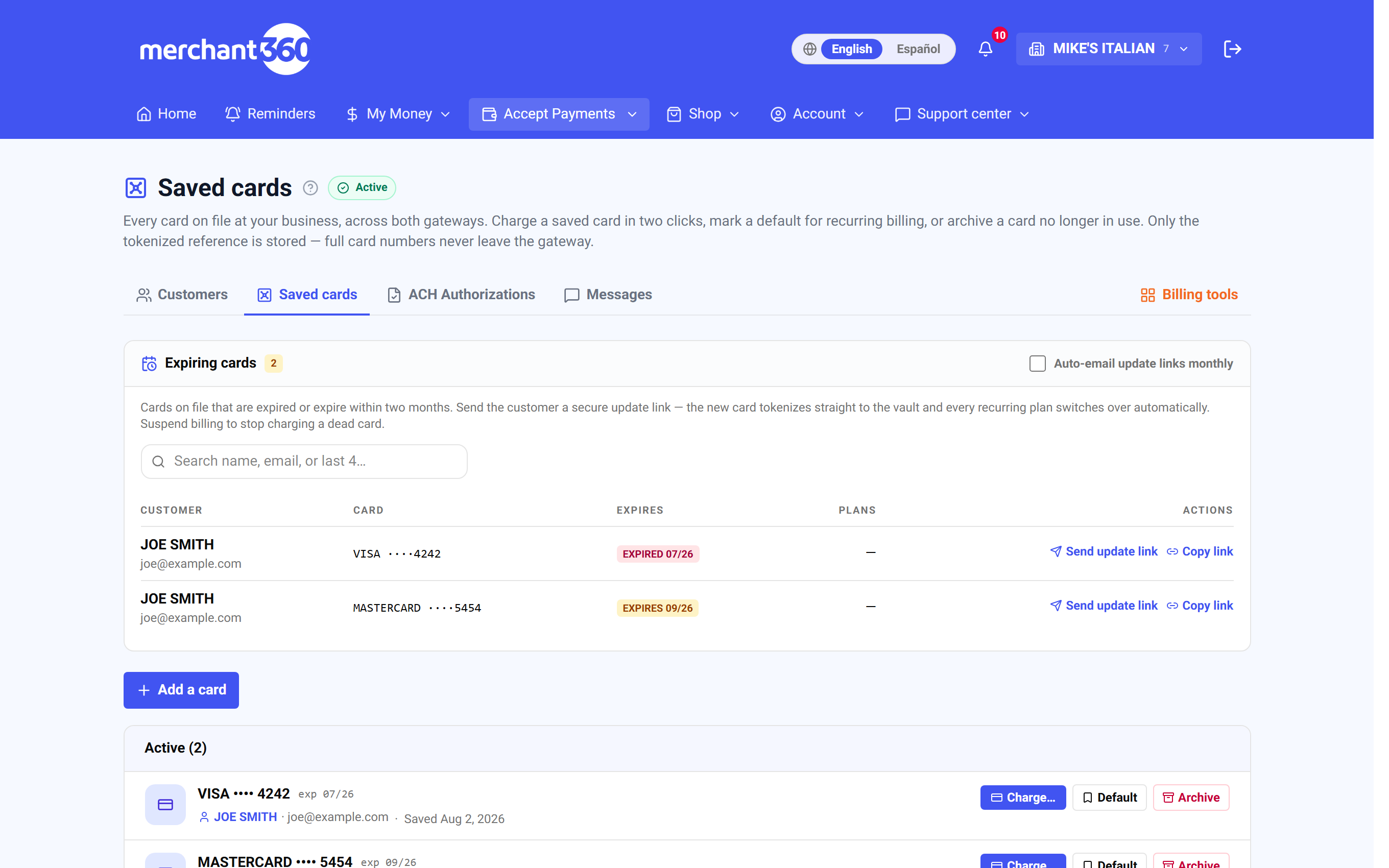
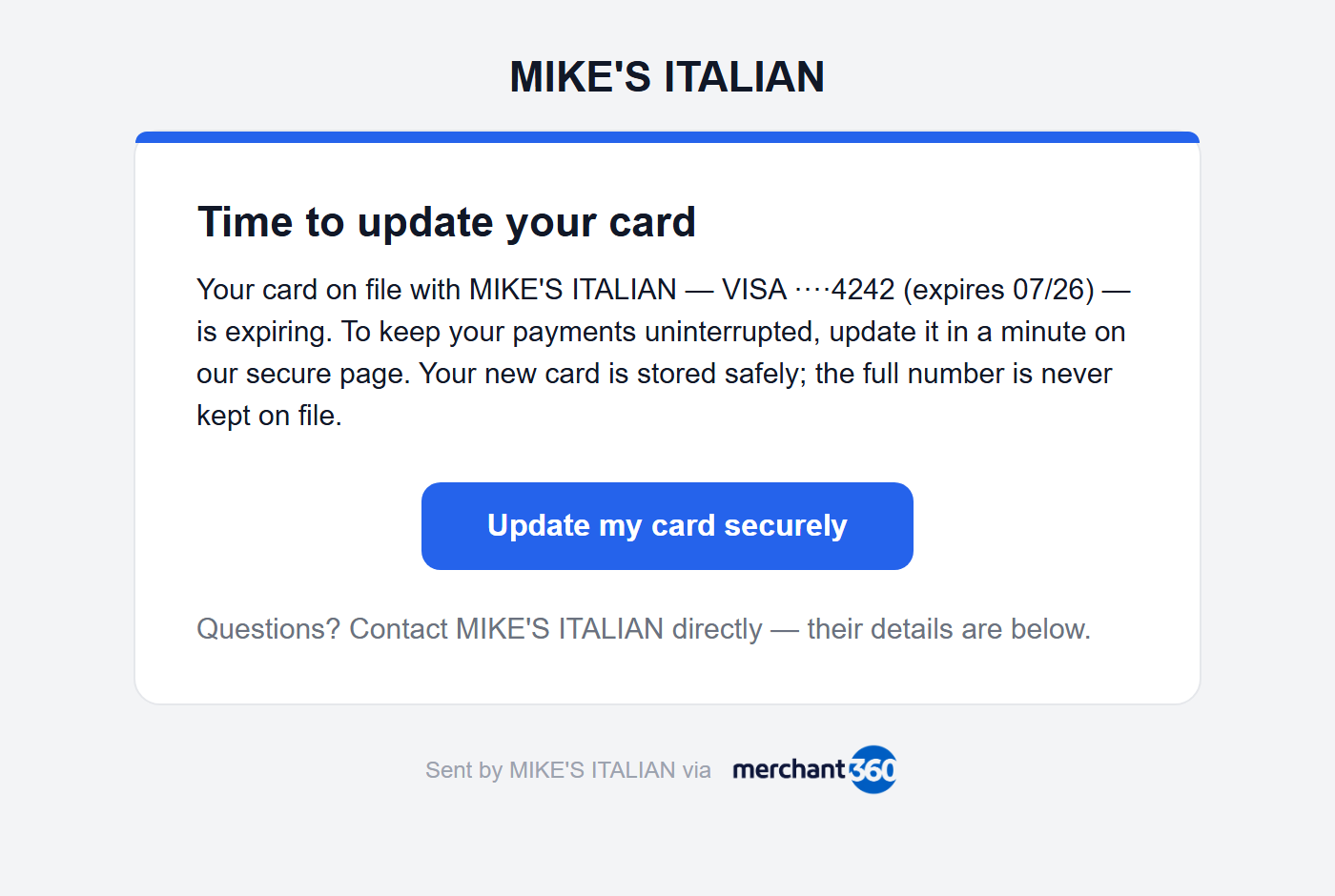
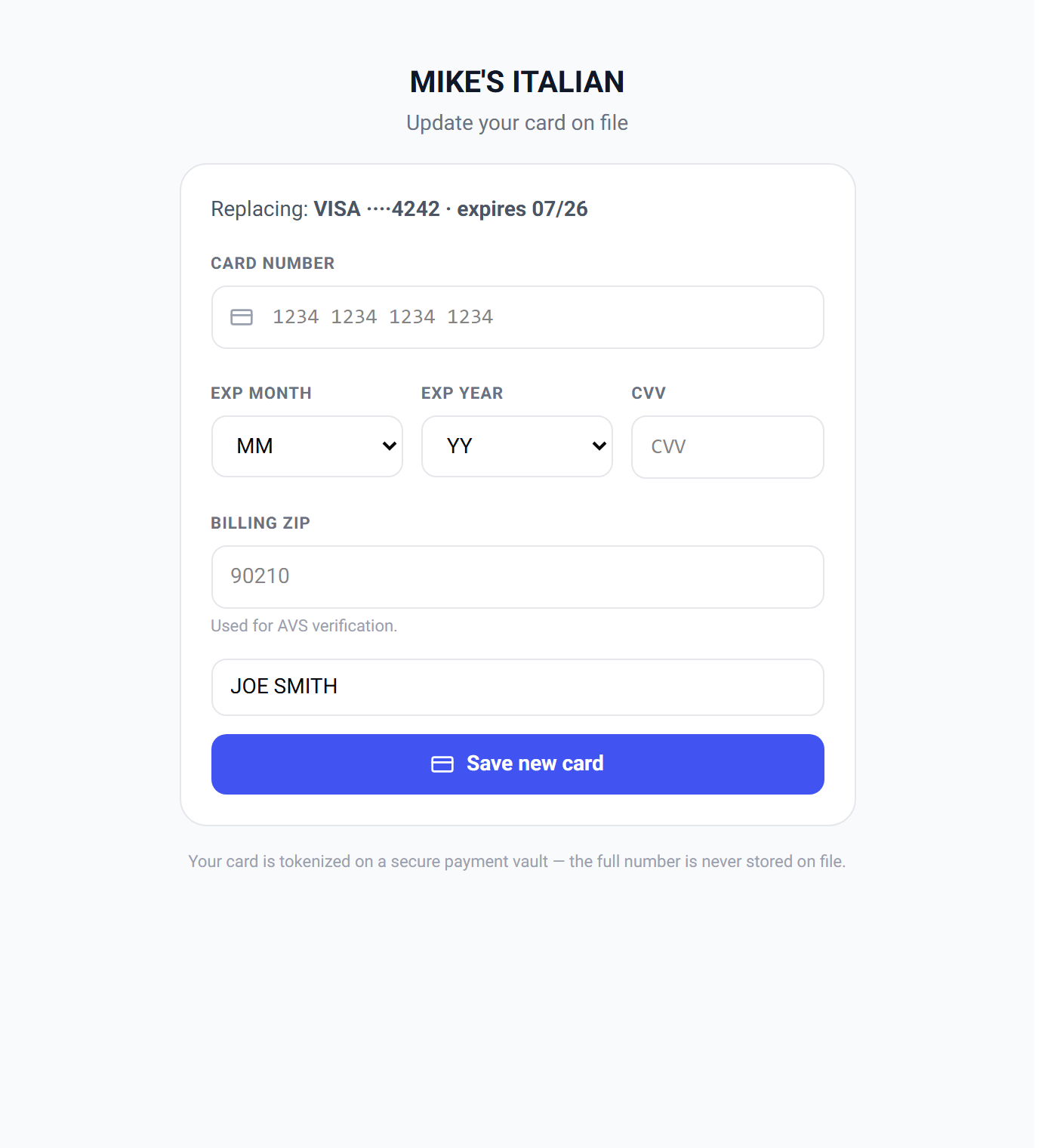
| On this screen | What it does |
|---|---|
| Search | Filters the panel by customer name, email, or last 4. |
| Customer / Card / Expires / Plans | The columns: who, the card's brand and last four, the expiry (EXPIRED when past), and how many plans charge it. |
| Send update link | Emails the customer a secure page to enter a replacement card. Re-send link repeats it. |
| Copy link | Copies the update page link to text or read to the customer. |
| Check now | Asks the card's network for a reissued number or new expiry right now. |
| Suspend billing | Pauses every recurring plan charging this card. |
| Auto-email update links monthly | Toggle. Early each month, every expiring card's customer gets the link automatically. |
This loop (spot it, email the secure link, tokenize the replacement) is how expiring cards get updated. Turn on the monthly auto-email to run it automatically.
Automatic card updates (Account Updater)
Cards get reissued, renewed, and closed all the time, and until now the only way to learn about it was a declined charge. Account Updater connects your vault to Visa, Mastercard, and Discover: every stored card (subscriptions, recurring plans, autopay, or a plain card on file) is checked with its network on a schedule, and the networks tell us when the issuer has a newer card number or expiry date.
Turn it on with the Automatic card updates toggle under Accept Payments → Settings → Payment options, or from the Account Updater panel on Saved cards. From then on the check runs daily: cards expiring soon and cards that just declined are checked first; everything else at least every six months. A new card number is saved to the vault and the old one retires; a new expiry date is refreshed in place. Every recurring plan, autopay enrollment, installment plan, and subscription that charged the old card switches to the new one, and dunning clears so billing resumes on its own.
The panel's ledger shows every check: When, Card, Network, and Result. Results read Current, No update, New card number saved, New expiry saved, Account closed, Contact cardholder, Issuer not participating, Cardholder opted out, Rejected, or Check failed. Check expiring cards now runs the check on every card in the Expiring panel at once; Check now on a single card asks its network on the spot.
When the network reports an account as closed, or asks that the cardholder be contacted, the card is flagged in the ledger, you get an in-app notification, and (when the card powers a plan) the customer gets the secure update link from the Expiring cards panel.
If the panel says automatic card updates are not available on this account yet, the service has not been enabled; ask your rep. If a card keeps showing Issuer not participating, that bank does not report updates; the Expiring cards link is the path for it. If the ledger is empty, no checks have run yet; turn on the toggle or check a card from the Expiring panel.
| On this screen | What it does |
|---|---|
| Automatic card updates | Toggle. On, every stored card is checked with its network daily, expiring and recently declined cards first. |
| Check expiring cards now | Runs a network check on every card in the Expiring cards panel. |
| Check now | On one card in the Expiring panel: asks its network immediately. Shows Checking with the network while it runs. |
| Ledger (When / Card / Network / Result) | Every check with its outcome. |
| Result | Current, No update, New card number saved, New expiry saved, Account closed, Contact cardholder, Issuer not participating, Cardholder opted out, Rejected, or Check failed. |
See who owes what
The directory doubles as your accounts-receivable view. The Outstanding AR stat at the top totals everything owed across your customers, with a count of how many owe.
Each row's Owes column shows that customer's balance and open-invoice count, with a color chip that deepens the more overdue they are (current, then warmer as it ages past 30, 60, and 90 days). Sort your follow-ups by who is most overdue instead of guessing, and use the row's Invoice or Open action to act.
Open a customer and use the Statement pay link card: Create pay link makes a page where this customer can pay all their open invoices at once, by card or eCheck, with an aging summary. Copy it to send, or Regenerate link to replace it. The same statement can be emailed to the customer, and with Automatic monthly statements on under Settings it goes out on the 1st to everyone with a balance.
Done looks like this: the customer pays from the statement page, each open invoice is marked paid in turn, and the Owes chip clears.
If a balance looks wrong, open the customer's Invoices & estimates list; a payment taken without picking the invoice sits under Payments but not against the invoice, so apply it with Record a payment on that invoice. If a customer disputes a balance, issue a credit memo on the invoice rather than deleting anything, so the history stays.
| On this screen | What it does |
|---|---|
| Outstanding AR | The total owed across all customers and how many customers owe. |
| Owes | Per row: balance, open invoice count, and an aging color (current, 30, 60, 90+ days). |
| Statement pay link | On the profile. Create pay link makes the pay-everything page; Copy copies it; Regenerate link replaces it. |
| Email statement | Sends the statement of account to the customer. Shows Statement emailed to the customer. |
| Invoices & estimates | On the profile: every document with #, Type, Date, Status, Total, and Balance. |
| Automatic monthly statements (Settings) | Emails every customer with a balance on the 1st of the month. |
A lightweight CRM on every customer
The customer profile is more than a billing record; it is a simple CRM, and it works even before card payments are live. Everything about one customer sits on one page so anyone on your team can pick up where the last person left off.
Tags label customers (VIP, wholesale, net-30): Add tag, pick an existing one or type a new one, and Create. Notes on the profile hold anything free-form. Tasks & activity is the running timeline of everything that happened with this customer (invoices, payments, estimates, texts, card changes) plus the follow-ups you create with a due date so nothing slips. Open follow-ups also show on your Reminders page.
The rest of the profile is the customer's money at a glance: Cards on file and bank accounts, the Autopay card, Tax ID (W-9) for a customer whose SSN or EIN you need on file, Invoices & estimates, Payments with the source of each (Virtual terminal, Payment link, Invoice autopay, Subscription, Manual retry), Loyalty & gift cards linked to them, Active recurring schedules, and the Statement pay link.
Payments lists card and bank payments together, newest first: card charges from invoices, payment links, the virtual terminal and cards on file, and bank (ACH) payments drawn on the customer's bank account or paid against their invoices, each with its own status (submitted, settled, returned). Click View on a row to open that transaction, where you can re-send the receipt, void or refund a card payment, or follow a bank payment through settlement.
Done looks like this: a teammate opens the profile and sees who the customer is, what they owe, what card they use, the last thing that happened, and the next thing to do.
If activity is missing, it may be filed under a duplicate record; merge by making the duplicate inactive and re-linking future invoices to the right customer. If a gift card shows matched by email, it was linked by the customer's email on the storefront rather than added by you.
- 1Tags: label customers (VIP, wholesale, net-30) with Add tag, and filter your follow-ups around them.
- 2Notes: keep free-form context on the profile with Edit → Notes.
- 3Tasks: create a follow-up with a due date under Tasks & activity so nothing slips (call back, send a quote, check in). Mark done when it is handled.
- 4Timeline: the same panel keeps a running history of activity on the customer, so anyone on your team can pick up where the last person left off.
| On this screen | What it does |
|---|---|
| Payments → View | Opens the transaction page for that card or bank payment: receipt re-send, void, refund, settlement detail. |
| Customer profile / Edit | Display name, Legal name, Email, Phone, Notes, and addresses, with Save changes. |
| Tags | Add tag opens the picker; New tag… and Create make a new one. Click a tag's x to remove it. |
| Tasks & activity | The timeline of every event and your follow-ups with due dates. Mark done closes a task. |
| Cards on file | Each card with Charge and Remove, plus Add another card. |
| Bank accounts | Accounts on file for bank charging, with Add bank account, Set default, and Remove. |
| Autopay | On or Off with the method; Turn off ends it. |
| Tax ID (W-9) | Stores the customer's SSN or EIN securely; Replace updates it. |
| Invoices & estimates | Every document with status and balance; click one to open it. |
| Payments | Every payment with Date, Source, Card, and Amount. |
| Loyalty & gift cards | Gift cards and loyalty linked to this customer, with when they were linked. |
| Active recurring schedules | Each schedule with Amount, Frequency, Next run, and Status. |
| Statement pay link | Create pay link, Copy, and Regenerate link. |
Text your customers (two-way messages)
Accept Payments → Messages is a text inbox for your own customers: send a text, and their replies come back to the same conversation. It is separate from the Messages page under Support, which is your line to Electronic Payments, and separate from the automatic payment-link and reminder texts, which always send whether this is on or off.
It is off until you click Turn on customer texting. Then use New message to start a conversation: an optional Customer name, the Mobile number, your message and Send. Each customer has one conversation. The list shows the latest message, with You: in front of the ones you sent, and a count of unread replies. In a conversation, Enter sends and Shift+Enter starts a new line. A message can be up to 1,000 characters.
Replies need a texting number of your own. Until one is assigned to your account you can send, but customer replies will not appear, and the page tells you so. Your Electronic Payments rep sets the number up. New replies show as an unread count on this page; there is no email or alert for them, so check the page while a conversation is going.
Customers control whether they hear from you. A customer who replies STOP is opted out and your next send is refused with a message saying they opted out; replying START opts them back in. If your texts go out from the shared Merchant360 number rather than your own, a STOP there opts the customer out of texts from every business on that number, so treat STOP as final unless the customer tells you otherwise.
Keep these conversations to the business at hand: a job, an appointment, an order, an invoice. They are one-to-one messages, not a way to send promotions to a list.
- 1Open Accept Payments → Messages and click Turn on customer texting.
- 2Click New message, enter the mobile number and your message, and click Send.
- 3Open a conversation to read replies and answer. Enter sends.
- 4Click Turn off at the top right to stop using it. Automatic payment and reminder texts keep sending.
| On this screen | What it does |
|---|---|
| Turn on customer texting / Turn off | Switches the inbox on or off for your business. |
| New message | Starts a conversation: Customer name (optional), Mobile number, message, Send. |
| Conversation list | One row per customer with the latest message and an unread count. |
| failed (on a message) | The carrier could not deliver the text, for example a landline or a number that is out of service. |
Ask for the customer's mobile number and their OK to text when you book the job.
Your customer's account page
Every customer you bill has a page of their own at pay.merchant360.net/account. There is nothing to turn on and nothing to set up: invoice reminders, autopay notices, installment notices and failed-card emails all point customers to it.
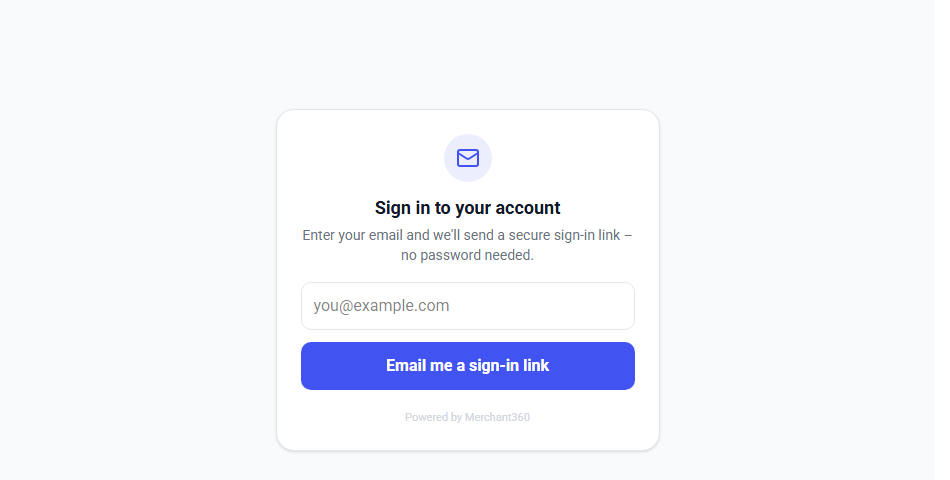
The customer signs in without a password. They enter their email, click Email me a sign-in link, and open the link, which works for 15 minutes. They stay signed in on that device for 30 days. The page never says whether an email has an account, so it cannot be used to look people up.
Once in, they see Balance due and Upcoming appointments at the top, then a block for each business they deal with. In your block they can pay one invoice or use Pay all for everything open, with a saved card or a new one. If you run a surcharge or dual pricing program, their invoices open on the regular invoice pay page instead, so the card price is worked out from the card exactly as it is everywhere else. They also see Paid recently, can Turn off autopay, and can Reschedule or Cancel an appointment when your booking rules allow it.
Under Your account they see their Cards on file, their Subscriptions with a Cancel button, and their Gift cards with a link to the gift card page. A customer who cancels a subscription or turns off autopay here has done exactly what you would have done for them in Merchant360, and the change shows on your side right away.
If a customer says the link did not work, it expired or was already used; they can request another from the same page, one per minute. The page is in English.
| On this screen | What it does |
|---|---|
| Email me a sign-in link | Sends the customer a one-time link. No password exists. |
| Pay all / Pay | Pays every open invoice from your business at once, or a single one. |
| Autopay is on. Turn off | Lets the customer stop automatic payment of your invoices. |
| Reschedule / Cancel (appointments) | Shown only when your booking rules allow the change. |
| Subscriptions: Cancel | Ends a subscription after a confirmation. |
| Gift cards: Balance & redeem | Opens the customer's gift card page at egift.online/manage. |
Add pay.merchant360.net/account to your invoice footer or to the Pay a bill link on your website, so customers can find every open invoice in one place.