
Pay with Vault
Your customers save a card once and pay you in seconds – verified by a text message, settled to you like any card sale.
What is Pay with Vault?

Pay with Vault is a network wallet for the whole Merchant360 ecosystem. A customer saves their card once, at your business or any other business that runs on Merchant360, and from then on they can pay any Merchant360 invoice, payment link, or checkout with a couple of taps instead of typing card details.
For you, a Vault payment is an ordinary card sale in every way that matters: it runs on your own merchant account, at your own rates, settles into your own deposits, and shows up in Money → Transactions like any other charge. There is nothing to enable and nothing to configure; the Pay with Vault bar appears on your pay pages automatically.
The payoff is fewer abandoned payments. Typing a 16-digit card number on a phone is where payments die; a returning Vault customer skips it entirely.
If you do not see the Pay with Vault bar on a pay page, one of the exceptions in When Vault doesn't appear applies, most often a surcharge program or an open-amount link. The card form still works as before.
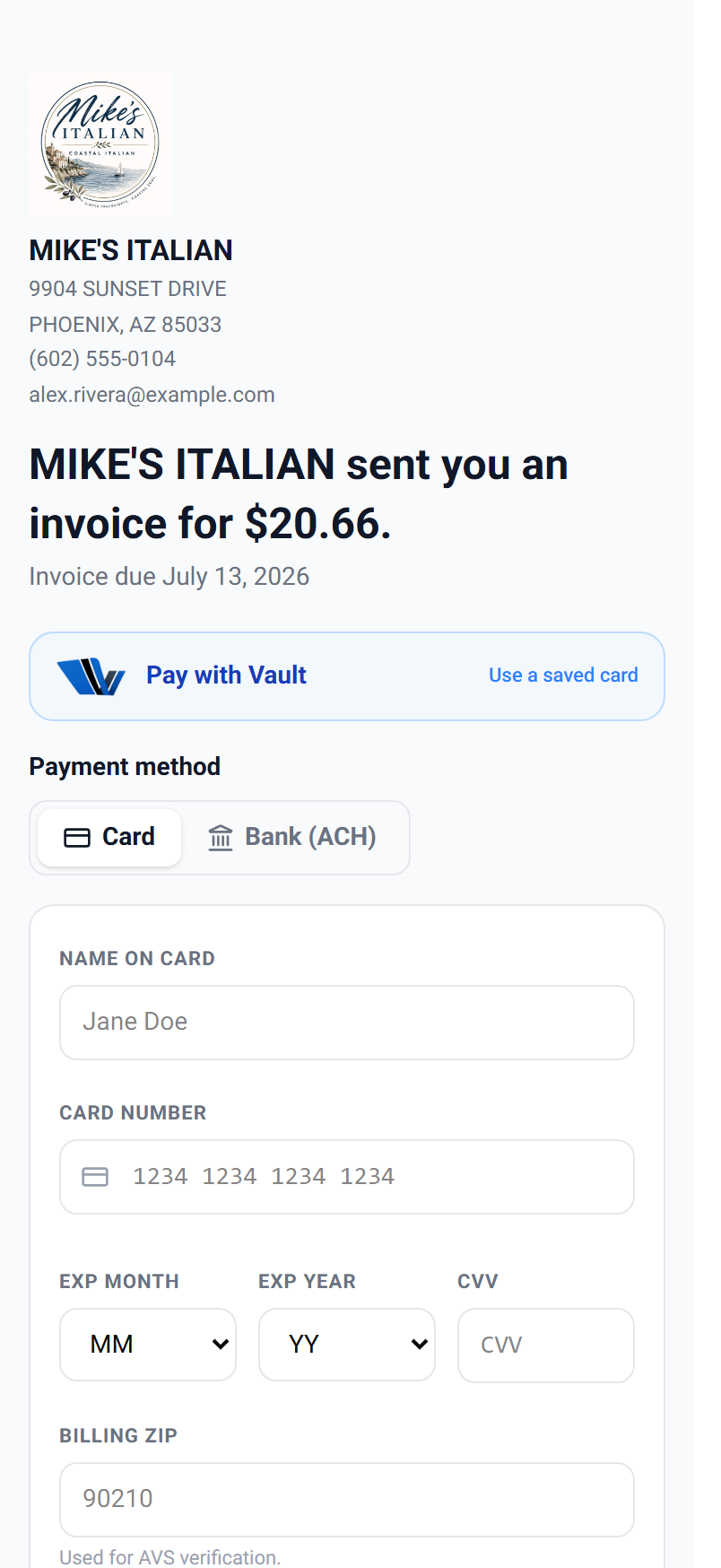
| On this screen | What it does |
|---|---|
| Pay with Vault | The bar above the payment method on invoices, payment links, and checkout. Customers tap it to pay with a saved card. |
| Save my card with Vault to check out faster everywhere | The consent box under the card fields that enrolls a new customer. |
| Transactions row | A Vault payment appears as a card sale with brand and last four, with the same void and refund controls. |
How your customer saves a card
When a customer pays you by card on an invoice, a payment link, your hosted checkout, or your WooCommerce store, the card form shows an unchecked box: Save my card with Vault to check out faster everywhere.
If they check it, their card is saved the moment the payment goes through, tied to the mobile number (and email) on the payment. Every Vault wallet is anchored to a mobile number; if the payment does not carry one, the save box asks the customer for their cell. That is the whole enrollment: no code to type, no account to create, nothing added to your checkout flow.
Saving is always the customer's choice. The box is never pre-checked, and an unchecked box changes nothing about the payment. The customer is done when the paid confirmation says their card was saved; the next pay page they open on Merchant360 offers Pay with Vault.
If a customer wants to save a card but the box does not appear, the payment is one of the exceptions (surcharge program, open-amount link, gift card, or test mode). Filling in the customer's mobile number on their customer record means the box will not need to ask for it.
- 1The customer types their card on your pay page as usual.
- 2They tick Save my card with Vault to check out faster everywhere. If the payment has no mobile number, the box asks for their cell.
- 3They pay. On success the card is saved to their wallet, tied to that mobile number and email.
- 4The confirmation tells them the card was saved for next time.
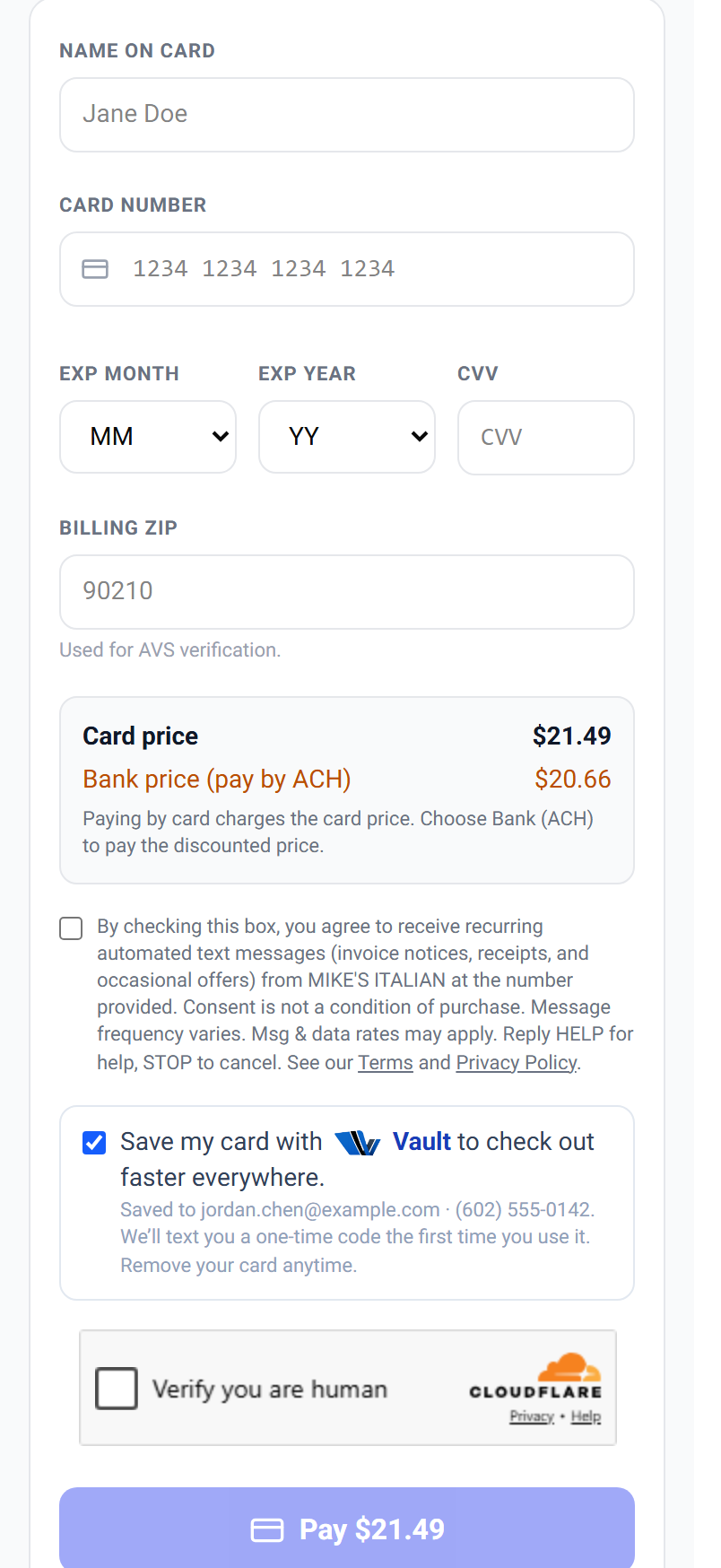
| On this screen | What it does |
|---|---|
| Save my card with Vault to check out faster everywhere | The consent checkbox. Never pre-checked; saves the card only when the payment succeeds. |
| Mobile number | Asked by the save box when the payment carries no mobile number. Every wallet is anchored to a cell number for the texted code. |
| Customer record: mobile number | Fill it in under Customers so invoices and links carry the number and the box has nothing to ask. |
Verification codes arrive only by text, never by email. Filling in the customer's mobile number when you create them means one less thing to type at checkout.
How they pay next time
A returning customer pays from the Pay with Vault bar at the top of any Merchant360 pay page. They identify themselves with the email or mobile number their card is saved under, prove they hold the phone with a one-time code sent by text, pick a card, and pay.
The code step is the security: nobody can pay with a saved card by just knowing an email address or phone number; they have to be holding the phone. Codes are sent by text only. The first payment at each new business always requires a fresh code.
The payment is done when the pay page shows the paid confirmation. On your side it is a card sale on Money → Transactions with the brand and last four, and the customer receives the same receipt as any card payment.
If the customer does not receive the code, the mobile number on their wallet is not the phone in their hand; they can pay with the card form instead, or manage their wallet at merchant360.net/account. If a saved card declines, they pick another card in the wallet or type a card.
- 1On any Merchant360 pay page, the customer taps the Pay with Vault bar at the top.
- 2They enter the email or mobile number their card is saved under; either one works.
- 3A one-time code arrives by text to the mobile number on the wallet. They enter it.
- 4Their saved cards appear as brand and last four. They pick one, tap Pay, and the payment completes.
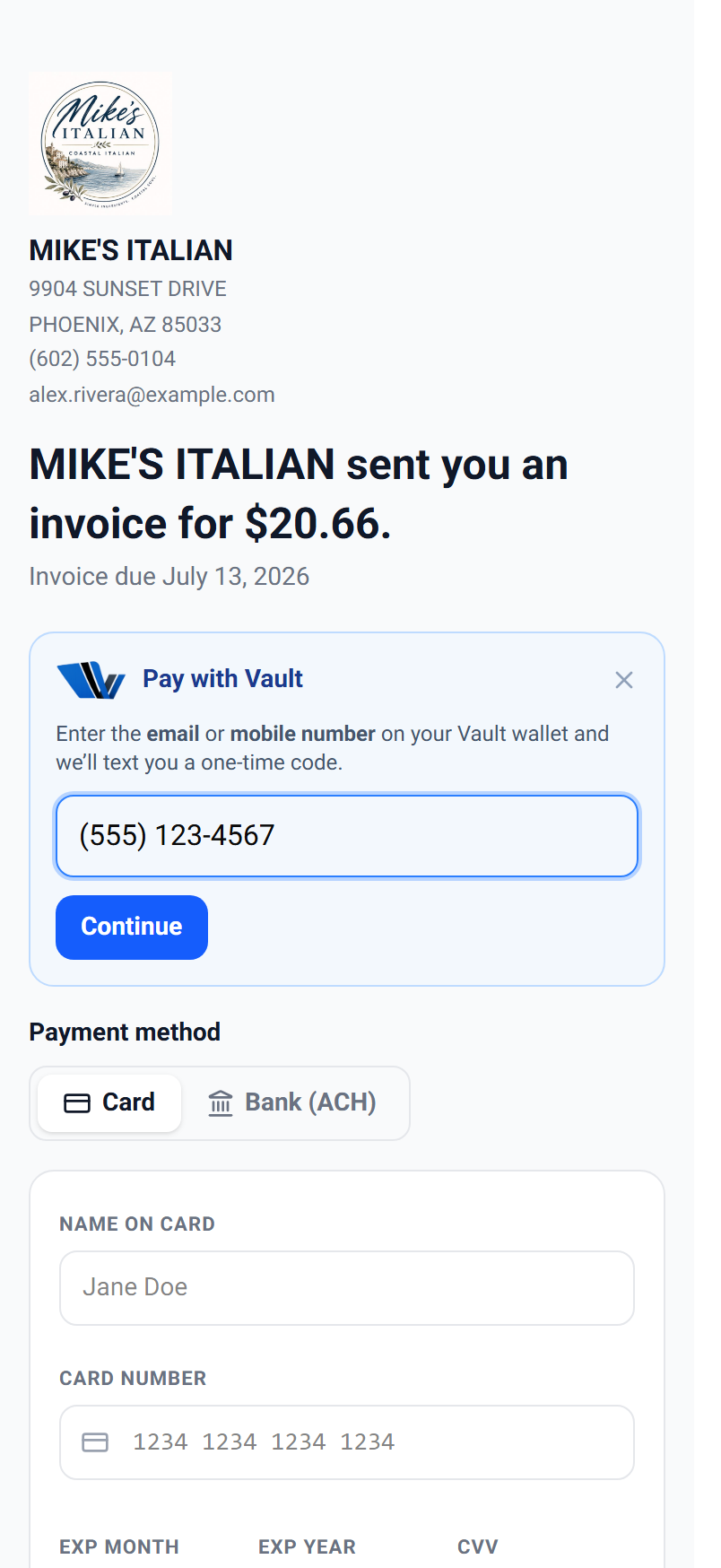
| On this screen | What it does |
|---|---|
| Pay with Vault | Expands into the sign-in field on the pay page. |
| Email or mobile number | One field that accepts either. The code always goes to the wallet's mobile number. |
| One-time code | The six-digit code texted to the customer. Required on every use and on the first payment at each business. |
| Saved cards | The customer's cards as brand and last four. They pick one. |
| Pay | Charges the chosen card for the exact total on the page. |
What you see and what you get
A Vault payment lands in your account exactly like a keyed card sale: same processing rates, same deposit schedule, same receipt to the customer, and the same refund and void controls on Money → Transactions. The transaction detail shows the card brand and last four, just like any sale.
If you run dual pricing, Vault charges the card price, the same price a typed card pays, and the invoice balance reduces by the base amount, identically to your card form.
Chargeback posture is unchanged: it is a card-network transaction on your account, with the added evidence that the payer proved possession of their phone before the charge.
If you need to refund a Vault payment, open the sale on Money → Transactions and use Void or Refund as with any card sale. The money goes back to the customer's card.
| On this screen | What it does |
|---|---|
| Transaction detail | Brand, last four, amount, and the price that applied, the same as a keyed sale. |
| Void / Refund | The same controls as any card sale, on the transaction page. |
| Receipt | The customer receives your standard emailed receipt with your logo and footer. |
Security and privacy, built in
Every use is verified with a one-time code texted to the customer's mobile number before any saved card can be used. Codes are never emailed, so an email address alone cannot spend a saved card.
Privacy is two-way: you never see where else a customer's wallet has been used, and other businesses never see their payments to you. Card numbers are stored as tokens; nobody, including you, ever sees a full number.
Customers manage everything themselves at merchant360.net/account: every saved card, every business where the wallet has been used, one-tap card removal, and the option to close the wallet entirely. There is nothing for you to administer.
If a customer asks you to remove their card from Vault, point them to merchant360.net/account; a card saved to the network wallet is theirs to remove. Cards saved to your own Saved Cards page are separate and you manage those yourself.
| On this screen | What it does |
|---|---|
| One-time code by text | Required before any saved card can be used. Never sent by email. |
| merchant360.net/account | The customer's self-service wallet page: saved cards, businesses used, remove a card, close the wallet. |
| Remove card | The customer's one-tap removal of a card from their wallet. |
| Close wallet | Deletes every saved card and the wallet itself. |
When Vault doesn't appear
A few situations keep the Vault option off a pay page, by design. Businesses with a card surcharge program: a surcharge is priced from the exact card entered, so those checkouts keep the card form. Open-amount payment links where the payer picks the amount. Payments covered in full by a gift card. And test-mode sessions.
None of these affect the rest of your checkout; the card form works exactly as before, and the Save my card with Vault box is also hidden in these cases.
If you expected the bar and it is missing, check the Dual pricing card in Settings for the surcharge-active notice, or set an amount on the payment link. Once the condition is gone, the bar returns on its own.
| On this screen | What it does |
|---|---|
| A surcharge program is active | The Settings notice that also explains why Vault is off on your pay pages. |
| Amount on a payment link | A link with a set amount offers Vault; a $0.00 open-amount link does not. |
| Test mode banner | Test sessions never show Vault. |