
Gift cards & loyalty
Sell stored value online and in-store; reward the regulars.
- Two ways to sell gift cards
- Turn on your online storefront
- What your customer sees when they buy
- What your customers can do at egift.online/manage
- Order printed (plastic) cards
- Approving your proof
- Mailing a plastic card a customer bought
- Redeem & reload at the register
- Look up a balance, resend, or refund a card
- Group gift cards: several people, one card
- Free gifts & bulk sends
- Gift-card reporting
- Loyalty rewards
Two ways to sell gift cards
Go to Accept Payments → eGift to open your Gift Cards hub. There are two ways to sell, and most businesses do both. The hub is where you order printed cards, turn on online sales, send free cards, and open the reports.
Online (digital): customers buy from your own branded gift page at egift.online, and the card is emailed to the recipient as a PDF. The buyer gets their own order-confirmation email too, listing what was bought, who it went to, and the amount charged.
Printed (plastic): you order branded plastic cards, they ship to you, and you sell them at the counter like any other card. You design them and order stock through a short wizard. Online gift cards are included with every printed-card setup.
Nothing needs to be set up before you open the hub. Online selling needs a one-time setup request that the eGift team completes for you, and printed cards need an order. Done looks like this: the hub shows Online sales · LIVE, your first printed order shows a status under Your orders, and the Reports links open with numbers in them.
If the hub shows Setup requested, the eGift team is still provisioning your online cards and you will be notified when it is ready. If a banner says A proof is waiting for your approval or Confirm your gift card order, open the order, because nothing moves until you act. If you sell plastic cards through a separate paper inventory, those do not appear in these reports.
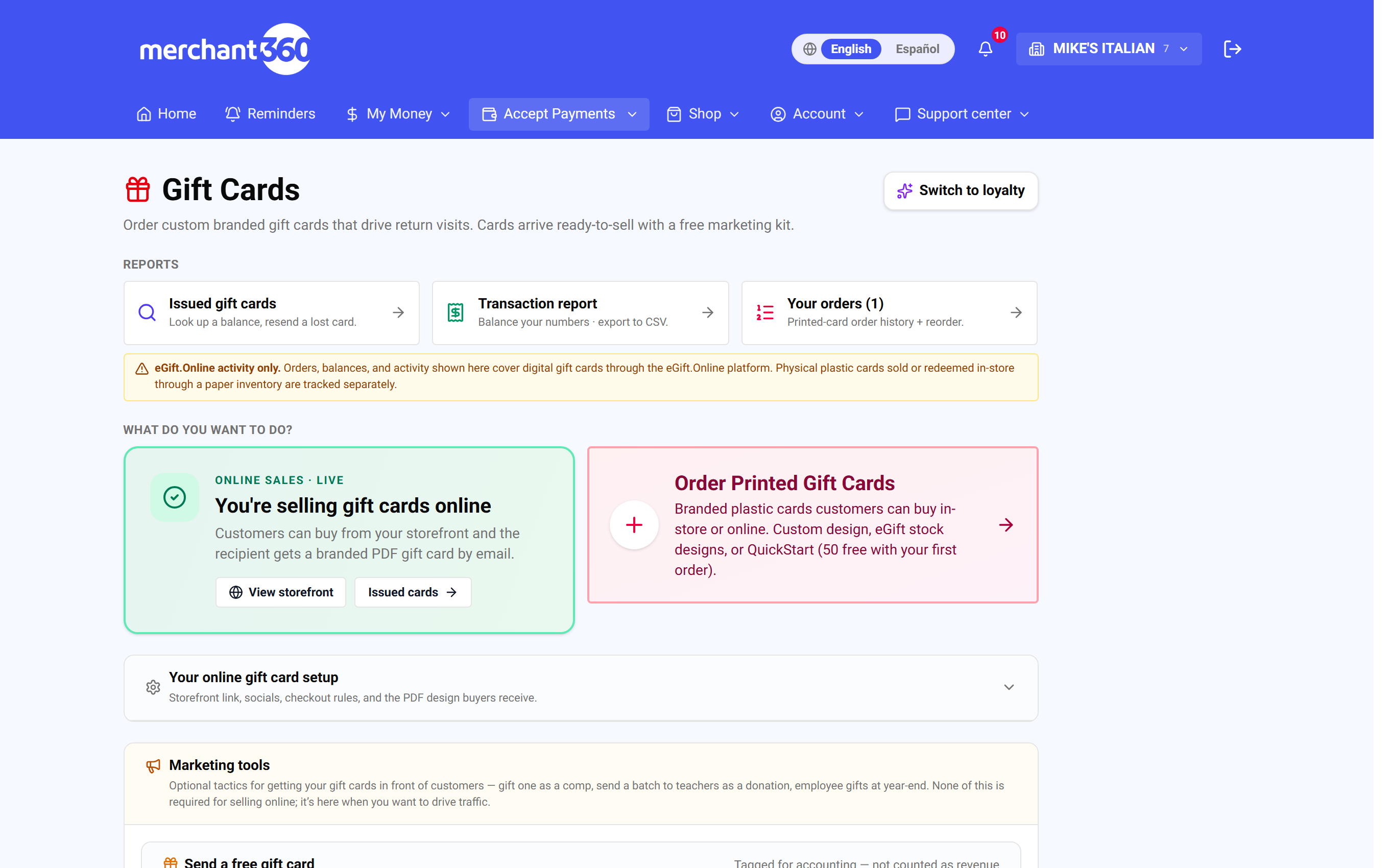
| On this screen | What it does |
|---|---|
| Order Printed Gift Cards / Order Gift Cards | Opens the four-step order wizard for plastic cards. |
| Request online gift card setup | Asks the eGift team to provision your online storefront. The card then shows Setup requested until it is done. |
| Your online gift card setup | The storefront settings: link, embed, checkout rules, social links, and the PDF design buyers receive. |
| Online sales · LIVE / View storefront | The badge that shows online selling is on, and a button that opens your public gift page. |
| Turn on online sales | Shown before you are live. Scrolls you to the storefront block to flip the switch. |
| Switch to loyalty | Opens the Loyalty page that runs on the same cards. |
| A proof is waiting for your approval | A banner that appears when a printed order needs your decision. Click through to the order. |
| Confirm your gift card order | A banner for an order drafted on your behalf that needs your signature. |
| Reports: Issued gift cards / Transaction report | Issued gift cards lists balances and lets you resend a lost card. Transaction report balances your numbers and exports to CSV. |
| Your orders | Printed-card order history with each order's status and a Reorder button. |
| Order status | Draft, Awaiting your approval, With eGift design team, Proof – needs your approval, Revisions submitted to eGift, Approved, At Deployment, At the Printer, Shipped, Delivered, or Cancelled. |
| Marketing tools | Send a free gift card and Send to many recipients (CSV). |
| Group gifts (list) | Collections several people are chipping in on, below your orders: status, time left, organizer, total and contributors. Shown while Group gift cards is on. |
| Physical card orders | The queue of plastic cards customers bought online that you need to activate and mail. |
The Reports numbers on this page cover your online (egift.online) activity. Plastic cards you sell and redeem in person through the register are tracked with your normal transactions.
Turn on your online storefront
Your online gift page is the fastest way to start. Open Your online gift card setup on the eGift hub to switch it on and get your link. Everything on that card takes effect on your public page the moment you click Save Changes.
Before the switch works, your online cards must be provisioned: if the hub still shows Request online gift card setup, click it first and the eGift team sets you up. Upload your logo when asked, because generic designs are not available for online cards and your logo is placed on the card design for you.
Done looks like this: the hub shows Online sales · LIVE, View storefront opens a page with your name and design, and a test purchase emails a PDF gift card to the address you entered.
If visitors see a paused notice, Sell gift cards online is off; turn it on and save. If the embed shows nothing, paste the whole snippet into an HTML block on your site. If the emailed PDF looks plain, upload your design under Your PDF gift card design and save. If you do not want to mail plastic cards, leave Offer a physical (plastic) gift card off and the option never appears at checkout.
- 1Turn on Sell gift cards online. While it is off, visitors see a paused notice, and in-person redemption keeps working either way.
- 2Copy your Direct link to your gift card page (it is egift.online followed by your business ID) and share it: put it in your email signature, on social, on a table tent, or behind a QR code.
- 3Have a website? Use Copy snippet under Embed the buy widget on your website and paste it into your site so customers buy without leaving your page.
- 4Set your options: show your own card design on the sell page, require a phone number at checkout, let customers gift part of a balance, and offer a mailed plastic card with a handling fee if you want a physical option.
- 5Upload the PDF gift card design buyers receive under Your PDF gift card design, add social links if you like, then click Save Changes.
| On this screen | What it does |
|---|---|
| Sell gift cards online | The master switch for your public gift page and the embed. Off shows a paused notice; redemption at the register keeps working. |
| Direct link to your gift card page / Copy link | Your public address at egift.online. Share it anywhere: menu, email signature, social bios, a QR on the counter. |
| Embed the buy widget on your website / Copy snippet | A snippet you paste into any page of your site so customers buy without leaving it. |
| Show your gift card design on the sell page | Displays your uploaded design on the storefront instead of a generic card image. |
| Require a phone number at checkout | Makes the buyer enter a phone number. Helpful if you ever need to reach them about an order. |
| Let customers gift their gift card balance | Lets a customer signed in at egift.online/manage send part of a balance to someone else. |
| Offer a physical (plastic) gift card | Adds a mailed plastic card option at checkout. Those orders land in Physical card orders for you to fulfill. |
| Handling / shipping fee | Per card, added to the charge when the buyer chooses a mailed card. $0 means no fee. |
| Post-purchase redirect URL (optional) | Sends the buyer to a page on your site after they pay, such as a thank-you page. |
| Social links (optional) | Facebook, Instagram, and YouTube links shown as icons in the footer of every gift card PDF you send. |
| Your PDF gift card design | The artwork on the PDF the recipient receives by email. |
| Group gifts | Lets several people chip in on one card for one recipient. Shows Live on storefront or Not shown. |
| Save Changes | Applies everything on the card to your public page and confirms with Saved. |
When online sales are live, the hub shows an Online sales · LIVE badge and a View storefront button so you can see exactly what customers see.
What your customer sees when they buy
Your storefront is branded with your name, artwork, and contact details. Buying takes a minute and needs no account. Use View storefront on the hub to walk through it yourself before you share the link.
The charge on the buyer's statement shows your business name, and the buyer gets an order-confirmation email listing each card, the recipient, and the amount, so questions about a purchase are easy to answer from Issued gift cards.
Done looks like this: you can complete a small test purchase, the recipient's inbox has the branded PDF within a minute, and the card appears under Reports → Issued gift cards with its balance.
If a buyer says the recipient did not get the card, look the card up under Issued gift cards and use Re-email PDF with live balance, checking the address first. If a customer wants to give part of a balance to someone else and cannot, Let customers gift their gift card balance is off in your storefront settings. If a plastic card was ordered, it waits for you in Physical card orders until you activate and mail it.
- 1The customer picks an amount: quick tiles from $25 to $250, or a custom amount from $5 to $500. They can add up to ten cards in one order.
- 2They choose delivery: emailed, or (if you offer it) a plastic card you mail. They enter the recipient's name and email, or send it to themselves, and can add a personal message.
- 3They pay by card and get a success screen listing each card. Emailed cards arrive as a branded PDF right away; the charge shows as your business name.
- 4Customers can manage their cards at egift.online/manage: check a balance, add a card, and, if you allow it, gift part of a balance to someone else.
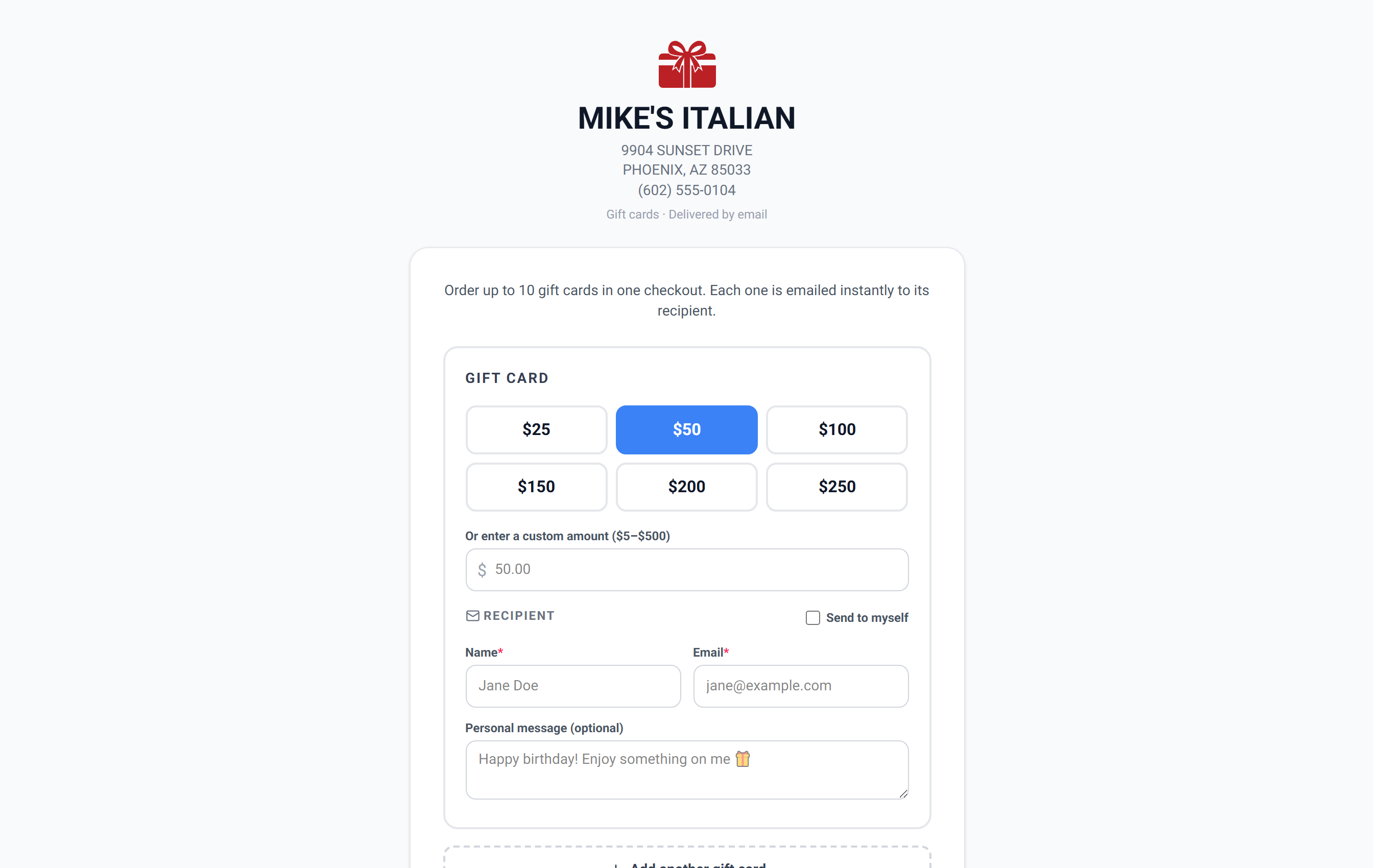
| On this screen | What it does |
|---|---|
| Amount tiles and custom amount | Quick picks from $25 to $250, or any amount from $5 to $500. Up to ten cards per order. |
| Delivery: email or mailed plastic card | Email sends a PDF at once. Mailed plastic only appears when you offer it, and adds your handling fee. |
| Recipient name, email, and personal message | Who receives the card and the note printed on the PDF. The buyer can send it to themselves. |
| Phone number | Required at checkout only when you turned on Require a phone number at checkout. |
| Pay by card | The buyer's charge shows your business name on their statement. |
| Success screen and confirmation email | Lists each card, recipient, and amount for the buyer's records. |
| egift.online/manage | Where customers check a balance, add a card, and gift part of a balance if you allow it. |
| View storefront | On the hub. Opens your public page so you see exactly what customers see. |
What your customers can do at egift.online/manage
egift.online/manage is where the people holding your gift cards look after them, so they do not have to call you for a balance. It works for every business on eGift, so a customer signs in once and sees all their cards together.
Sign-in is by emailed link, with no password: the customer enters their email, clicks Email me a sign-in link, and opens the link within 15 minutes. They stay signed in for 30 days on that device.
Add a card asks for the 16-digit Gift card number. A digital card can be added by the person it was sent to or the person who bought it, signed in with that same email. A plastic card or a group gift card is added by whoever holds the number, the same way handing the card over at your counter works, and it has to be activated first. A card already added to someone else's account is refused and the customer is told to contact support.
On a card's page the customer sees the live Balance, their points, Available rewards they can redeem and Recent redemptions. If your loyalty program offers it, they can turn points into value on the same card. They cannot add money to a card here or report one lost; for a lost card they need to contact you, and you can look the card up under Look up a balance, resend, or refund a card.
Send some of this balance as a gift appears only if you switched on Let customers gift their gift card balance in Your online gift card setup. The customer picks an amount from $1 to $500, and a brand-new gift card for that amount is emailed to the person they name while their own card is reduced by the same amount. It is off unless you turn it on.
The Activity page shows the customer their invoices, payment links and gift cards across businesses, and See your full account takes them to their customer account page with the same sign-in. The pages are in English.
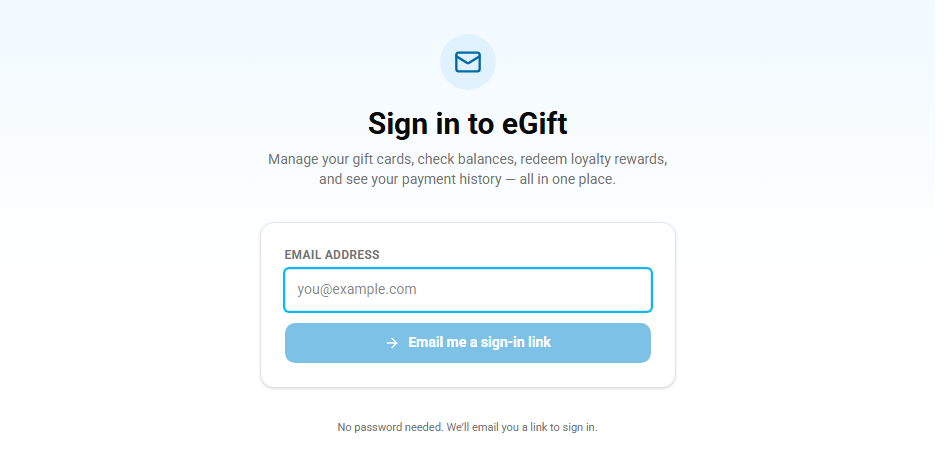
| On this screen | What it does |
|---|---|
| Email me a sign-in link | One-time sign-in by email. No password. |
| Add a card / Add another card | Links a 16-digit gift card to the customer's sign-in. |
| Balance | The card's live balance, checked when the page opens. |
| Available rewards / Recent redemptions | Loyalty rewards the customer can redeem, and what they have redeemed. |
| Send a gift | Shown when you allow balance gifting. $1 minimum, $500 maximum per transfer. Reads Balance too low under $1. |
| Let customers gift their gift card balance (your setting) | In Your online gift card setup on the Gift Cards page. Off by default. |
Print egift.online/manage on your card carriers and receipts so cardholders know where to check a balance.
Order printed (plastic) cards
From the hub, choose Order Printed Gift Cards to open the wizard. It has four steps: Path, Design, Details, and Sign. Every custom order ships with a free marketing kit so you can start selling at the counter.
Order printed cards when you want something to sell in person or display by the register. Have your artwork ready as a PDF or image if you choose Custom Design, and know the address and phone number you want printed on the back of the card. Pricing is computed on the Sign step before you commit.
Done looks like this: the order appears under Your orders on the hub with the status With eGift design team, and you receive a notification when the proof is ready.
If Submit Order stays disabled, tick the Service Agreement checkbox and type your full name in the Signature field. If the wizard refuses your artwork, upload a PDF or image file. If you are reordering, use Reorder on the past order so the design, quantity, and addresses are prefilled and you only redo payment and signature.
- 1Path: choose how you will design the card. Custom Design uploads your own art. Choose from Stock Designs offers 60+ ready templates. QuickStart gives 50 free cards with your first order to test the program. AI Design Builder (Beta) generates four options from a vibe you pick.
- 2Design: upload your artwork to print spec, pick a template from the gallery and filter by category, or pick one of the generated designs.
- 3Details: set the order type, quantity (250 to 5,000; QuickStart is fixed at 50), shipping speed, the contact info printed on the back of the card, where to ship, and how to pay (ACH, a card on file, or a new card).
- 4Sign: review the price breakdown (cards, shipping, sales tax) and the service agreement, then type your name and title to sign, and click Submit Order.
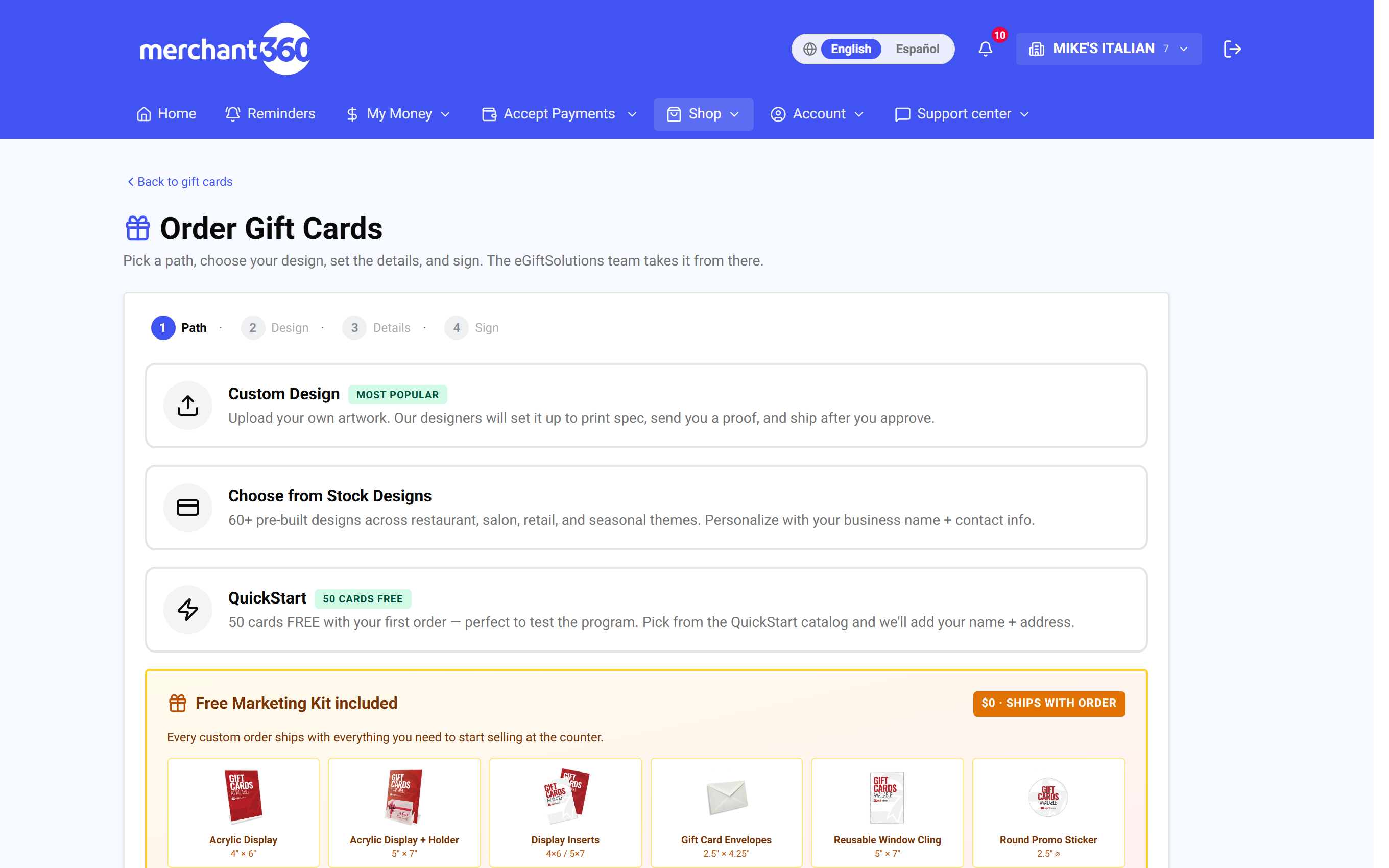
| On this screen | What it does |
|---|---|
| Path / Design / Details / Sign | The wizard steps. Back and Next move between them. |
| Custom Design | Upload your own artwork (PDF or image). The design team sets it to print spec and sends a proof. |
| Choose from Stock Designs | 60+ templates across restaurant, salon, retail, and seasonal themes, personalized with your name and contact info. |
| QuickStart | 50 cards free with your first order from the QuickStart catalog, with your name and address added. |
| AI Design Builder (Beta) / Try the AI design vibes | Pick a mood or describe it, click Generate 4 designs, and Pick your favorite. Your logo and contact info are placed on top at print time. |
| Reuse the artwork from your previous order | On a reorder. Untick it to upload new artwork instead. |
| Order type | New Setup or Reorder. |
| Quantity | 250 to 5,000 cards. QuickStart is fixed at 50 cards · FREE. |
| Shipping speed | Ground or 2nd Day Air. Shows in the price breakdown. |
| Ship-to and back-of-card address | Where the cards go and what prints on the back. Use DBA fills in your business address. |
| Bill to | Merchant, paid by ACH or a card on file. |
| How to pay: ACH / Bank, Card on file, New card | ACH debits the bank account on file. New card asks for the card details and can save the card for future orders. |
| Notes for the eGift design team (optional) | Anything the designers should know about your artwork. |
| Price breakdown: Cards, Shipping, Subtotal, Total | Computed on the Sign step. QuickStart cards show FREE. |
| Service Agreement / I have read and accept | The terms, including revision pricing. The checkbox must be ticked before you can submit. |
| Signature (type your full name) and Title | Your typed signature on the agreement. |
| Submit Order | Sends the order to the eGift design team. The hub shows it under Your orders. |
| Reorder | On a past order. Opens the wizard prefilled from that order; pricing is recomputed today. |
Already ordered once? Use Reorder on any past order to start a new one with the same design and details prefilled. You only redo payment and signature.
Approving your proof
After you submit a printed order, the eGift design team sets it up and sends a proof for you to approve. The hub shows A proof is waiting for your approval banner when it is your turn, and the order's status reads Proof – needs your approval.
Open the order to view the proof. Approve & Send to Printer sends it to production, or Request Revisions sends your notes back to the designers. The first revision is free; the second is $25 and the third and beyond are $50 each, shown before you commit. Once you approve, the cards go straight to production and cannot be changed, so check colors, business name, address, phone number, and every contact detail carefully.
Some orders are drafted for you by your sales agent. Those show Awaiting your approval with a Confirm your gift card order banner; review the details, accept the service agreement, sign, and click Approve & Submit, or Decline with a reason.
Done looks like this: the status moves to Approved, then At the Printer, Shipped with a tracking number, and Delivered.
If the proof link opens nothing, click View next to the proof to open it in a new tab. If you need to change the artwork itself, use Or upload a new artwork file when requesting revisions. If the status has not moved for a while, the order page shows exactly which side it is with.
- 1Open the order from the banner or from Your orders on the hub.
- 2Click View to open the proof and check every detail.
- 3Click Approve & Send to Printer, or type what needs to change and click Send Revisions to eGift.
- 4Watch the status on the order page until it reads Delivered.
| On this screen | What it does |
|---|---|
| View (proof) | Opens the current proof in a new tab. |
| Approve & Send to Printer | Locks the design and sends the cards to production. No changes are possible after this. |
| Request Revisions / What needs to change? / Send Revisions to eGift | Sends your notes to the design team. A revision fee, if any, is shown and billed to your account. |
| Or upload a new artwork file (optional) | Replaces the artwork along with your revision notes. |
| Proof history | Every proof sent, with approved, awaiting your decision, or revisions requested. |
| Revision pricing | 1st revision free · 2nd $25 · 3rd+ $50 each. |
| Confirm your gift card order / Approve & Submit | For an order drafted on your behalf. Review, accept the Service Agreement, sign with your name and title, and approve. |
| Decline / Confirm decline / Keep open | Declines a drafted order with a reason so the agent or design team knows what to fix, or keeps it open. |
| Order Details | Program, Quantity, Shipping, Subtotal, Sales tax, Revision fees, Order total, Bill to, and Tracking. |
| Status | With eGift design team, Proof – needs your approval, Revisions submitted to eGift, Approved, At the Printer, Shipped, Delivered, or Cancelled. |
| Tracking | The carrier tracking number once the order ships. |
| Reorder | Starts a new order prefilled from this one. |
Mailing a plastic card a customer bought
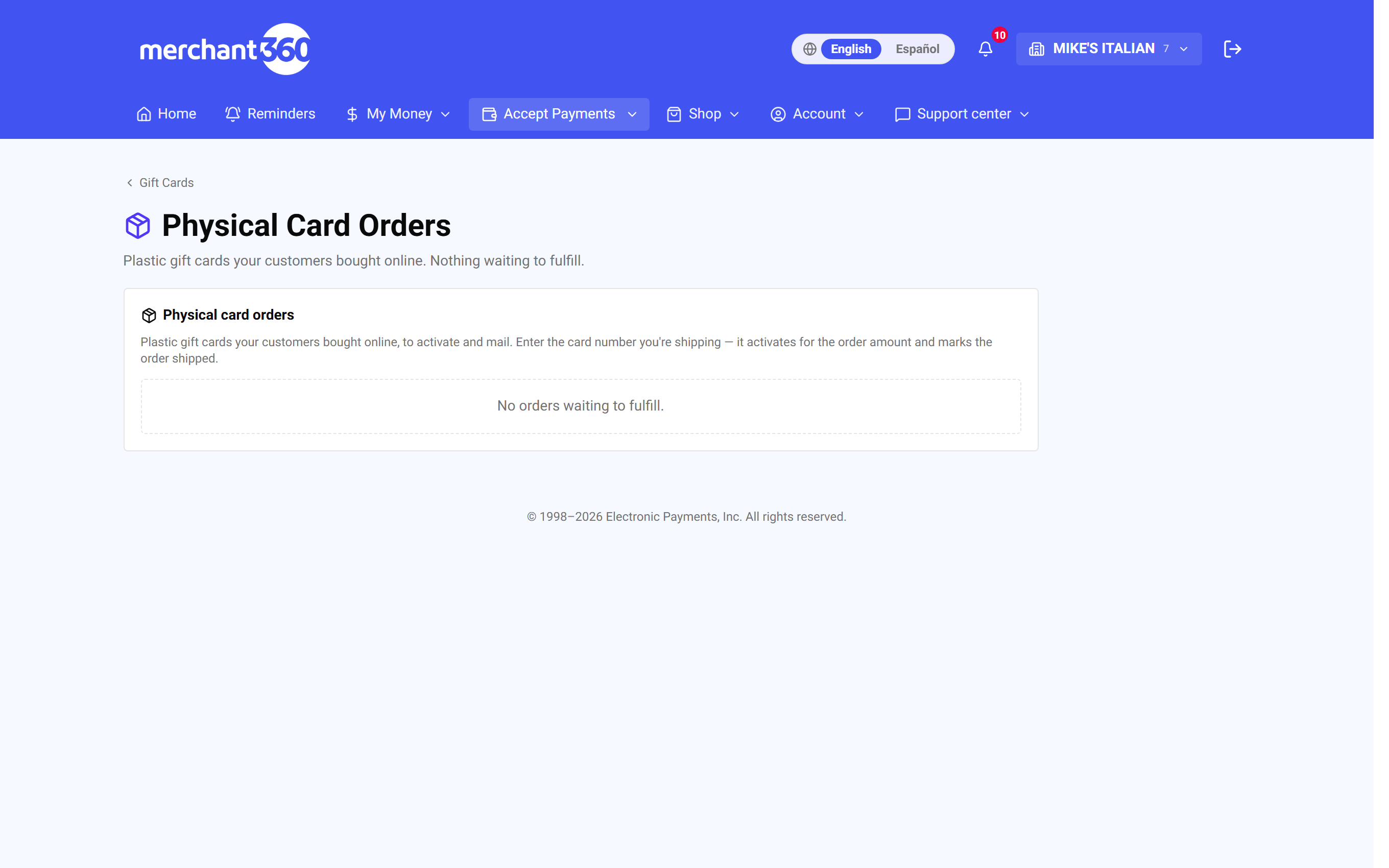
If you offer a mailed plastic card on your storefront, those orders land in Physical card orders for you to fulfill. The hub flags how many are waiting under To mail.
You need blank plastic cards from a printed order on hand. Entering the number of the card you are mailing activates it for the purchased amount and marks the order shipped in one step, so the customer's card is live before it reaches them.
Done looks like this: the order moves from To mail to Shipped in the history below, the activated card appears under Issued gift cards with its balance, and the buyer can see the tracking number if you entered one.
If you typed the wrong card number, the wrong card is now loaded; deactivate it from Issued gift cards and activate the right one. If the customer cancels before you ship, use Cancel order and refund the purchase from Transactions. If you no longer want to mail cards at all, turn off Offer a physical (plastic) gift card in your storefront settings.
- 1Open Physical card orders to see each pending order with the buyer, the amount, the recipient, and the ship-to address.
- 2Click Print slip to print the receipt and packing slip to include in the envelope.
- 3Take a blank plastic card, enter its number under Plastic card number you're mailing, pick the carrier, add the tracking number, and click Activate + mark shipped. Entering the card number loads it with the purchased amount and marks the order shipped.
- 4Shipped and canceled orders move to the order history below, which you can search by order number, buyer, recipient, or tracking.
| On this screen | What it does |
|---|---|
| To mail | The queue of paid orders waiting for a card. Each shows buyer, amount, recipient, and ship-to address. |
| Print slip | Prints the receipt and packing slip for the envelope. |
| Plastic card number you're mailing | The number on the blank card you are sending. It is activated for the order amount. |
| Carrier / Carrier name | Pick the carrier, or choose Other and type it. |
| Tracking # (optional) | Stored with the order and searchable later. |
| Activate + mark shipped | Loads the card with the purchased amount and moves the order to Shipped. |
| Cancel order | Asks Cancel this order? and moves it to Canceled. Refund the purchase from Transactions. |
| Search buyer, recipient, order #, tracking | Filters the order history. The most recent 200 orders are shown. |
| Shipped / Canceled | The statuses in the history. |
Redeem & reload at the register
Spending and topping up a card happen where you take payments: the Virtual Terminal and the Merchant360 mobile app. That keeps redemption tied to the sale. The eGift cards page under Accept Payments shows the same operations as quick actions and lists your last 25 gift-card transactions.
To redeem, pull up the card by entering its number or scanning the barcode on the back of the plastic card or on the emailed gift PDF, then apply it to the sale. The balance draws down automatically. To reload, add value to an existing card the same way. This is also where a card gets refunded back to value when you need to reverse a redemption.
Done looks like this: the sale closes with the gift card as tender, the customer's remaining balance prints on the receipt, and the operation appears in Recent eGift activity with a status of OK.
If a card will not redeem, check the balance first; a card with no balance or one that was deactivated returns a decline. If a scan does not read, key the number printed on the card. If you redeemed the wrong amount, use the refund operation in the Virtual Terminal to put the value back on the card rather than a card refund.
| On this screen | What it does |
|---|---|
| Card number | Type the 16-digit number or scan the barcode on the plastic card or the PDF. |
| Check balance / Look up | Shows the live balance without changing it. |
| Redeem | Takes the sale amount off the card. The balance draws down automatically. |
| Add value | Reloads the card with the amount the customer pays. |
| Activate card | Loads a blank plastic card with its first value. |
| Refund | Puts value back on the card to reverse a redemption. |
| Deactivate / Deactivate (refund) | Takes a card out of circulation, with or without refunding the balance. |
| Open Virtual Terminal | Opens the terminal where every gift-card operation is available. |
| Recent eGift activity | The last 25 operations with When, Op, Amount, Balance after, Status, and Txn ID. |
| Loaded to cards (30d) / Redeemed (30d) / Net $ flow (30d) / Active eGift cards | The summary tiles for the last 30 days. |
Look up a balance, resend, or refund a card
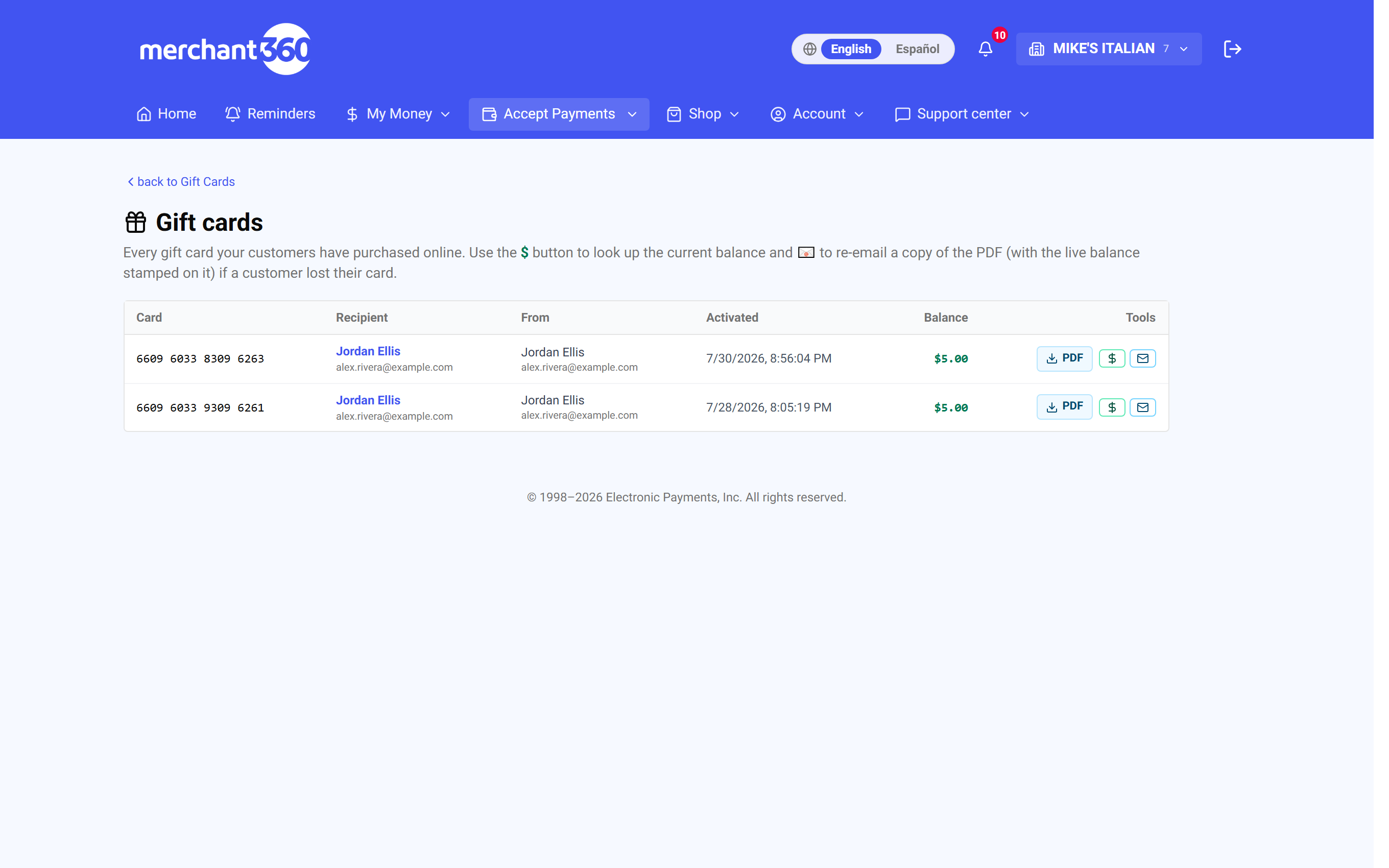
Reports → Issued gift cards lists every activated card with its recipient, buyer, activation date, and current balance. Use it whenever a customer calls about a card.
Done looks like this: the customer's question is answered from the row, a lost card is back in their inbox with the live balance stamped on it, and a card that had to be refunded shows Purchase refunded on its detail page.
If a card is missing from the list, it was never activated; check Physical card orders for a plastic order still waiting, or Transaction report for the purchase. If a resend does not arrive, confirm the address and ask the customer to check spam. If the buyer's card can no longer be refunded, deactivate the card and settle with the buyer another way.
- 1Click Check current balance on any card to see its live value.
- 2Click Re-email PDF with live balance if a customer lost the original. You can send it to a different address.
- 3Open a card to see its full detail: recipient, buyer, and the payment that bought it, kept for dispute defense. Download the PDF any time.
- 4Deactivate a card to pull it out of circulation, or Deactivate & refund to also send the remaining balance back to the card that bought it, so nobody is out the unspent money.
| On this screen | What it does |
|---|---|
| Card / Recipient / From / Activated / Balance | The list columns: last digits of the card, who it went to, who bought it, when it was activated, and the live balance. |
| Check current balance | Refreshes and shows the live balance for that card. |
| Re-email PDF with live balance | Sends a fresh copy of the PDF to an address you enter, with the current balance stamped on it. |
| PDF / Download a fresh PDF with the live balance | Downloads the card PDF for printing or forwarding. |
| Card detail: Recipient, Buyer, Payment & order | Name, email, phone, amount, card charged, and transaction ID for the purchase, kept for dispute defense. |
| Deactivate | Removes the card from circulation without a refund. |
| Deactivate & refund | Removes the card and returns the remaining balance to the card that paid. The detail page then shows Purchase refunded. |
Group gift cards: several people, one card
A group gift card lets several people chip in on one gift card for one person. It is made for the class gift for a teacher, the office collection for a colleague, the team gift for a coach. One person starts it on your online gift card storefront, shares a link, everyone pays their own share on their own page, and when the collection closes the whole amount goes onto a single card that is emailed to the recipient. It is on for your storefront unless you switched it off.
The organizer chooses Group gift card on your storefront, enters who the card is for, pays their own contribution, and picks how long the collection stays open: 24 hours, 2, 3, 5 or 7 days. They can type up to 50 email addresses to invite, add a message and suggest an amount. After checkout they get a share link, on screen and by email, that they can send to anyone. There is no fundraising goal to hit. Whatever is collected by the deadline becomes the card, and if nobody else joins, the organizer's amount is the gift.
Everyone with the link sees a page with the total so far, how much time is left, and who has chipped in, with names, amounts and any note they left. The recipient never sees that page. To contribute, a person clicks Chip in, enters between $5.00 and $500.00, their name, phone and email, and pays by card. No account is needed. Each contribution is charged right away and arrives in your normal batch like any other sale, so the money reaches you before the card is delivered.
Within about 15 minutes of the deadline the card is created for the exact total and emailed to the recipient with your artwork, the balance, the card number, a line naming everyone who contributed, and the card as a PDF. It is an ordinary gift card from then on: it shows under Issued gift cards with the organizer as the sender, and it redeems and reloads at the register like any other.
The Group gifts list on your Gift Cards page shows each collection with its status (Collecting, Issuing card, Sent, Refunded, No contributions), the time left, the organizer, the total and the number of contributors. In Transactions each contribution carries a Pooled gift contribution badge. While a collection is still open, you can refund a contribution the normal way and the card is issued for what remains. Once the card is issued, contributions can no longer be refunded, because that money is already on a card that was given away; adjust the gift card's balance instead.
Two things to know. A group card is drawn from the same supply of card numbers as every online gift card, so keep gift card numbers available; if a card cannot be created after five tries over about 14 hours, every contributor is refunded automatically and told why. And group gift cards are always emailed: there is no mailed plastic option for them, contributions are by card only, and the storefront pages are in English.
| On this screen | What it does |
|---|---|
| Group gift cards (switch) | On your Gift Cards page, open Your online gift card setup. Live on storefront means customers see the Group gift card choice; Not shown hides it. Turning it off stops new group gifts only; collections already under way still finish. |
| Group gifts (list) | On your Gift Cards page, below your orders. The last 25 collections, live ones first. It is only shown while the switch is on, so look here for anything still collecting before you turn the switch off. |
| Copy share link (customer's screen) | What the organizer sends around. Anyone with it can chip in, invited or not. |
| Chip in (customer's screen) | Opens a one-time payment page for that person. It stops working when they pay or when the collection closes. |
Mention it where groups already gather: a line on your counter sign, your email footer or the school newsletter. People rarely go looking for a group gift, but they use it the moment they know it is there.
Free gifts & bulk sends
The hub's marketing tools help you put cards in customers' hands. These are optional. Free sends are tagged for accounting and are not counted as revenue.
Use a single free card for an apology, a give-back, a donation, or a staff gift. Use the CSV bulk send for a list, such as every teacher at a school or your whole team at year-end. Your online cards must be provisioned first.
Done looks like this: the recipient has the branded PDF in their inbox, the card shows under Issued gift cards, and a bulk send shows its progress under Recent bulk sends.
If a bulk send says No valid rows, open the preview, fix the rows marked with issues in your spreadsheet, and upload again. If amounts are missing, either add an Amount column or set Amount per card. If a single send fails, check the recipient email and try again.
- 1Send a free gift card issues a comp: pick a type (Donation, Customer comp, or Employee gift), enter the recipient name, email, and amount, add a personal message, and click Send free gift card.
- 2Send to many recipients (CSV) emails many cards at once: choose the type, add a label for your records, upload a spreadsheet with name, email, amount, and message columns or Load sample to see the format, preview it, and click Queue bulk send. Progress shows under Recent bulk sends.
| On this screen | What it does |
|---|---|
| Send a free gift card | Opens the single-card form. |
| Type: Donation / Customer comp / Employee gift | Tags the card for accounting. School, charity, or community gift; apology, give-back, or marketing comp; staff appreciation. |
| Recipient name, Recipient email, Amount, Personal message | Who gets the card, how much, and the note on the PDF. |
| Send free gift card | Activates the card and emails the branded PDF. Tagged for accounting and not counted as revenue. |
| Send to many recipients (CSV) | Opens the Bulk send (CSV) panel. |
| Label (optional) | A name for the batch, for your records. |
| Upload .csv / Load sample | Loads your spreadsheet, or a sample showing the columns: name, email, amount, message. |
| Amount per card (no CSV amounts) | A uniform amount when your file has no amount column. |
| Preview: Line, Name, Email, Amount, Issues | Shows each row as OK or with errors before anything is sent. |
| Queue bulk send | Starts sending. Progress appears under Recent bulk sends. |
| Close | Closes the panel without sending. |
Gift-card reporting
Reports → Transaction report shows every online gift-card event, including purchases, activations, add-value, and redemptions, with date-range and type filters and a CSV export for your bookkeeper. Use Issued gift cards for balances and Transaction report to balance your numbers.
Run it at month end to tie gift-card sales and redemptions to your books. Done looks like this: the filtered list matches the period you are closing, and the CSV opens in your spreadsheet with one row per event.
If the report is empty, widen the date range or clear the type filter. If a redemption at the register is missing, remember this report covers online gift cards only; plastic cards run through a separate paper inventory are not included.
| On this screen | What it does |
|---|---|
| Date range: From / To | Limits the report to the dates you pick. |
| Type: Activations / Add Value / Redemptions (Sales) / Balance Transfers | Shows one kind of event at a time, or all of them. |
| Apply / Clear | Runs the filters or resets them. |
| Date / Type / Card / Amount / Balance after / Reference / Status | The report columns. |
| Export CSV | Downloads the filtered rows for your bookkeeper. |
| back to Gift Cards | Returns to the hub. |
Loyalty rewards
There are two loyalty programs, and they suit different businesses. The points program runs on the same eGift card your customers already carry: Switch to loyalty from the eGift hub, add points when they buy, and let them redeem points for prizes in the Reward catalog. The punch-card program lives under Marketing and rewards visits or dollars spent without any card at all.
Points loyalty needs your eGift account provisioned first; until then the page reads Loyalty needs eGift. Set up at least one prize in the Reward catalog before you start issuing points, so customers have something to redeem for. Customers accrue automatically whenever they are attached to a sale, and loyalty follows the customer across visits and locations, so a regular is recognized everywhere you operate.
The punch-card program under Marketing needs nothing but a customer on the sale. Turn on Enable customer loyalty program, set how many punches earn a reward, what the reward is, and whether a punch is earned per visit or per dollars spent. Punches and redemptions happen from the counter desk on the same page.
Done looks like this: Points issued and Points redeemed show on the Loyalty tiles, a customer can pick a prize in their portal and you scan the coupon at the counter, or, for the punch card, the customer's card shows the punches and Redeem becomes available at the target.
If Add points fails, check the card number and that the card is active. If a prize does not show for a customer, they may be blocked under Per-customer overrides or below the points required. If the punch-card reward is not applying, confirm the program is enabled and the customer was attached to the sale.
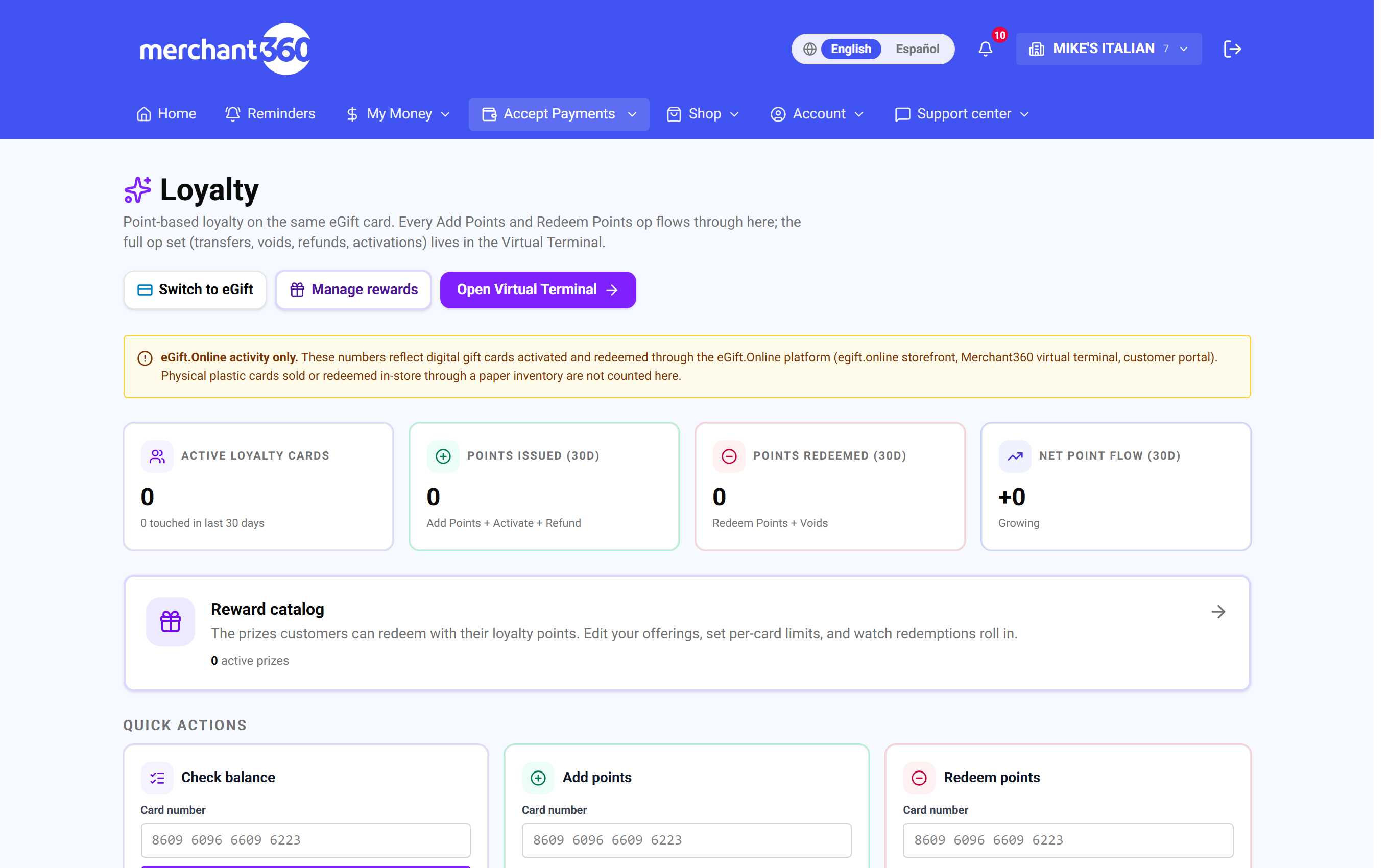
- 1On the Loyalty page, use Quick actions: Check balance, Add points, or Redeem points against a card number.
- 2Click Manage rewards to open the Reward catalog and add prizes: Cash off, Percent off, Send gift card, Reload, Auto reload, or a visit bonus.
- 3Use Manage segments to group cards for promotions, and Block a card to keep one card from a prize.
- 4For the punch card, open Marketing → Loyalty program, tick Enable customer loyalty program, set punches, reward, and earn rule, and click Save program.
| On this screen | What it does |
|---|---|
| Switch to loyalty / Switch to eGift | Toggles the page between gift-card activity and points activity on the same cards. |
| Points issued (30d) / Points redeemed (30d) / Net point flow (30d) / Active loyalty cards | The summary tiles. Net shows Growing or Burning faster than earning. |
| Quick actions: Check balance / Add points / Redeem points | Enter a card number and points. Look up, Add, or Redeem runs the operation and confirms. |
| Manage rewards | Opens the Reward catalog. |
| New prize / Add prize / Edit prize | A prize has a type, a title shown to customers, points required, its value, an optional description, and advanced limits: max per card, once every N days, and an expiry date. |
| Prize types | Cash off, Percent off, Send gift card, Reload (manual), Auto reload, Visit-bonus points, and Visit-bonus reload. |
| Archive / Restore | Hides a prize from customers or brings it back. |
| Recent redemptions / Resend email / PDF | Coupons customers redeemed, with a resend and a download. |
| Manage segments / New segment | Named groups of cards by range or list, for promotions or blocks. |
| Per-customer overrides / Block a card / Revoke | Keeps one card or segment from a specific prize, with an internal reason. |
| Open Virtual Terminal | Where the full set of points operations lives, including transfers and voids. |
| Recent loyalty activity | The last 25 points operations with balance after and status. |
| Marketing → Loyalty program | The punch card: Enable customer loyalty program, Punches required for reward, Reward label, Earn a punch per $ spent, Reward type (Label only, Dollar discount, Percent discount) with amount and max, Mark a customer a regular after N visits, Description, and Save program. |
| Counter desk: Punch / Redeem | On the Marketing page. Adds a punch to the customer's card or redeems the reward when the target is reached. |