
Recurring billing & subscriptions
Bill on a schedule; the system chases the card so you don't.
- Set up a recurring plan
- Bill a bank account (ACH) on a schedule
- Reusable price plans
- Usage meters (charge by usage)
- Flex fees – included usage plus overage
- Free trials & setup fees
- Pause, resume & change the amount
- When a card fails: dunning
- Know your recurring revenue
- The subscriber's self-serve page
- When a subscriber's card changes (self-serve card update)
Set up a recurring plan
A recurring schedule charges a customer's saved card the same amount on a repeating cycle and emails them a receipt each time. Use it for memberships, maintenance contracts, retainers, rent, or any service billed by the week, month, quarter, or year.
Before you start, the customer needs a card on file. Save one from the customer's profile under Cards on file, from the Saved cards page, or by running a sale in the Virtual Terminal with Save this card to vault ticked. The Customer dropdown on the schedule form shows NO CARD next to anyone who does not have one.
Go to Accept Payments → Recurring and click New Schedule. Pick the customer, keep Credit / Debit card as the payment method, enter the amount and the frequency, set the start date, and optionally an end date or a total number of payments (leave both blank to bill until you cancel). Add a description the customer sees on receipts, then Create Schedule.
Done looks like this: the board shows the schedule with its Customer, Amount, Frequency, Next run date, and Status of Active, and the confirmation names the first run date. Each cycle charges the saved card automatically, emails the customer a receipt, and the charge appears under Money → Transactions with Subscription as its source. The customer's profile lists it under Active recurring schedules.
If the customer is missing from the dropdown, save them under Customers first. If the schedule shows Past due after a run, the card declined; see When a card fails. If you need a plan with a free trial, a setup fee, or usage pricing, create a plan under Plans and start the subscription from a checkout page or the pay widget.
- 1Go to Accept Payments → Recurring and click New Schedule.
- 2Pick the customer. They need a card on file; if the dropdown shows NO CARD, add one on their profile or run one sale for them in the Virtual Terminal with Save this card to vault ticked, then come back.
- 3Leave Payment method on Credit / Debit card. Enter the amount and the frequency: weekly, biweekly, monthly, quarterly, or annual.
- 4Set a start date, and optionally an end date or a total number of payments (leave both blank to bill until you cancel). Add a description.
- 5Click Create Schedule. Each cycle charges the saved card automatically and emails the customer a receipt.
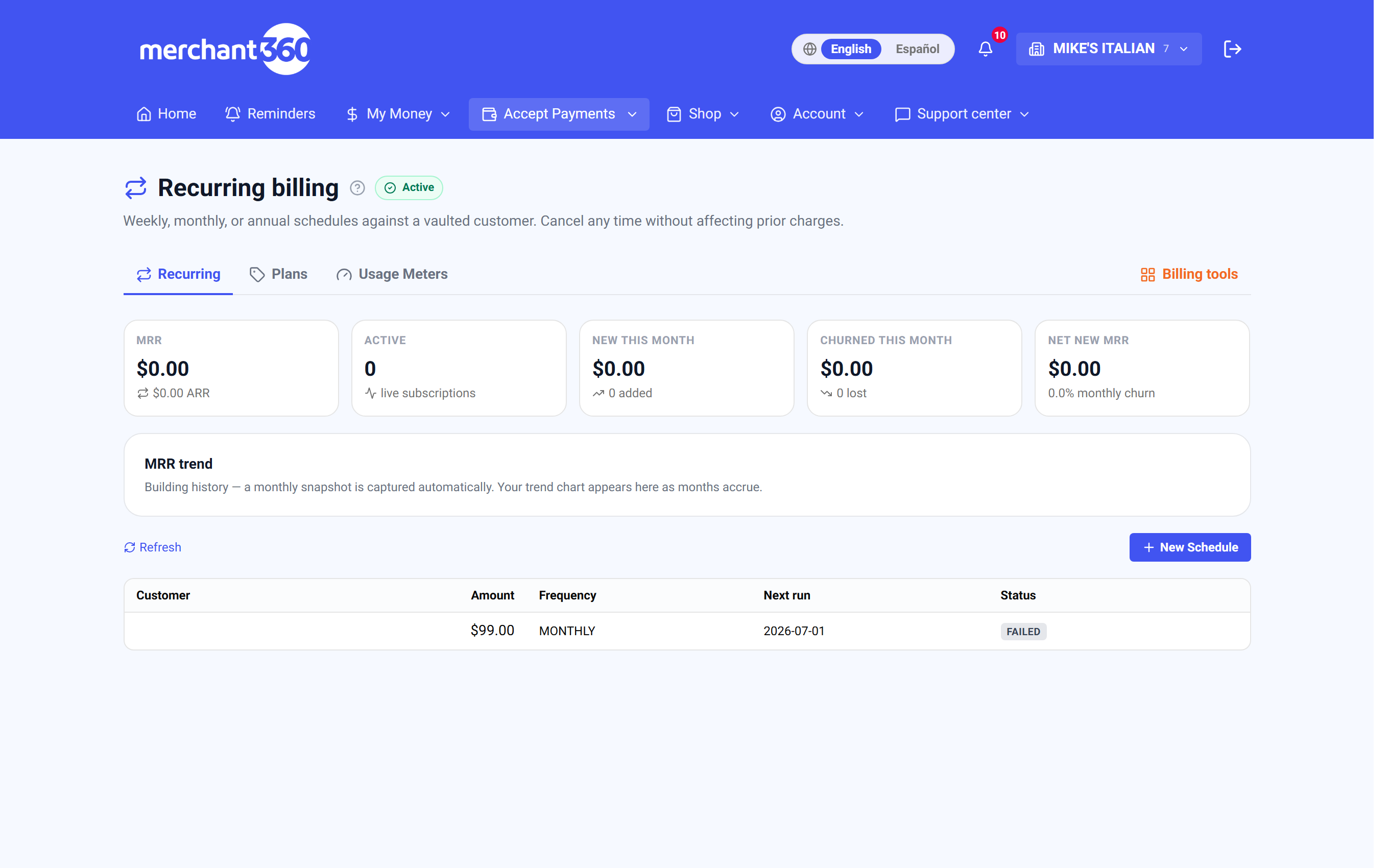
| On this screen | What it does |
|---|---|
| New Schedule | Opens the form. |
| Customer * | Every saved customer. NO CARD marks one with no card on file, who cannot be scheduled yet. |
| Payment method | Credit / Debit card charges the vaulted card. Bank / ACH is marked coming soon on this form; bank subscriptions start from your subscription pay page with a signed authorization. |
| Amount * | The charge per cycle. |
| Frequency * | WEEKLY, BIWEEKLY, MONTHLY, QUARTERLY, or ANNUAL. |
| Start date * | The first charge date (YYYY-MM-DD). |
| End date (optional) / Total payments (optional) | Stops the schedule after a date or a count. Blank means it bills until cancelled. |
| Description (optional) | Shown on the customer's receipts, for example Monthly dental cleaning plan. |
| Create Schedule | Saves it. The confirmation shows the first run date. |
| Refresh | Reloads the board. |
| Customer / Amount / Frequency / Next run / Status | The board columns. Status is Active, Paused, Past due (with the next retry date), or Cancelled. |
The list shows Card or Bank next to each customer, so you always know which method a plan runs on. If dual pricing is on, card-paying subscribers see the card price and bank subscribers the lower bank price.
Bill a bank account (ACH) on a schedule
A bank plan debits the customer's bank account each cycle instead of charging a card. The Bank / ACH choice on New schedule is available when bank payments are enabled on your account; if it is greyed out, ask your representative to enable ACH.
You pick the customer, the amount, the frequency and the start date, the same as a card plan. The customer must have an email address on their record, because that is where the authorization goes: they receive a bank authorization request, connect or enter their bank, read the recurring terms and sign. Until they do, the plan shows Awaiting bank authorization and nothing is debited. The moment they sign, the plan activates and runs on its schedule.
A bank plan has no end date or payment count – the signed authorization runs until it is revoked or you cancel the plan. A plan that is still awaiting authorization can be cancelled from the list like any other.
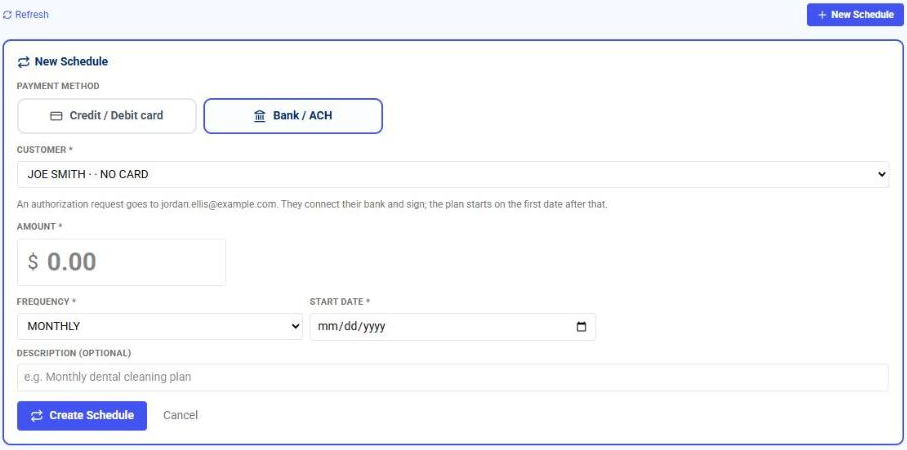
The customer needs a working email and a few minutes to sign. Tell them the request is coming so it does not sit unread.
Reusable price plans
If you sell the same subscription over and over, define it once as a plan and attach it, instead of re-entering the amount each time. Go to Accept Payments → Plans. A plan holds the price, the interval, the tax, any trial or setup fee, and the features you want customers to compare.
You can run three plan structures: Paid (a normal charged plan), Free trial (a paid plan that delays the first charge, see the next section), and Freemium. Freemium means offering a Free tier alongside one or more paid tiers: create a plan, choose Free tier, and pair it with your paid plans. A free plan never charges. Any paid plan can also start with a free trial.
Paid plans have three pricing modes. Flat is one price per cycle. Per unit is a price times a quantity, like per seat or per user, with a unit name of your choosing. Tiered is graduated volume pricing: the first so-many units at one rate, the next range at another, with the last tier left unlimited.
Done looks like this: the plan appears in the list with its Code, Name, Price, and Interval, and it is available to pick when starting a subscription from a checkout page, the pay widget, or the invoice builder. Archive a plan when you retire it; existing subscriptions keep billing at their price.
If Add plan fails, the Code and Name are both required, the price must be valid, a custom interval needs a day count, and a per-unit plan needs a price above zero. If you change a plan's price, existing subscribers keep their current amount; change a subscriber's amount from the Recurring board.
- 1Give the plan a code (like PRO-MONTHLY) and a name.
- 2Choose Paid or Free. Free is a $0 tier for freemium; Paid is charged.
- 3For a paid plan, choose a pricing mode: Flat (one price), Per unit (a price times a quantity, like per seat), or Tiered (volume pricing, where the first so-many units are one rate and the next tier another).
- 4Set the interval (weekly, every 2 weeks, monthly, quarterly, annual, or a custom number of days) and a tax rate if it applies.
- 5Optionally add a free trial (in days) and a one-time setup fee (see the next section).
- 6Add up to 5 plan features – short bullets that highlight what's different about this tier. They help customers compare your free and paid plans.
- 7Save it, and the plan is ready to attach to recurring subscriptions. Archive a plan when you retire it.
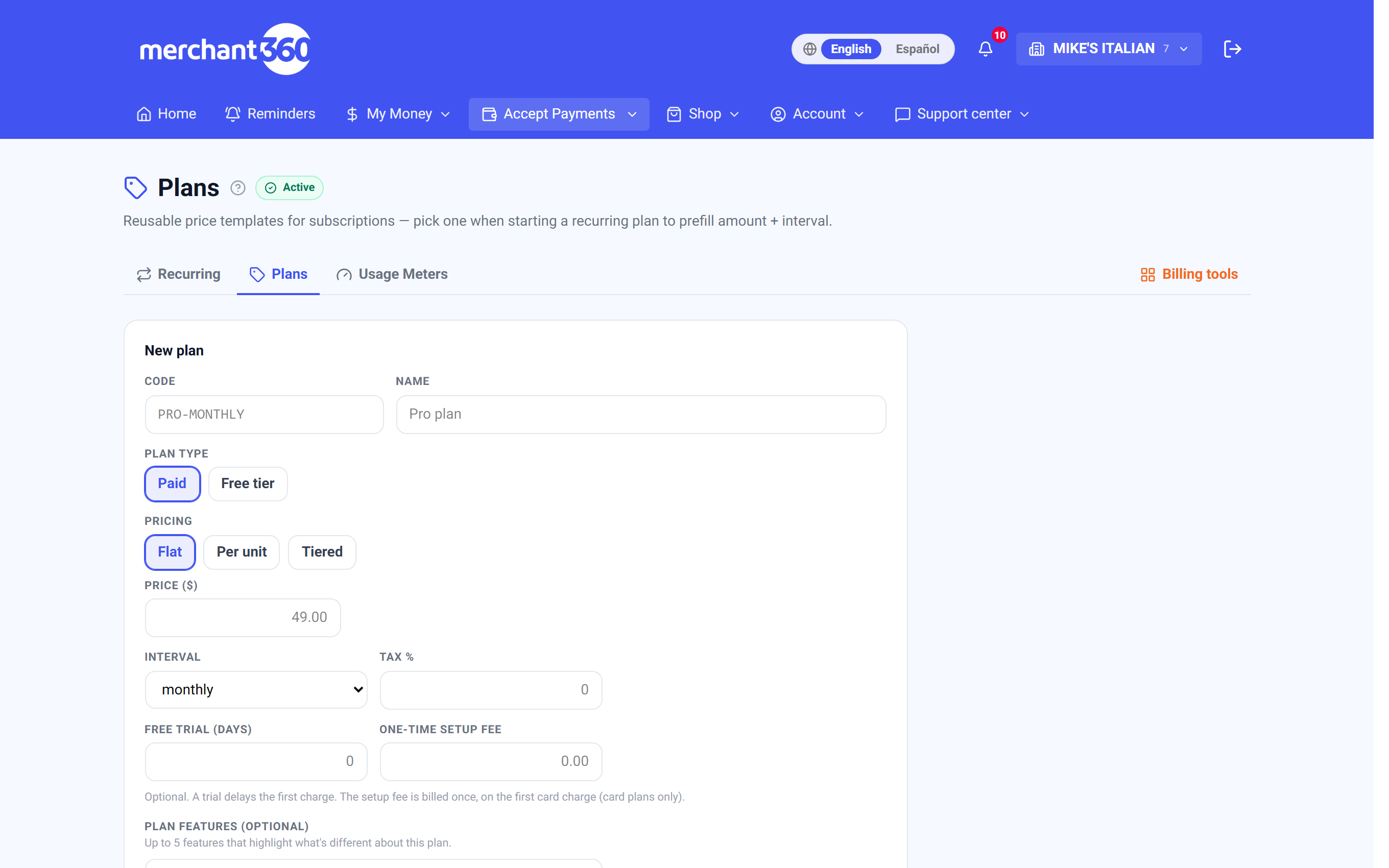
| On this screen | What it does |
|---|---|
| New plan | Opens the form. |
| Code | A short identifier like PRO-MONTHLY, used in the API and on the board. |
| Name | The customer-facing name. |
| Plan type | Paid, or Free tier (a $0 tier to pair with paid plans). |
| Pricing | Flat, Per unit, or Tiered. |
| Price ($) | The flat price per cycle. |
| Price per unit / Unit name | For Per unit plans: the rate and what a unit is called. |
| Tiers | For Tiered plans: First up to N at a rate, Then up to N at a rate; leave the last up to blank for unlimited. Add tier adds a row. |
| Interval | weekly, every 2 weeks, monthly, quarterly, annual, or custom with Every N days. |
| Tax % | Sales tax applied to each charge, if any. |
| Free trial (days) | Delays the first charge by this many days. |
| One-time setup fee | Billed once, on the first card charge. |
| Usage overage (flex fees) – optional | Pick a Meter and the units included per period. See Flex fees. |
| Plan features (optional) | Up to 5 short bullets shown when customers compare plans. |
| Add plan | Saves the plan. |
| Archive | Retires the plan from new signups. Existing subscriptions keep billing. |
Plans are templates for recurring billing. For a one-time sale, use an invoice or a payment link instead. To charge by usage (per message, per API call, and so on), set up a Usage Meter under Accept Payments → Usage Meters and attach it to a per-unit subscription – the meter also gives you a daily cap and a usage-reporting API.
Usage meters (charge by usage)
A usage meter charges by how much a customer uses (per message, per token, per API call, or any custom event) instead of a flat monthly price. Go to Accept Payments → Usage Meters. Meters are for businesses whose software or team can report usage as it happens.
Each meter has a name, a usage unit (like message), a price per unit (like $0.01), a meter key used to report usage, and a daily cap that limits how many units can be reported per day as a fraud guard. Usage you report through the meter is added up and billed on the subscription's next cycle.
Report usage two ways. From your own system, call the Merchant360 API (POST /meters/{key}/usage) each time the metered thing happens, or in batches with a quantity; the endpoint is documented under Developers → API. By hand, the Usage-based plans card on the Recurring board lists each metered subscription with its pending units this cycle and a field to Add units and Record them.
Done looks like this: the meter appears in the list with its Key, Unit, Price / unit, and Daily cap; the subscription shows units pending this cycle; and on the billing date the charge equals the units times the meter price, shown on the customer's receipt.
If a report is declined, the daily cap was hit for that meter; raise the cap (or set 0 for none) if the volume is legitimate. If usage was recorded but nothing billed, the customer has no active per-unit subscription attached to that meter; the usage has no cycle to bill on until one is created.
- 1Create a meter: give it a name, the unit charged, a price per unit, and a max-per-day cap (0 for no cap).
- 2Note the meter key (it defaults from the name). You use it to report usage from your system.
- 3Attach a per-unit subscription to the customer so the meter's usage has a cycle to bill on.
- 4Report usage as it happens (from your app via the Merchant360 API, POST /meters/{key}/usage). Each report counts toward the daily cap; once the cap is hit, further reports for the day are declined.
- 5On the subscription's billing date, the reported units are totaled and charged at the meter's price.
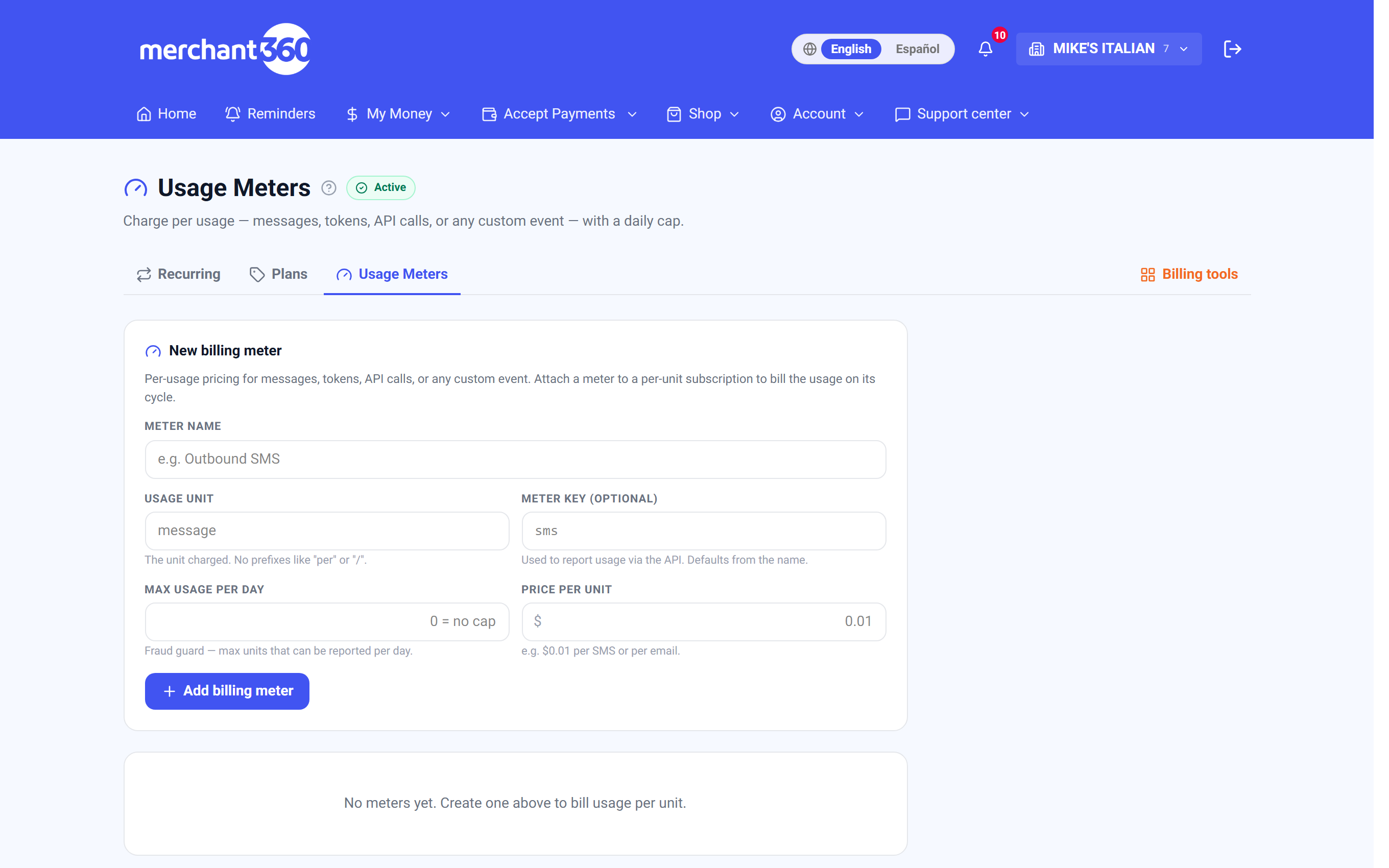
| On this screen | What it does |
|---|---|
| New billing meter | The form at the top of the page. |
| Meter name | What the meter is called on receipts and reports. |
| Usage unit | The thing being counted, for example message or token. |
| Meter key (optional) | The identifier your system reports usage with. Defaults from the name. |
| Max usage per day | The daily cap. Reports beyond it are declined for the rest of the day; 0 means no cap. |
| Price per unit | What each unit costs. |
| Key / Unit / Price / unit / Daily cap | The columns of the meter list. |
| Archive | Retires a meter. Usage already recorded still bills. |
| Usage-based plans (Recurring board) | Each metered subscription with units pending this cycle. Add units then Record posts usage by hand. |
Meters are for developers wiring usage into billing. The reporting endpoint is documented in Developers → API. If you just want a fixed monthly or annual price, use a plan instead. Reporting is per event: your system calls the usage endpoint each time the thing you're metering happens (or in batches with a quantity), and Merchant360 keeps the running total for the period.
Flex fees – included usage plus overage
Flex fees combine a flat plan price with a usage allowance and per-unit overage, the way many software products price their tiers. A plan charges its normal monthly (or annual) price and includes a set number of units of a meter each period; only usage beyond that allowance is billed, at the meter's per-unit price.
Example: a Pro plan is $49/month and includes 1,000 API calls. A customer who makes 1,000 or fewer calls pays exactly $49. A customer who makes 1,300 pays $49 plus 300 times the meter's price. Your Free, Basic, and Pro tiers can each include a different allowance of the same meter.
Set it up in two places. First create the meter under Usage Meters; its price per unit is the overage rate. Then create or edit a paid plan under Plans and, in the Usage overage (flex fees) section, pick that meter and enter how many units the plan includes per period. Attach the plan to subscriptions as usual and report usage against them through the meter.
Done looks like this: at each billing date the receipt shows the plan price plus an overage line only when the period's usage exceeded the allowance. A light user never sees more than the plan price.
If overage is charged when you expected none, check the included units on the plan and that usage is being reported against the right subscription. If the Meter dropdown on the plan shows None only, create the meter first.
- 1First create the meter you'll charge overage on (Accept Payments → Usage Meters) – its price per unit is the overage rate.
- 2Create or edit a paid plan (Accept Payments → Plans). In the Usage overage (flex fees) section, pick that meter and enter how many units the plan includes per period.
- 3Attach the plan to a customer's subscription as usual. Report usage against that subscription through the meter as it happens.
- 4At each billing date, Merchant360 totals the period's usage, subtracts the included allowance, and adds the overage (extra units times the meter price) to the plan's flat price on that one charge.
| On this screen | What it does |
|---|---|
| Usage overage (flex fees) – optional | The section on the plan form. |
| Meter | Which usage meter the plan includes. None turns flex fees off for that plan. |
| Included units per period | How many units the flat price covers each cycle. Usage above this bills at the meter's price. |
| Overage line | On the customer's receipt: extra units times the meter price, added to that one charge. |
Included usage never charges – it's covered by the flat plan price. Only the spillover is billed, so a light user is never charged more than the plan price. Give different tiers bigger allowances to build a classic good/better/best pricing ladder.
Free trials & setup fees
A plan can start with a free trial, a one-time setup fee, or both. You set these on the plan under Accept Payments → Plans (Free trial in days, and One-time setup fee), or on a subscription plan in the pay widget, and they carry through to the customer's signup page.
A free trial delays the first recurring charge by the number of days you set: the subscriber is not billed during the trial, and billing begins automatically when it ends. A setup fee is a one-time charge collected at signup (for example an activation or onboarding fee); it is billed once, on the first card charge, and never repeats.
Done looks like this: the customer's signup receipt shows what was charged today (the setup fee, the first period, both, or nothing), and the subscription shows its next charge date at the end of the trial. When the trial ends the first plan charge runs and a receipt is emailed.
If a trial signup charged nothing and you expected the setup fee, the fee is billed on the first card charge, which for a trial with no fee is the end of the trial; add a setup fee to collect something today. Bank signups never pay a setup fee because the bank authorization covers a single recurring amount.
- 1On a card signup with no trial, the customer is charged the first period plus any setup fee today, then the plan price each cycle.
- 2On a card signup with a trial, only the setup fee (if any) is charged today; the first plan charge lands when the trial ends.
- 3A free trial with no setup fee charges nothing today – the card is saved without a charge, and the first plan charge lands when the trial ends. Customers can also start a trial by bank (ACH); bank signups never pay a setup fee (the bank authorization covers a single recurring amount).
| On this screen | What it does |
|---|---|
| Free trial (days) | On the plan. The number of days before the first recurring charge. |
| One-time setup fee | On the plan. Charged once on the first card charge, never repeated. |
| Next charge | On the subscription and the subscriber's page: the date the trial ends and billing starts. |
Pairing a small setup fee with a free trial lets card customers start a trial today – the fee saves their card so billing can begin automatically when the trial ends.
Pause, resume & change the amount
From the board, each schedule has actions by status. Pause a subscription and billing stops at the next cycle with nothing lost; Resume it later to pick back up on the same cadence. Cancel ends it for good; already-billed charges are not affected, and reviving it means creating a new schedule.
Change plan amount on an active schedule and the difference is handled automatically. An upgrade charges the prorated difference to the card right now and confirms the amount charged. A downgrade is not refunded in cash: the credit carries to the next cycle as extra time, pushing the next charge date out at the new lower rate.
Done looks like this: the Status column changes to Paused or back to Active, the Next run date moves, and the customer sees the new amount on their next receipt and on their self-serve page.
If Pause is missing, the schedule is already paused or cancelled. If an upgrade charge declines, the amount does not change; fix the card first. Cancelling a schedule does not remove the card from the vault.
| On this screen | What it does |
|---|---|
| Pause | Stops billing at the next cycle. The schedule shows Paused. |
| Resume | Restarts a paused schedule on its cadence. |
| Change plan amount | Prompts for the new amount per cycle. An upgrade charges the prorated difference now; a downgrade carries the credit to the next cycle. |
| Cancel | Ends the schedule after a confirmation. Past charges are unaffected. |
| Retry now | On a Past due schedule, runs the failed charge again immediately. |
When a card fails: dunning
A declined renewal does not just die. The system reads why the card failed and retries on a schedule while emailing the customer a link to update their card. You do nothing unless you want to.
Done looks like this: the schedule shows Past due with its next retry date on the board, the customer has an email with the update link, and when a retry approves the schedule returns to Active on its own and the charge appears in Transactions as a Subscription or Manual retry.
Decide what happens when retries are exhausted under Accept Payments → Settings → Failed payments: Pause the subscription (the default, keeping the plan and card on file so it can be reactivated once the card is updated) or Cancel the subscription (ending it, so reviving it means starting a new one).
If a customer has a new card, send the update link from Saved cards → Expiring cards or have them use the link in the dunning email; saving the card retries the overdue charge immediately. If a hard decline is reported (lost, stolen, or fraud), the card is not retried; contact the customer for a different card before resuming.
- 1A soft decline (a temporary issue or insufficient funds) retries a few times over the following days.
- 2An expired or invalid card gets one courtesy retry and an email asking the customer to update their card.
- 3A hard decline (reported lost, stolen, or fraud) is not retried, and you're alerted.
- 4While a plan is chasing a payment it shows as Past due; you can Retry now any time. When the card recovers, it returns to Active on its own.
| On this screen | What it does |
|---|---|
| Past due | The status while a charge is being chased, with the next retry date. |
| Retry now | Runs the failed charge again on demand. |
| Failed payments (Settings) | Pause the subscription or Cancel the subscription when retries are exhausted. |
| Update payment card link | In every dunning email. Opens the subscriber's self-serve page where a new card retries the overdue charge. |
| Suspend billing (Expiring cards) | Pauses every plan charging an expired card in one click; resume them from the Recurring board. |
Decide what happens when retries are exhausted under Billing Settings → Dunning: pause the subscription (the default) or cancel it.
Know your recurring revenue
The Recurring page opens with a metrics strip: MRR (monthly recurring revenue, with its annual run-rate), Active subscriptions, New this month, Churned this month, and Net new MRR with your monthly churn rate. The MRR trend card underneath charts the last 12 months.
These are your real subscription numbers, month over month, without a spreadsheet. A monthly snapshot is captured automatically on the first of each month, so the chart builds as months accrue; a new account shows Building history until it has a few points.
Use it to spot churn early: a month where Churned outpaces New shows up as a dip in net MRR before it shows up in your deposits.
If the numbers look low, paused and past-due schedules are not counted as active MRR until they resume. If the trend card is empty, no month-end snapshot has been captured yet; it appears after the first full month.
| On this screen | What it does |
|---|---|
| MRR | The sum of active schedules normalized to a month, with the annual run-rate beside it. |
| Active subscriptions | How many schedules are billing. |
| New this month / Churned this month | Schedules started and ended since the first of the month. |
| Net new MRR | New minus churned, with the churn rate as a percent. |
| MRR trend | The 12-month chart. This month shows new, churned, and net beneath it. |
The subscriber's self-serve page
Subscribers get their own secure page, reached from the Manage subscription button in any plan email, with no login; the secure link is the key. It shows the plan amount, interval, next charge date, and status, and lists their full invoice history with you, each invoice one tap from its own pay page.
They can pause, resume, or cancel from that page, and update their payment card (see the next section). Anything they do shows on your Recurring board right away and is logged on the customer's timeline.
If a subscriber says the link does not work, resend any plan email or open the schedule and copy the manage link for them. If you do not want subscribers to cancel themselves, tell them to contact you; the page follows your plan's terms.
| On this screen | What it does |
|---|---|
| Manage subscription | The button in plan emails that opens the subscriber's page. |
| Plan summary | Amount, interval, next charge date, and status. |
| Pause / Resume / Cancel | The subscriber's own controls, mirrored on your board. |
| Invoice history | Every invoice with you, each opening its pay page. |
| Update payment card | Replaces the card on the subscription. On a past-due plan it retries the overdue charge at once. |
When a subscriber's card changes (self-serve card update)
Cards expire, get reissued, and get replaced after fraud, and every one of those used to mean a phone call to you. Now the subscriber fixes it themselves: their self-serve page has an Update payment card section, and every dunning email links straight to it.
On an up-to-date plan, the new card simply takes over from the next cycle. On a past-due plan, the form is already open with a Save card & retry payment button: saving the card immediately retries the overdue charge, and on approval the subscription reactivates on the spot, with no action from you and no gap in service.
Done looks like this: the schedule returns to Active on your board, the recovered charge appears in Transactions, the old card is retired in the vault, and every other plan, autopay enrollment, or installment plan that used the old card switches to the new one.
If you would rather send the link yourself, use Send update link on the Expiring cards panel under Saved cards, or Copy link and text it. If the retry declines on the new card too, the plan stays Past due and the customer sees the reason on the page.
- 1The subscriber opens their subscription page from any plan email (the Manage subscription button) – no login, the secure link is the key.
- 2They tap Update payment card and enter the new card.
- 3On an up-to-date plan, the new card simply takes over from the next cycle.
- 4On a past-due plan, the form is already open with a Save card & retry payment button: saving the card immediately retries the overdue charge, and on approval the subscription reactivates on the spot – no action from you, no gap in service.
| On this screen | What it does |
|---|---|
| Update payment card | On the subscriber's page. Opens the card form. |
| Save card & retry payment | On a past-due plan. Saves the card, retries the overdue charge, and reactivates the subscription on approval. |
| Save card | On an active plan. The new card takes over from the next cycle. |
| Send update link / Copy link | On Saved cards → Expiring cards: emails the customer the secure update page, or copies it to text or read out. |
This is the recovery path for failing cards: the dunning emails chase, the link lands the customer on the update form, and a fixed card settles the overdue balance the same minute. You'll see the recovered charge in Transactions like any sale.