
Surcharge & dual pricing
Offset card costs the compliant way – a surcharge, or a cash discount.
Two ways to offset card fees
There are two accepted ways to pass card-acceptance costs along, and Merchant360 supports both. You run one or the other, never both at once.
Surcharge: a small percentage added on top of the price when a customer pays by credit card. The customer sees it as its own labeled line before they pay. Debit and prepaid cards are never surcharged.
Dual pricing (cash discount): you show two prices, a card price and a lower cash price. Customers who pay by cash, bank, or debit get the lower price. Nothing is added on top; the difference is built into the prices.
Which one your account uses is set up with your sales rep to match the rules for your state and the card brands. A surcharge program is enrolled through your rep and confirmed by you on an enrollment page; dual pricing is switched on by you on the Dual pricing card in Settings. Once it is set, every Merchant360 surface (virtual terminal, invoices, payment links, checkout, the pay widget, and the mobile app) applies it the same way.
If you are not sure which program you are on, open Settings: the Dual pricing card either shows your dual pricing switches or a notice that a surcharge program is active.
| On this screen | What it does |
|---|---|
| Dual pricing card | Where you switch dual pricing on, choose the mode, set the percentage, and decide how debit cards are priced. |
| A surcharge program is active | The notice on the same card when your account runs a surcharge. Dual pricing settings are paused while it is on. |
| Surcharge program active | The banner on the virtual terminal naming your surcharge percentage. |
How a surcharge is calculated
The surcharge is a percentage of the final amount actually being charged. It is applied last, after any discounts and tax, on the real total that goes to the card.
Example: a sale with tax and a discount comes to $100.00 at checkout. With a 3% surcharge, the customer paying by credit card is charged $103.00, and the extra $3.00 shows as a clearly labeled Surcharge line on the pay screen and on the receipt.
Surcharge applies to credit cards only. Debit and prepaid cards are recognized from the card number the moment it is typed or tapped, and the surcharge line disappears. You never have to ask the customer which kind of card it is.
You can watch this on the virtual terminal: key an amount, type a credit card, and the Subtotal, Surcharge, and Total lines appear; type a debit card and the total returns to the base amount.
The Merchant360 mobile terminal follows the same program. Before the card is presented its sale screen shows both outcomes, a Credit total with the Surcharge itemized and a Debit total with nothing added, and the card type decides which one is charged. The Mobile terminal chapter has the screen.
If a customer questions the fee, show them the itemized line: the receipt names it as a surcharge and shows the percentage, which is what the card brands require.
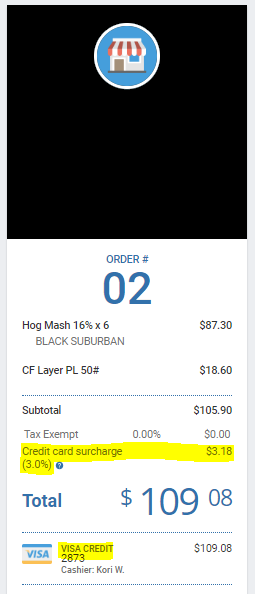
| On this screen | What it does |
|---|---|
| Surcharge program active | The terminal banner stating the percentage added to credit card sales and that debit cards are never surcharged. |
| Subtotal / Surcharge / Total | The itemized box on the terminal, invoice pay page, and hosted checkout once a credit card is recognized. |
| Surcharge line on the receipt | The separate, labeled line every surcharged sale prints, on email, PDF, and paper receipts. |
The signage Visa requires – at the door and at the register
If you surcharge, Visa requires you to tell customers before they reach the payment step, in two specific places, and again on the receipt. This comes straight from Visa's Merchant Surcharging Considerations and Requirements, linked below.
At the point of ENTRY (your door or your website's entry page): post that you surcharge credit cards, before the customer starts shopping. Approved language: "We impose a surcharge on credit cards that is not greater than our cost of acceptance."
At the point of SALE (the register, the counter, or your checkout page): post the actual rate, where the customer pays. Approved language: "We impose a surcharge of [Rate]% on the total transaction amount on credit cards, which is not greater than our cost of acceptance. We do not surcharge debit cards."
On the RECEIPT: the final surcharge amount must be identified separately, as its own itemized line labeled as a surcharge. Merchant360 does this automatically on every surface that surcharges.
Visa's other requirements, in brief: credit transactions only, since debit and prepaid cards can never be surcharged in any state; no more than your cost of acceptance and never above 3% even when your cost is higher; 30 days' notice to your acquirer before you begin surcharging, which EPI registers with you; and some states prohibit or limit surcharging (at Visa's last published list: Connecticut, Maine, Massachusetts, and Oklahoma), which your sales rep confirms before setup.
If you sell online, the entry-page notice goes on your home page or store landing page and the rate notice goes on the checkout page. The hosted checkout and pay pages already itemize the surcharge, so the receipt requirement is covered for you.
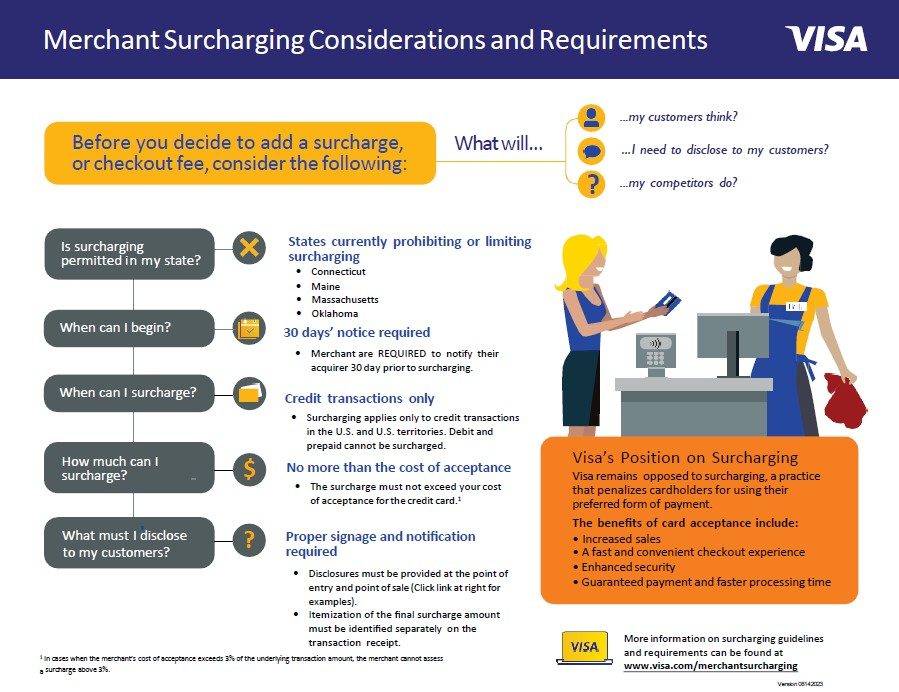
| On this screen | What it does |
|---|---|
| Enrollment page: Program, Rate shown on receipts, Effective date | What your rep sends you to confirm before a surcharge program starts. Confirm enrollment sends it for compliance review; Decline lets you tell your rep why. |
| Enrollment page: Signed pricing page and Required disclosure signage | The paperwork on file for the program, including the signs you must post. |
| Compliance acknowledgment | Your agreement that the program follows the card brand rules for your state and that signage is posted at the point of entry and point of purchase. |
Your signage is checked in the real world; card brands use secret shoppers. Print both signs, post them where Visa says, and keep the receipt itemization on.
How dual pricing looks to the customer
With dual pricing you keep one set of prices in your catalog. At payment time the customer sees both totals, the card price and the cash price, chooses how to pay, and the matching total is charged. On an invoice pay page the customer picks Card or Pay by bank and the total changes with the choice; on the virtual terminal the two tiles show both prices as you key the amount.
The card and cash rates live on the Dual pricing card in Settings, so every tool agrees. Change the rate once and the virtual terminal, invoices, estimates, payment links, checkout, the pay widget, and the mobile app all update together.
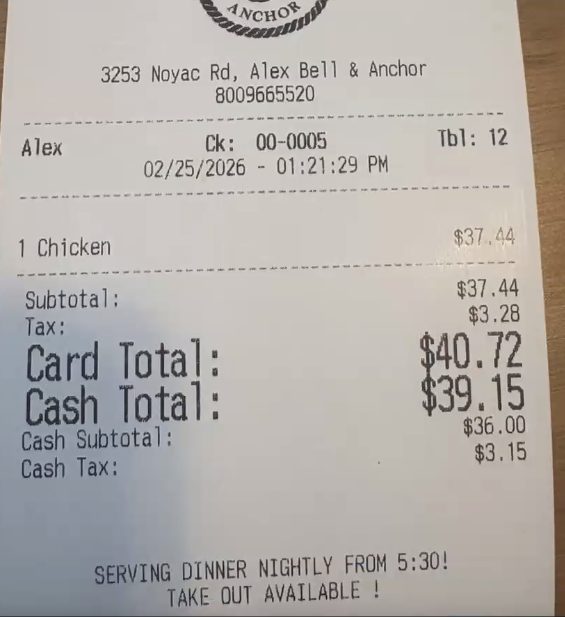
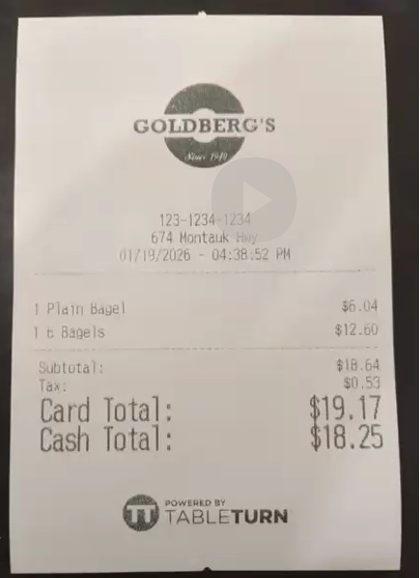
Receipts print the price that applied. A customer who paid by card sees the card total on their receipt; one who paid by bank or cash sees the cash total, with its own tax line.
If a customer says the invoice total does not match the amount charged, they compared the cash price on the invoice with a card payment. Both prices are on the invoice and the pay page; the receipt shows the one they chose.
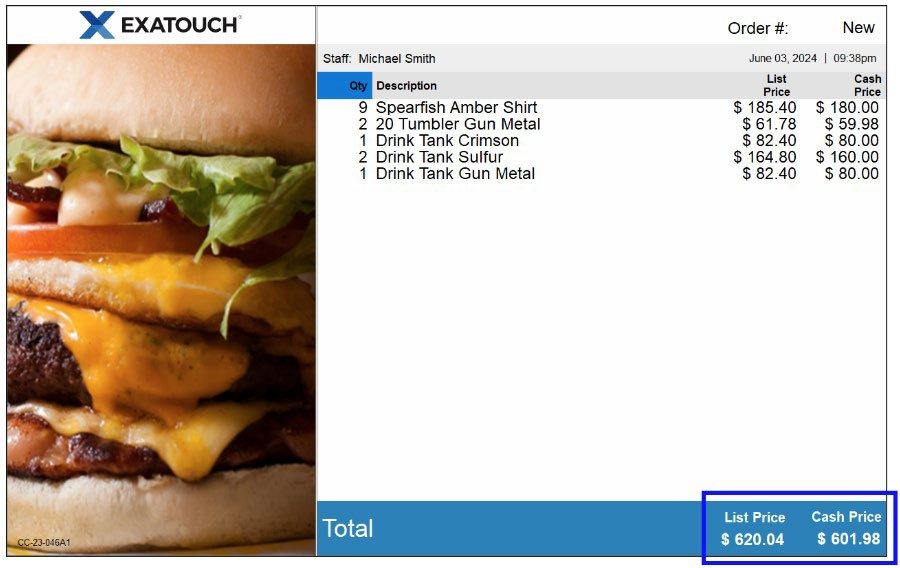
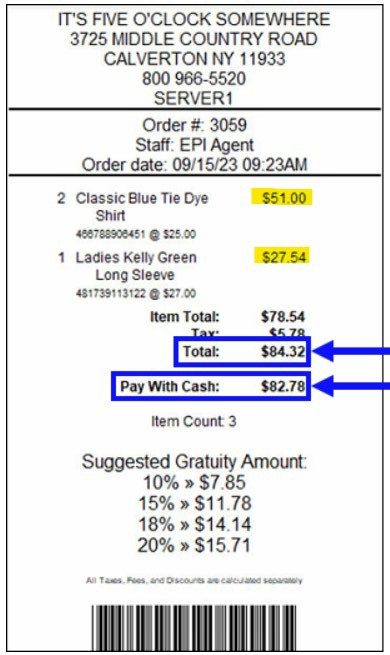
| On this screen | What it does |
|---|---|
| Card price / Check (ACH) price | The two tiles on the virtual terminal showing both totals for the keyed amount. |
| Card price and cash price on invoices | Every invoice, estimate, and pay page shows both totals; the customer's choice of tender sets the amount charged. |
| Preview (Pay Widget) | Shows your hosted pay page exactly as a customer sees it, including both prices. |
Credit vs. debit pricing (the gas-station option)
Some merchants want two prices without treating debit cards like credit cards, the way a gas station posts a Credit price and a Debit price. Merchant360 supports this with one switch on the Dual pricing card: Treat debit cards like ACH / cash.
With it on, only credit cards pay the card price. Debit and prepaid cards, recognized automatically from the card number, pay the same lower price as bank and cash. Example: Credit $1.04, Debit / ACH / Cash $1.00.
The virtual terminal shows it live: the two price tiles relabel to Credit price and Debit / ACH / cash price, and as you key a card the total steps up to the credit price only when the card is confirmed credit. A debit card keeps the lower total, with a note under the total telling you which price applied.
The same rule is enforced on invoices, payment links, hosted checkout, subscriptions (a debit-card subscriber enrolls and renews at the lower price), and the embedded terminal. When a card cannot be positively identified as credit, it gets the lower price, so the customer is never overcharged against your posted debit price.
One limit to know: the physical countertop reader cannot price this way, because the card is not read until the customer taps or dips, after the amount is already set. Credit-vs-debit pricing applies to keyed and online card entry.
If the tiles still read Card price and Check (ACH) price after you save, the switch did not take; reload Settings and check that Show a card price and a cash price is on as well.
- 1Open Accept Payments → Settings and find the Dual pricing card.
- 2Make sure Show a card price and a cash price is on.
- 3Tick Treat debit cards like ACH / cash. The example row updates to show Credit and Debit / ACH / Cash prices.
- 4Open the virtual terminal: the tiles now read Credit price and Debit / ACH / cash price.
| On this screen | What it does |
|---|---|
| Treat debit cards like ACH / cash | Only credit cards pay the card price. Debit and prepaid cards pay the cash price. |
| Credit price / Debit / ACH / cash price | The relabeled tiles on the virtual terminal when the switch is on. |
| Credit card, credit price applied / Debit card, debit price applied | The note under the terminal total naming the price the typed card received. |
What dual pricing is not
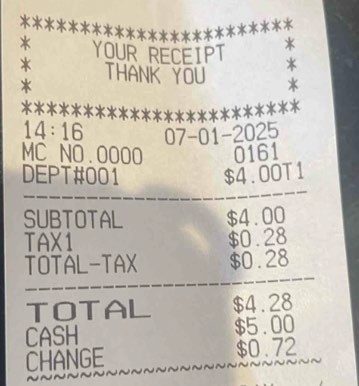
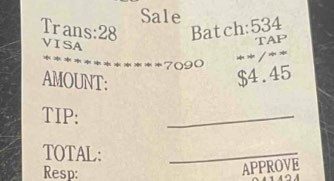
One setup to steer clear of: ringing the sale at the lower cash price and letting the payment terminal add the difference when a card comes out. That is not dual pricing. It is a fee added on top of the price that was rung up, and the receipt shows the lower number, so the paper does not match what the card was actually charged.
Real dual pricing rings every item at both of its prices from the first scan, presents both totals, and prints the receipt that matches how the customer chose to pay.
Merchant360 is built this way on every surface. The virtual terminal, invoices, payment links, checkout, the pay widget, and the mobile app all carry both prices from the start and print the total that matches the tender, so you cannot fall into this trap by accident.
If a customer shows you a receipt and a card statement that do not match, the sale did not come from a Merchant360 surface or the dual pricing switch was off at the time; check the transaction on Money → Transactions, which records the price that applied.
| On this screen | What it does |
|---|---|
| Dual pricing / Cash discount | The two compliant modes on the Dual pricing card. Both present two prices before the customer pays. |
| On a $X item | The example row that shows both prices for a sample amount, exactly as they will print. |
Every Merchant360 surface rings both prices from the start and prints the total that matches the tender.
When your sales office sets the rate
Your sales office can set the dual pricing or cash discount program and its percentage for you and lock them, for example when your pricing agreement fixes the rate. When they do, the Dual pricing card under Billing settings shows the program buttons and the percentage field greyed out, with a notice that they are set by your sales office.
Everything else on the card stays yours: the switch that turns the pricing on or off, whether it shows on the register, and the credit-versus-debit option. Saving the card with the lock on keeps the office's program and percentage exactly as they were.
To change the program or the percentage, contact your representative; the change is made on their side and shows on your card at once.
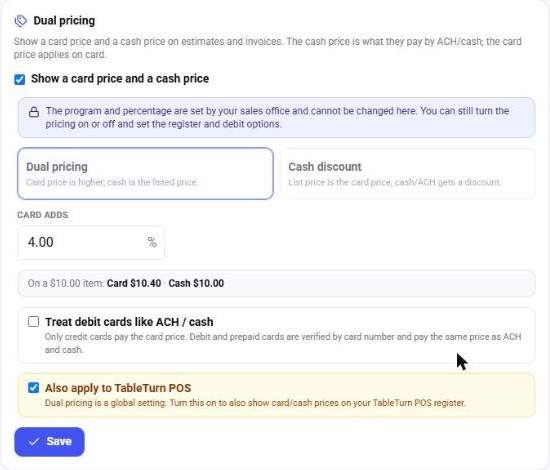
| On this screen | What it does |
|---|---|
| The program and percentage are set by your sales office | The notice on the Dual pricing card while the lock is on. The Dual pricing / Cash discount buttons and the percentage field are read-only. |
| Enable dual pricing | Still yours: turns the pricing on or off for invoices, estimates, the terminal and the register. |
| Show on the register / Debit as cash | Still yours: where the two prices show and whether debit cards pay the cash price. |
If you believe the locked rate is wrong for your state, tell your representative; state and card-brand rules decide what the rate may be.
Staying compliant
Both methods require that the customer can see the cost before they commit, and Merchant360 is built to do exactly that: the surcharge is itemized, or both prices are shown, on every pay screen and receipt.
Surcharging has state-level and card-brand rules, including caps and where it is allowed. Your sales rep configures your account to fit, and a surcharge program starts only after you confirm the enrollment page and it passes compliance review. You do not have to track the fine print.
You stay compliant by leaving the itemization on, keeping your signs posted, and ringing sales normally so the right price is presented for you.
If you move, add a location, or your rules change, let your rep know so the setup stays correct. If your rep sends a new enrollment page, review the Program, Rate shown on receipts, and Effective date before you click Confirm enrollment; use Decline and tell us why if anything is wrong.
| On this screen | What it does |
|---|---|
| Confirm enrollment | Sends a surcharge or dual pricing enrollment your rep prepared to EPI Compliance for review. You are emailed when it is reviewed. |
| Decline / Tell us why you're declining / Confirm decline | Turns the enrollment down and lets your rep know the reason. |
| Fee schedule changes | The table on the enrollment page listing each fee now and after enrollment. |
| Read the full Card Brand Rule Compliance attestation | The complete attestation you agree to when confirming. |
Ring the sale normally and the right price is presented for you.